> ## Documentation Index
> Fetch the complete documentation index at: https://slatehq.com/docs/llms.txt
> Use this file to discover all available pages before exploring further.
# Client health and reports
> Understand how Slate scores client health, set your own pulse, choose agency alerts and the weekly brief, and share the client health report.
Slate gives every Active client a daily health score built from three pillars: Relationship, Delivery, and Results. Alerts, the weekly brief, and the client health report all build on it.
## Why it matters
Health shows which clients are slipping and why, before a renewal is at risk. Every point up or down links to its evidence, such as a call quote or an overdue task.
## Health bands
| Band | When |
| - | - |
| **Healthy** | Score 70 or more, and no pillar is At risk. |
| **Watch** | Score 45–69, or any pillar is At risk. |
| **At risk** | Score under 45, or your pulse says At risk. |
| **Not enough data** | Fewer than 2 of the 3 pillars have data. |
Scores update once a day at 06:00, in the time zone set in **Agency settings → Weekly brief**. Slate uses UTC until you set one. Retainer and renewal date don't affect health. They only decide which clients appear first.
## What each pillar looks at
Each pillar starts at 70. Signals add or take away points, and each one shows up as a driver.
* **Relationship** (35%) — sentiment on recent client calls, and risk signals raised on calls, such as a budget pause or talks with another agency. It also counts whether the decision maker has been absent for 30 days and whether someone new joined a call. Other signals: no client touch within the check-in cadence, no meeting booked, and items waiting on the client.
* **Delivery** (35%) — overdue tasks, tasks blocked on your agency for 5 days or more, failed runs in the last 14 days, and tasks done in the last 30 days.
* **Results** (30%) — organic clicks from Search Console over the last 28 days compared with the 28 days before, and how often AI answers mention the client's brand.
Results needs Search Console or AI Visibility tracking in the client's workspace. Relationship needs a client call or a note. Delivery needs tasks or work in Slate.
## See health on the Clients tab
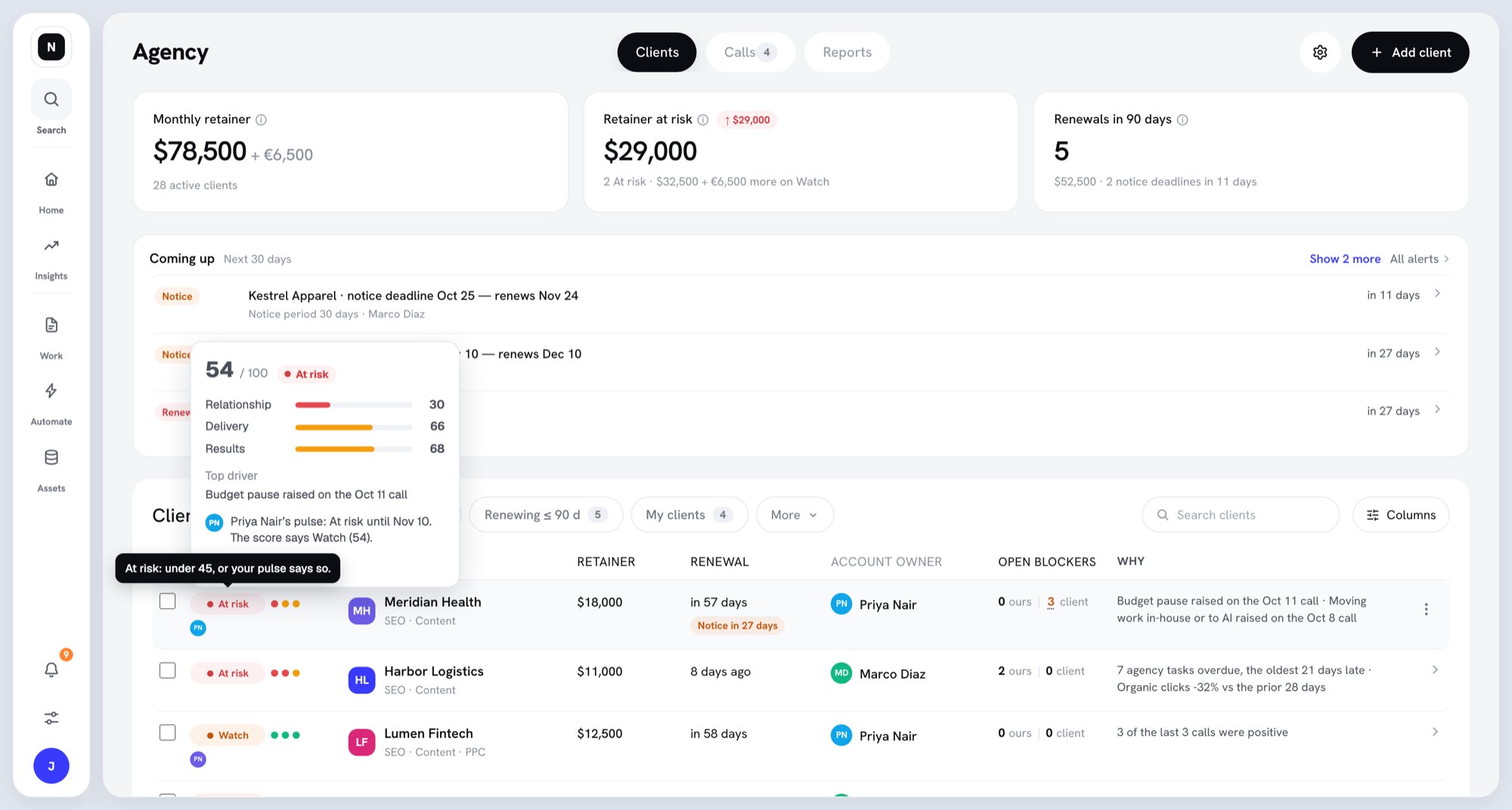
The **Health** column shows each client's band, and the **Why** column gives the top reasons. Hover over a band to see the score, the three pillars, and the top driver.
 ## The Health tab
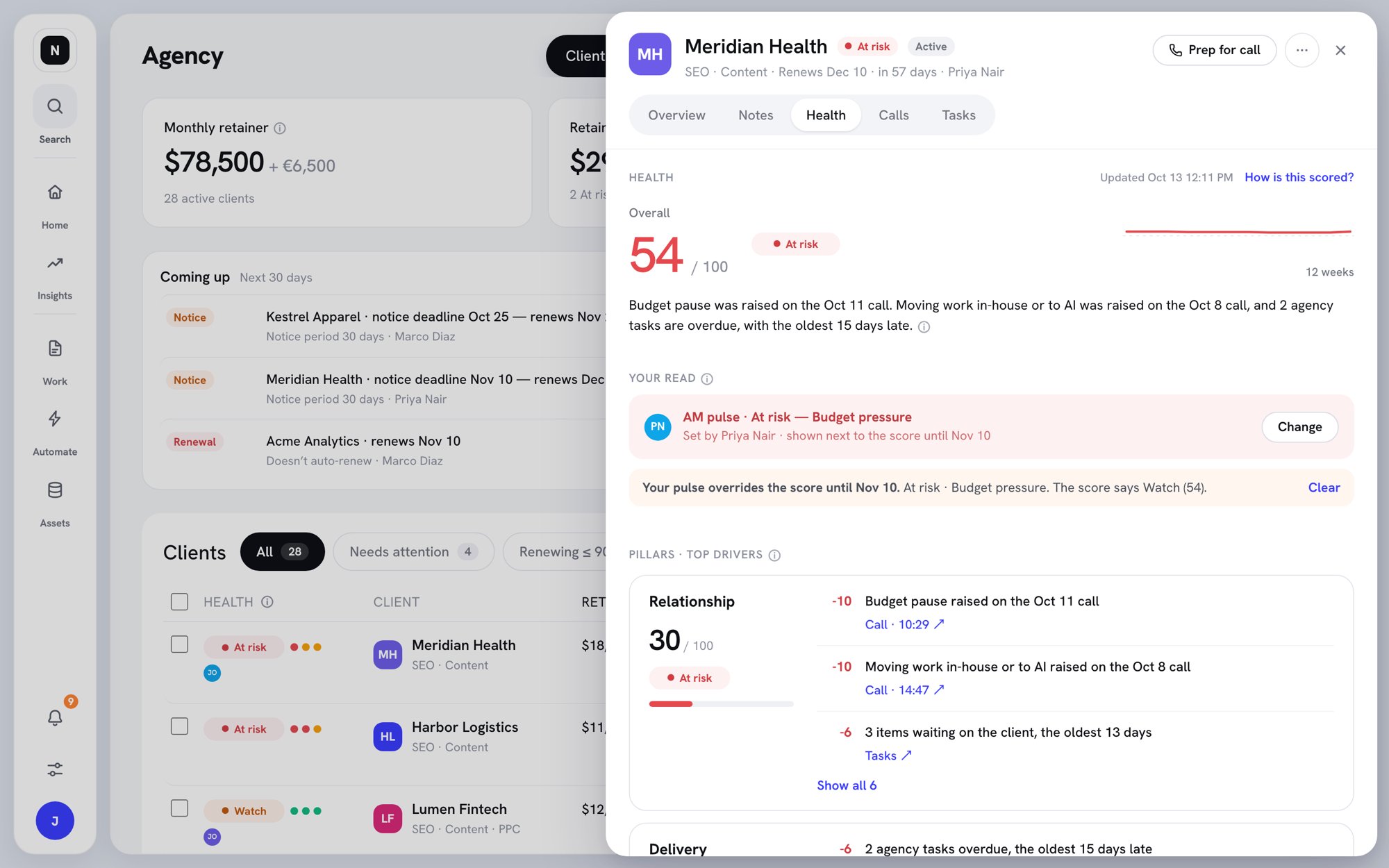
Open a client and click **Health** to see:
* **Overall** — the score, its band, and the trend over the last 12 weeks.
* A short summary written from the top drivers.
* **Your read** — the account manager's pulse, if one is set.
* **Pillars · top drivers** — each pillar's score and the drivers that moved it. Click a driver's link, such as **Call · 10:29**, to see the evidence.
* **Waiting on the client** — tasks waiting on the client. They count against Relationship, never against Delivery.
## The Health tab
Open a client and click **Health** to see:
* **Overall** — the score, its band, and the trend over the last 12 weeks.
* A short summary written from the top drivers.
* **Your read** — the account manager's pulse, if one is set.
* **Pillars · top drivers** — each pillar's score and the drivers that moved it. Click a driver's link, such as **Call · 10:29**, to see the evidence.
* **Waiting on the client** — tasks waiting on the client. They count against Relationship, never against Delivery.
 ## Set a pulse
A pulse is your own read of the relationship. While it lasts, the band shows your read instead of the score. The score stays visible.
1. On the **Health** tab, click **Set pulse**, or **Change** to edit an existing one.
2. Under **How is it going?**, pick **Good**, **Concerned**, or **At risk**.
3. Optional: pick a **Reason** and add a note. A note is required when the reason is **Other**.
4. Under **Keep it for**, pick **7**, **14**, or **30 days**.
5. Click **Save pulse**.
Slate reminds you the day before a pulse expires. Click **Clear** to go back to the score early.
## Alerts
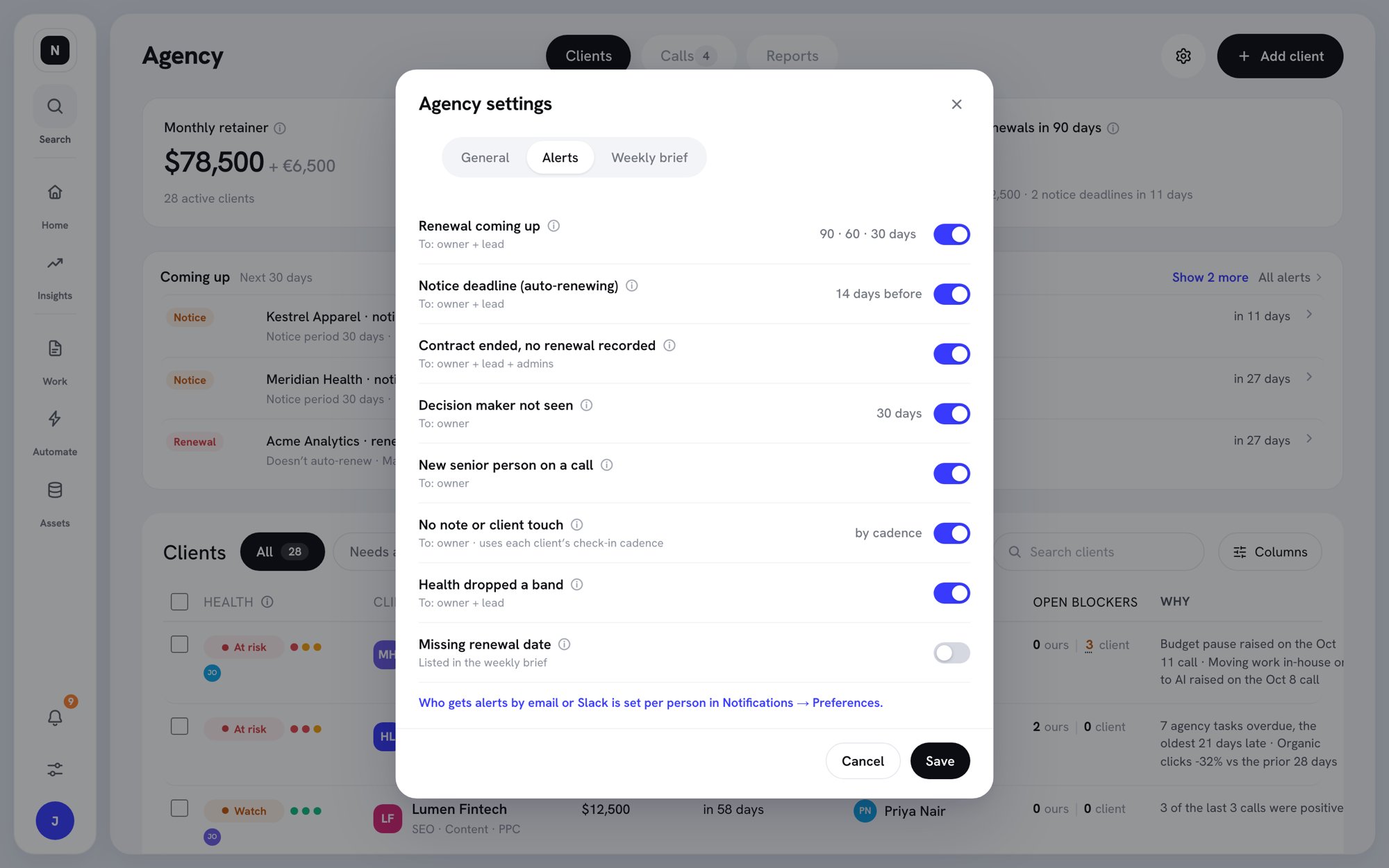
Slate sends client alerts to your inbox, and by email or Slack. To choose which alerts are on:
1. On the Agency page, click the gear icon (**Agency settings**).
2. Open the **Alerts** tab.
3. Turn each alert on or off, then click **Save**.
| Alert | Goes to |
| - | - |
| **Renewal coming up** (up to 4 reminders, 7–180 days before) | Account manager and director |
| **Notice deadline (auto-renewing)** | Account manager and director |
| **Contract ended, no renewal recorded** | Account manager, director, and admins |
| **Decision maker not seen** | Account manager |
| **New senior person on a call** | Account manager |
| **No note or client touch** (uses the check-in cadence) | Account manager |
| **Health dropped a band** | Account manager and director |
| **Missing renewal date** | Listed in the weekly brief |
Clients with no account manager send their alerts to admins. Each person chooses email or Slack for alerts in **Notifications → Preferences**. See [Notifications](/docs/settings/notifications).
## Set a pulse
A pulse is your own read of the relationship. While it lasts, the band shows your read instead of the score. The score stays visible.
1. On the **Health** tab, click **Set pulse**, or **Change** to edit an existing one.
2. Under **How is it going?**, pick **Good**, **Concerned**, or **At risk**.
3. Optional: pick a **Reason** and add a note. A note is required when the reason is **Other**.
4. Under **Keep it for**, pick **7**, **14**, or **30 days**.
5. Click **Save pulse**.
Slate reminds you the day before a pulse expires. Click **Clear** to go back to the score early.
## Alerts
Slate sends client alerts to your inbox, and by email or Slack. To choose which alerts are on:
1. On the Agency page, click the gear icon (**Agency settings**).
2. Open the **Alerts** tab.
3. Turn each alert on or off, then click **Save**.
| Alert | Goes to |
| - | - |
| **Renewal coming up** (up to 4 reminders, 7–180 days before) | Account manager and director |
| **Notice deadline (auto-renewing)** | Account manager and director |
| **Contract ended, no renewal recorded** | Account manager, director, and admins |
| **Decision maker not seen** | Account manager |
| **New senior person on a call** | Account manager |
| **No note or client touch** (uses the check-in cadence) | Account manager |
| **Health dropped a band** | Account manager and director |
| **Missing renewal date** | Listed in the weekly brief |
Clients with no account manager send their alerts to admins. Each person chooses email or Slack for alerts in **Notifications → Preferences**. See [Notifications](/docs/settings/notifications).
 ## Weekly brief
The weekly brief is a short summary: money at risk, who needs attention, and what to do next. By default it goes out on Monday morning.
* **Leadership version** — every Owner and Admin gets the whole portfolio, with money.
* **AMs get their own version** — each account manager gets only their clients.
Set the day, time, time zone, and channels (**Email**, **Slack DM**) on the **Weekly brief** tab in **Agency settings**.
## Agency settings
Click the gear icon on the Agency page. Owners and Admins can change these settings.
* **General** — the **HQ workspace**, **Agency email domains**, and **Staff connections**: whether staff can connect their own call recorders and Google Calendar.
* **Alerts** — see [Alerts](#alerts).
* **Weekly brief** — see [Weekly brief](#weekly-brief).
## Client health report
The **Reports** tab on the Agency page holds the **Client health report**.
## Weekly brief
The weekly brief is a short summary: money at risk, who needs attention, and what to do next. By default it goes out on Monday morning.
* **Leadership version** — every Owner and Admin gets the whole portfolio, with money.
* **AMs get their own version** — each account manager gets only their clients.
Set the day, time, time zone, and channels (**Email**, **Slack DM**) on the **Weekly brief** tab in **Agency settings**.
## Agency settings
Click the gear icon on the Agency page. Owners and Admins can change these settings.
* **General** — the **HQ workspace**, **Agency email domains**, and **Staff connections**: whether staff can connect their own call recorders and Google Calendar.
* **Alerts** — see [Alerts](#alerts).
* **Weekly brief** — see [Weekly brief](#weekly-brief).
## Client health report
The **Reports** tab on the Agency page holds the **Client health report**.
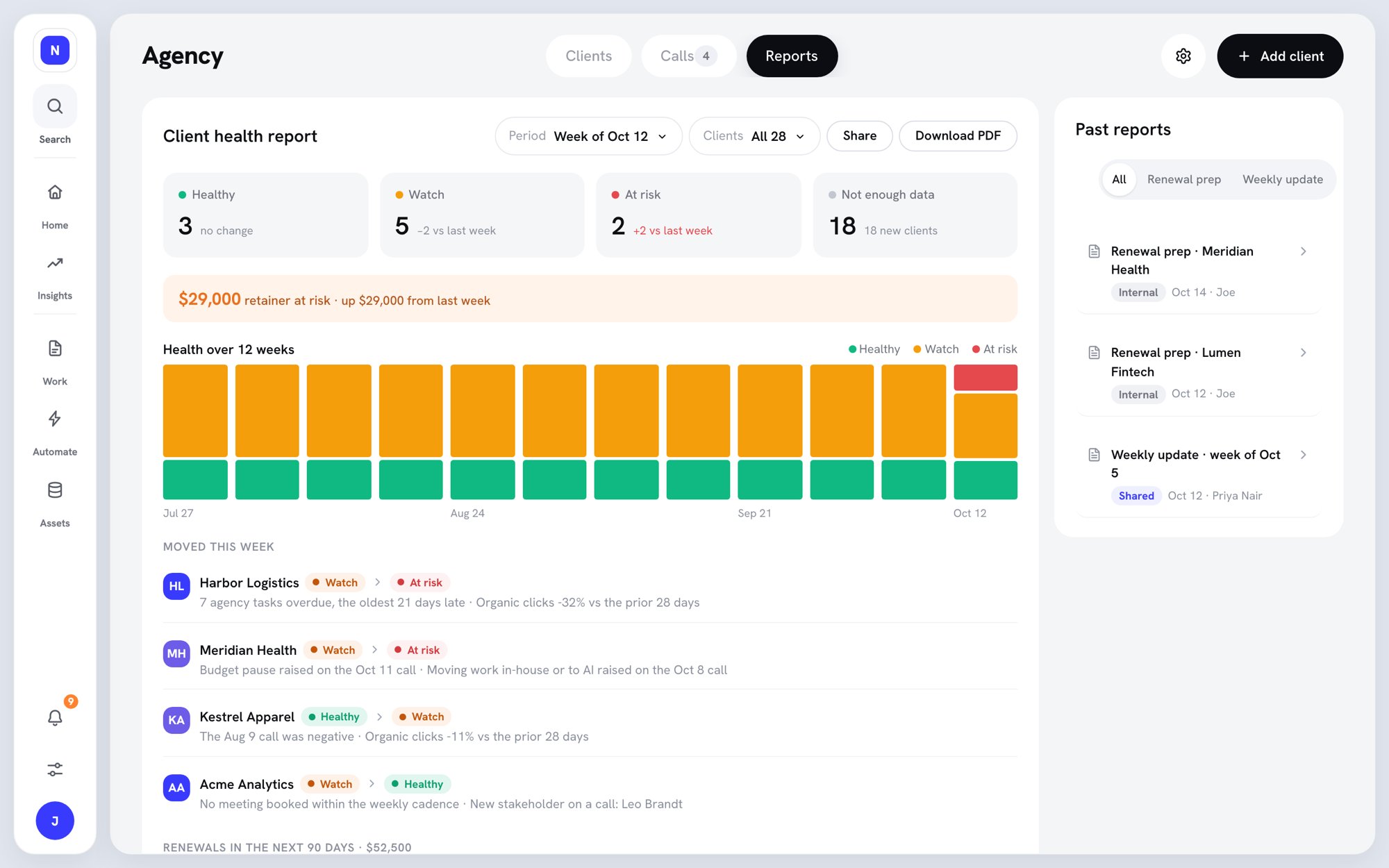 The report shows how many clients are in each band and the retainer at risk. It also covers health over 12 weeks, clients that changed band, renewals in the next 90 days, items waiting on clients, and wins from client calls.
1. Pick a **Period**: **This week**, **Last week**, **Last 4 weeks**, **Last quarter**, or **Pick dates…**.
2. Pick **Clients** to narrow the report.
3. Click **Share**, then **Copy link** to share it inside your agency. Each person sees only the clients they can see, and client users can't open the link.
4. Click **Download PDF** for a file copy.
**Past reports**, on the right, lists saved renewal preps and weekly updates. Filter by **All**, **Renewal prep**, or **Weekly update**.
## What's next
* [Account manager workflows](/docs/agency/account-manager-workflows)
* [Client records](/docs/agency/client-records)
* [Client calls](/docs/agency/client-calls)
This documentation is built and hosted on [Mintlify](https://mintlify.com), a developer documentation platform.
The report shows how many clients are in each band and the retainer at risk. It also covers health over 12 weeks, clients that changed band, renewals in the next 90 days, items waiting on clients, and wins from client calls.
1. Pick a **Period**: **This week**, **Last week**, **Last 4 weeks**, **Last quarter**, or **Pick dates…**.
2. Pick **Clients** to narrow the report.
3. Click **Share**, then **Copy link** to share it inside your agency. Each person sees only the clients they can see, and client users can't open the link.
4. Click **Download PDF** for a file copy.
**Past reports**, on the right, lists saved renewal preps and weekly updates. Filter by **All**, **Renewal prep**, or **Weekly update**.
## What's next
* [Account manager workflows](/docs/agency/account-manager-workflows)
* [Client records](/docs/agency/client-records)
* [Client calls](/docs/agency/client-calls)
This documentation is built and hosted on [Mintlify](https://mintlify.com), a developer documentation platform.