> ## Documentation Index
> Fetch the complete documentation index at: https://slatehq.com/docs/llms.txt
> Use this file to discover all available pages before exploring further.
# Manage clients
> Use the Agency Clients tab to see every client, add clients, change client status, set each client's team, and group several workspaces under one client.
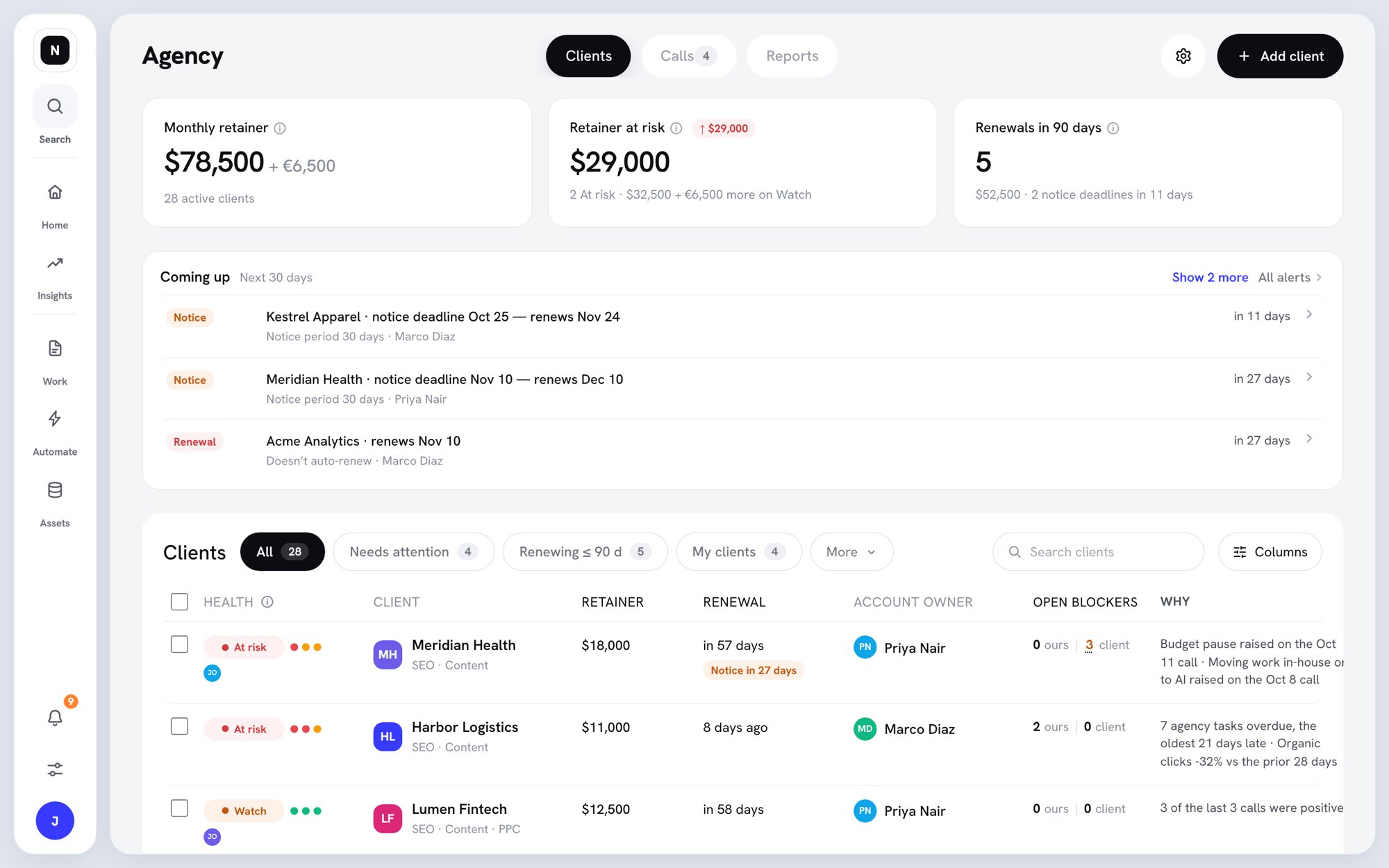
The **Clients** tab on the Agency page lists every client with its health, retainer, renewal, and account manager. From here you add clients, change their status, and set who works on them.
## Why it matters
One list shows which clients need attention, which renew soon, and which have no account manager. Client statuses also decide how many client workspaces you use.
## Read the Clients tab
1. Open the workspace switcher and click **Agency**.
2. The **Clients** tab opens first.
 ### Summary cards
* **Monthly retainer** — what Active clients pay each month, by currency. Projects count as their monthly equivalent.
* **Retainer at risk** — the monthly retainer of clients that are At risk. Clients on Watch are counted underneath.
* **Renewals in 90 days** — contracts renewing in the next 90 days, with their notice deadlines.
Click a card to filter the list. Members who aren't admins see only their own clients. They see retainer figures only for clients they manage or direct.
### Coming up
**Coming up** lists what's due in the next 30 days: **Renewal**, **Notice**, **Leaving**, **New person**, and **Meeting** items. Click **All alerts** to open the client alerts in your inbox.
### Tabs, search, and columns
* **All**, **Needs attention**, **Renewing ≤ 90 d**, and **My clients** filter the list.
* **More** holds **Unassigned**, **Inactive**, and, for admins, an **Account manager** filter.
* **Search clients** finds a client by name.
* **Columns** shows or hides columns. **Health** and **Client** are always shown. Optional columns are **Last client touch**, **Overdue tasks**, **Work delivered · 30 d**, and **Pillar scores**. Your choice is saved for you.
Health updates once a day at 06:00. See [Client health and reports](/docs/agency/client-health).
## Add a client
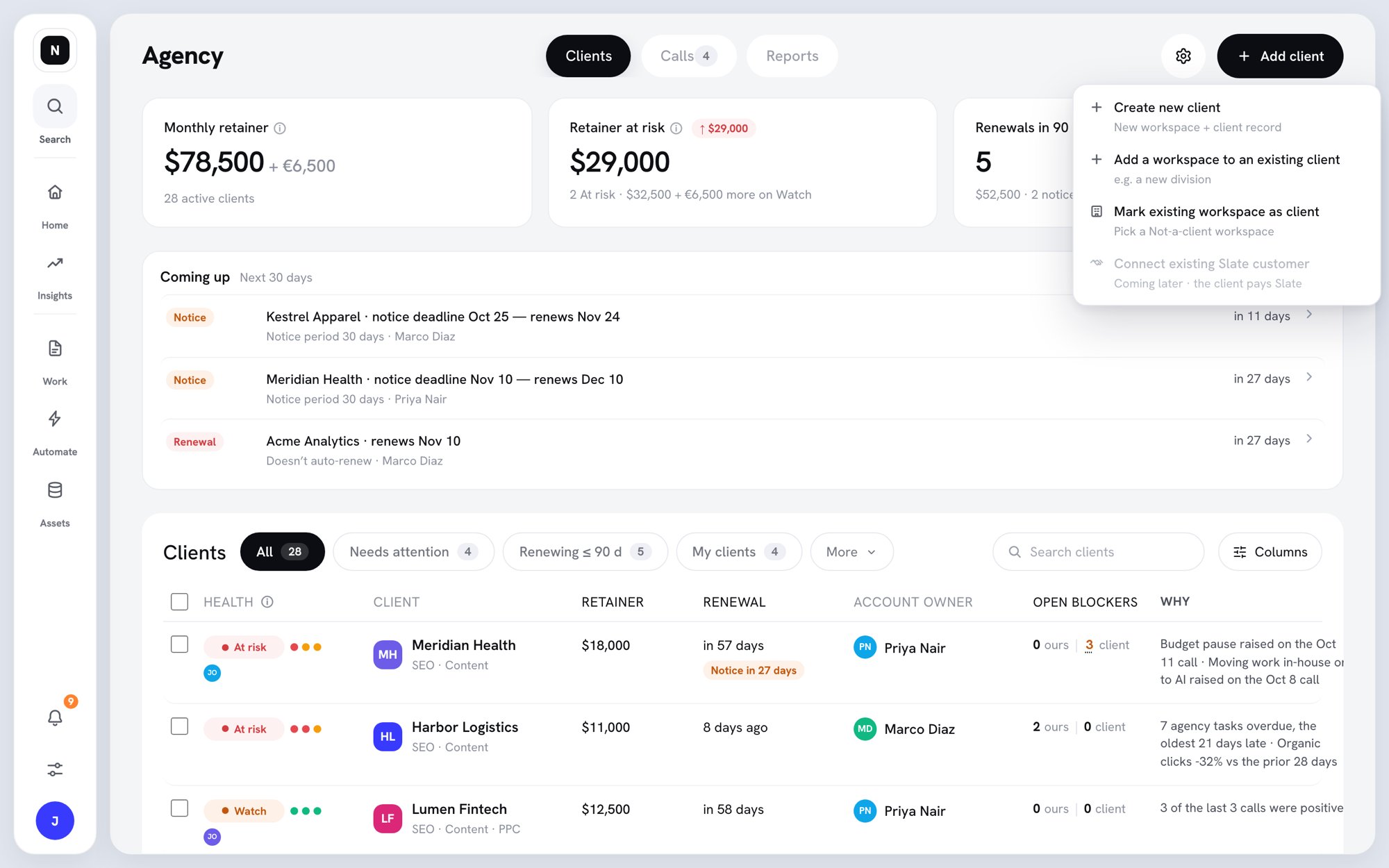
Only Owners and Admins can add clients. Click **Add client** at the top right, then pick an option.
### Summary cards
* **Monthly retainer** — what Active clients pay each month, by currency. Projects count as their monthly equivalent.
* **Retainer at risk** — the monthly retainer of clients that are At risk. Clients on Watch are counted underneath.
* **Renewals in 90 days** — contracts renewing in the next 90 days, with their notice deadlines.
Click a card to filter the list. Members who aren't admins see only their own clients. They see retainer figures only for clients they manage or direct.
### Coming up
**Coming up** lists what's due in the next 30 days: **Renewal**, **Notice**, **Leaving**, **New person**, and **Meeting** items. Click **All alerts** to open the client alerts in your inbox.
### Tabs, search, and columns
* **All**, **Needs attention**, **Renewing ≤ 90 d**, and **My clients** filter the list.
* **More** holds **Unassigned**, **Inactive**, and, for admins, an **Account manager** filter.
* **Search clients** finds a client by name.
* **Columns** shows or hides columns. **Health** and **Client** are always shown. Optional columns are **Last client touch**, **Overdue tasks**, **Work delivered · 30 d**, and **Pillar scores**. Your choice is saved for you.
Health updates once a day at 06:00. See [Client health and reports](/docs/agency/client-health).
## Add a client
Only Owners and Admins can add clients. Click **Add client** at the top right, then pick an option.
 ### Create a new client
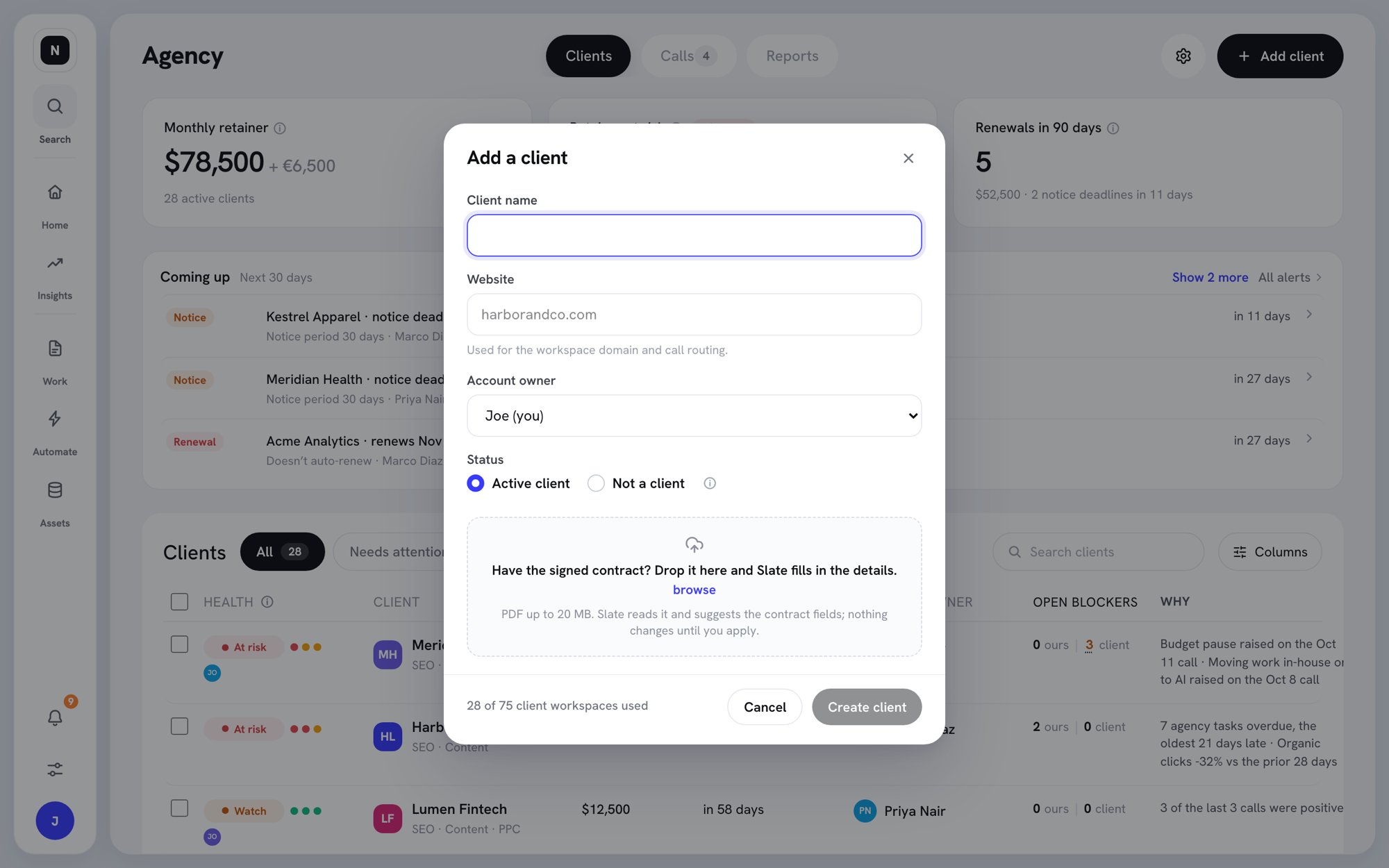
1. Click **Create new client**.
2. Enter the **Client name**.
3. Enter the **Website**. Slate uses it for the workspace domain and call routing.
4. Pick the **Account manager**.
5. Keep **Status** as **Active client**.
6. Optional: drop the signed contract PDF into the box. Slate reads it and suggests contract details.
7. Click **Create client**.
8. Slate opens the new-workspace page with **This is a client** turned on. Finish creating the workspace.
### Create a new client
1. Click **Create new client**.
2. Enter the **Client name**.
3. Enter the **Website**. Slate uses it for the workspace domain and call routing.
4. Pick the **Account manager**.
5. Keep **Status** as **Active client**.
6. Optional: drop the signed contract PDF into the box. Slate reads it and suggests contract details.
7. Click **Create client**.
8. Slate opens the new-workspace page with **This is a client** turned on. Finish creating the workspace.
 When an admin creates a workspace from the workspace switcher, the same **This is a client** switch appears, turned off.
### Other ways to add a client
* **Mark existing workspace as client** — pick a workspace that's currently Not a client, then click **Mark as client**.
* **Add a workspace to an existing client** — for a client with more than one workspace, for example a new division. Pick the client, then create a new workspace or use an existing one.
**Connect existing Slate customer** is shown but not available yet.
### When you reach your limit
Each Active client uses one client workspace. When all are used, Slate offers to add another pack of 25 first. Click **Pay ‹amount› and create**. The charge is prorated to your renewal date. If the payment fails, nothing is created.
To free a client workspace instead, mark a client Inactive or Not a client.
## Change a client's status
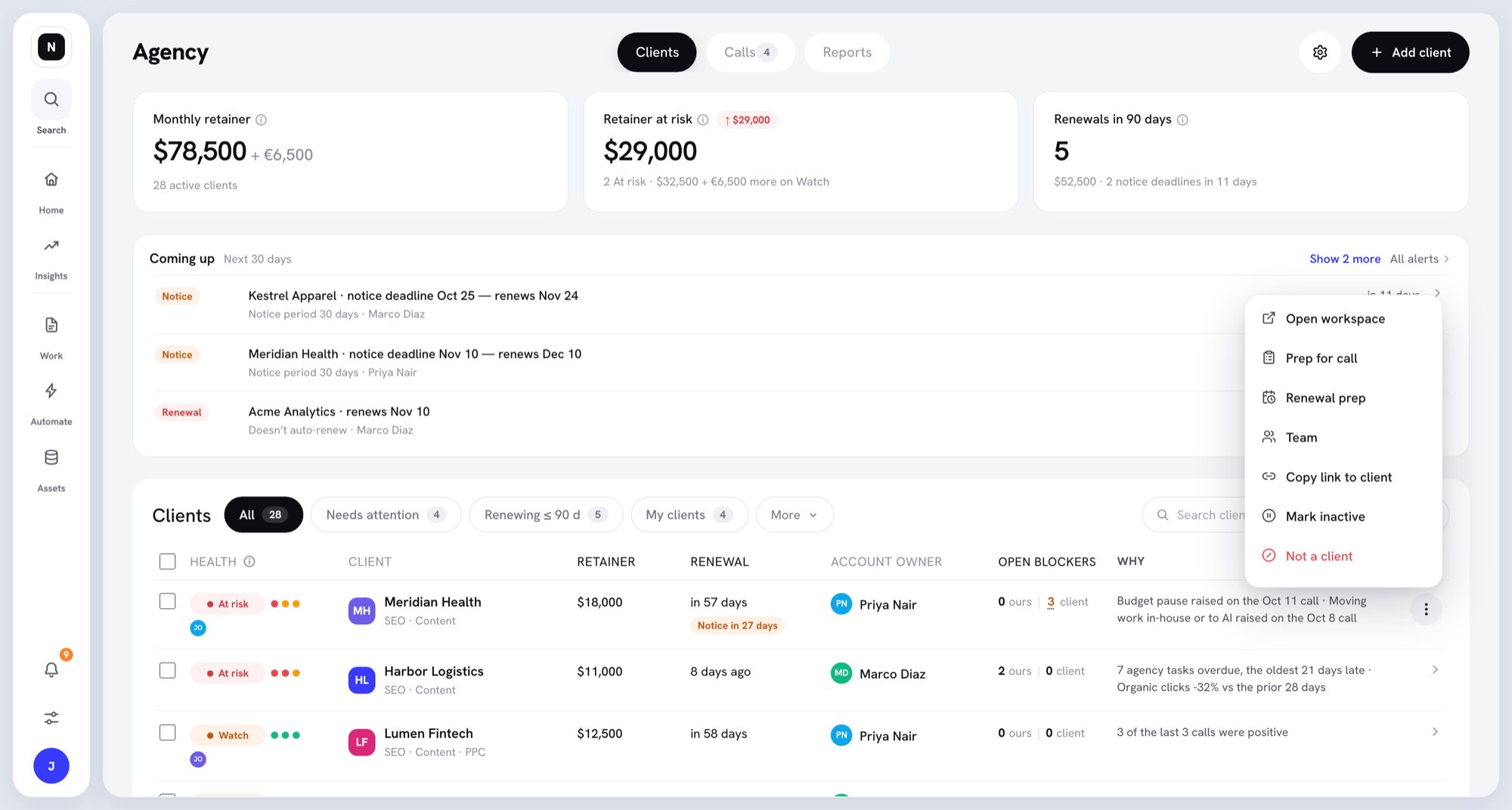
Only Owners and Admins can change status. Open the row's **⋯** menu, or select several rows and click **Set status**.
When an admin creates a workspace from the workspace switcher, the same **This is a client** switch appears, turned off.
### Other ways to add a client
* **Mark existing workspace as client** — pick a workspace that's currently Not a client, then click **Mark as client**.
* **Add a workspace to an existing client** — for a client with more than one workspace, for example a new division. Pick the client, then create a new workspace or use an existing one.
**Connect existing Slate customer** is shown but not available yet.
### When you reach your limit
Each Active client uses one client workspace. When all are used, Slate offers to add another pack of 25 first. Click **Pay ‹amount› and create**. The charge is prorated to your renewal date. If the payment fails, nothing is created.
To free a client workspace instead, mark a client Inactive or Not a client.
## Change a client's status
Only Owners and Admins can change status. Open the row's **⋯** menu, or select several rows and click **Set status**.
 | Status change | What happens |
| - | - |
| **Mark inactive** | Pick a reason (**Churned**, **Paused**, or **Other**) and add an optional note. Frees one client workspace. Notes, health history, and calls are kept. Alerts and call routing stop. |
| **Not a client** | The workspace leaves Clients and frees one client workspace. The client record, notes, and history are hidden, not deleted. Switching back restores them. |
| **Reactivate** | On the **Inactive** tab, click **Reactivate**. Uses one client workspace. Alerts and call routing resume. |
When 25 or more client workspaces would be unused, the **Mark inactive** dialog offers to remove a pack at renewal.
## Set the team
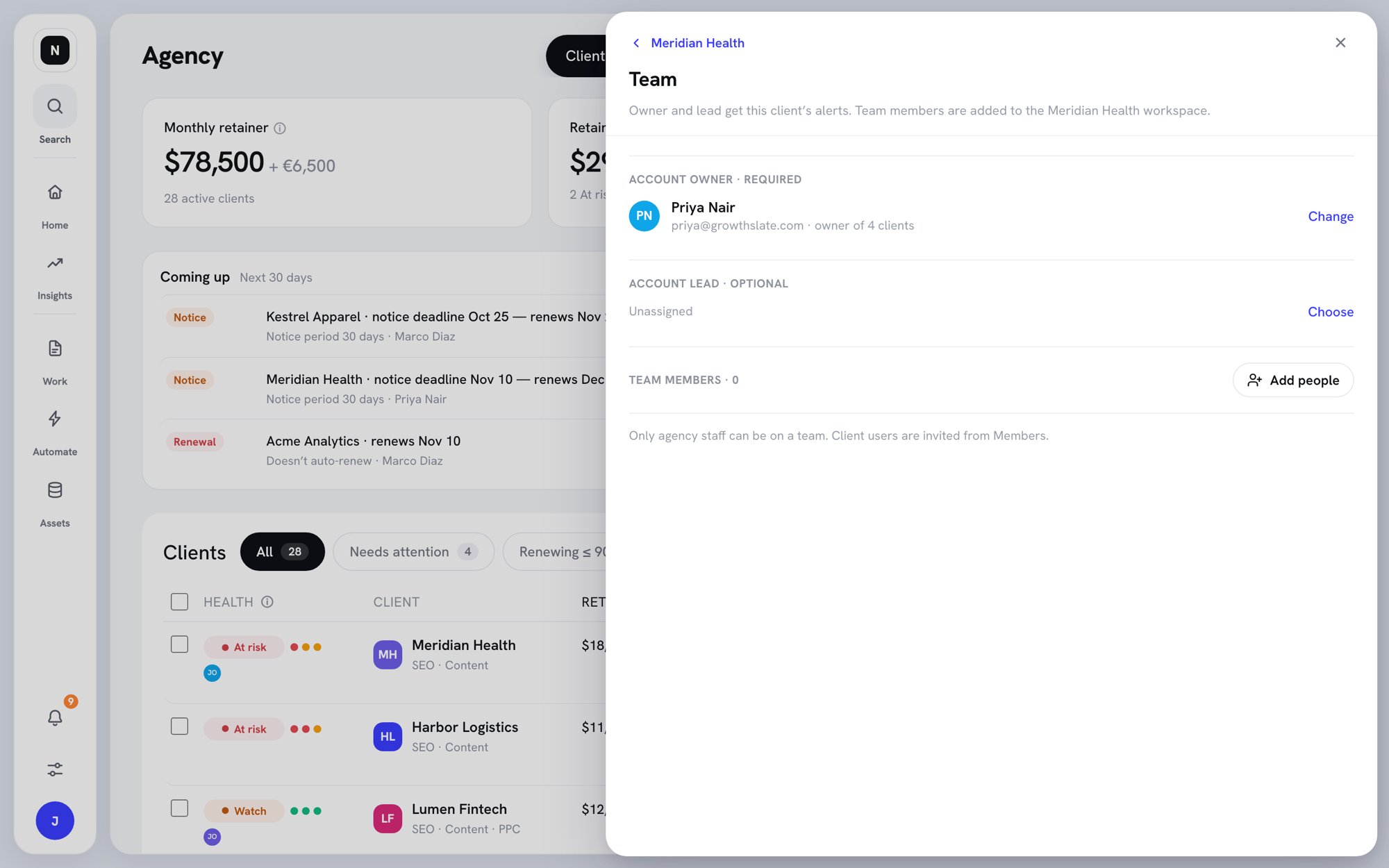
Each client has an account manager and an optional account director. The account director owns the relationship above the account manager: renewals and escalations. Both get the client's alerts. Clients without an account manager send alerts to admins.
1. Open the row's **⋯** menu and click **Team**.
2. Under **Account director · optional**, click **Choose** to pick an account director.
3. Under **Account manager · required**, click **Change** to pick the account manager.
4. Click **Add people** to add team members, and pick their workspace role: **Admin**, **Member**, or **Writer**.
Team members are added to the client's workspace. Only agency staff can be on a team. Client users are invited from **Members**.
| Status change | What happens |
| - | - |
| **Mark inactive** | Pick a reason (**Churned**, **Paused**, or **Other**) and add an optional note. Frees one client workspace. Notes, health history, and calls are kept. Alerts and call routing stop. |
| **Not a client** | The workspace leaves Clients and frees one client workspace. The client record, notes, and history are hidden, not deleted. Switching back restores them. |
| **Reactivate** | On the **Inactive** tab, click **Reactivate**. Uses one client workspace. Alerts and call routing resume. |
When 25 or more client workspaces would be unused, the **Mark inactive** dialog offers to remove a pack at renewal.
## Set the team
Each client has an account manager and an optional account director. The account director owns the relationship above the account manager: renewals and escalations. Both get the client's alerts. Clients without an account manager send alerts to admins.
1. Open the row's **⋯** menu and click **Team**.
2. Under **Account director · optional**, click **Choose** to pick an account director.
3. Under **Account manager · required**, click **Change** to pick the account manager.
4. Click **Add people** to add team members, and pick their workspace role: **Admin**, **Member**, or **Writer**.
Team members are added to the client's workspace. Only agency staff can be on a team. Client users are invited from **Members**.
 To give many clients the same account manager, select them and click **Set account manager**. The **Unassigned** tab lists clients with no account manager.
## Work with many clients at once
Admins can select rows with the checkboxes. The bar that appears offers **Set account manager**, **Set status**, **Merge clients** (exactly two selected), and **Copy links**.
## Clients with several workspaces
A client can have more than one workspace, for example one per division. The client shows as one row. Click **Show workspaces** to see each one.
* **Move a workspace to another client.** In the client record, open **⋯** and click **Move workspace**. Its status, commercials, contract, team, and tagged notes and calls move with it. You can undo the move from History for 30 days.
* **Merge two clients.** Select both rows and click **Merge clients**.
* **Share one contract.** In the client record, choose **All** in the **Workspace** switcher, then turn on **One contract covers all workspaces**. Renewal, notice, and retainer then live on the client. To undo, click **Split contract**.
## What's next
* [Client records](/docs/agency/client-records)
* [Client health and reports](/docs/agency/client-health)
* [Client users and permissions](/docs/agency/client-users)
This documentation is built and hosted on [Mintlify](https://mintlify.com), a developer documentation platform.
To give many clients the same account manager, select them and click **Set account manager**. The **Unassigned** tab lists clients with no account manager.
## Work with many clients at once
Admins can select rows with the checkboxes. The bar that appears offers **Set account manager**, **Set status**, **Merge clients** (exactly two selected), and **Copy links**.
## Clients with several workspaces
A client can have more than one workspace, for example one per division. The client shows as one row. Click **Show workspaces** to see each one.
* **Move a workspace to another client.** In the client record, open **⋯** and click **Move workspace**. Its status, commercials, contract, team, and tagged notes and calls move with it. You can undo the move from History for 30 days.
* **Merge two clients.** Select both rows and click **Merge clients**.
* **Share one contract.** In the client record, choose **All** in the **Workspace** switcher, then turn on **One contract covers all workspaces**. Renewal, notice, and retainer then live on the client. To undo, click **Split contract**.
## What's next
* [Client records](/docs/agency/client-records)
* [Client health and reports](/docs/agency/client-health)
* [Client users and permissions](/docs/agency/client-users)
This documentation is built and hosted on [Mintlify](https://mintlify.com), a developer documentation platform.