> ## Documentation Index
> Fetch the complete documentation index at: https://slatehq.com/docs/llms.txt
> Use this file to discover all available pages before exploring further.
# Agency mode overview
> Agency mode lets an agency run all its clients from one Slate organization, with client records, health, calls, reports, and client users.
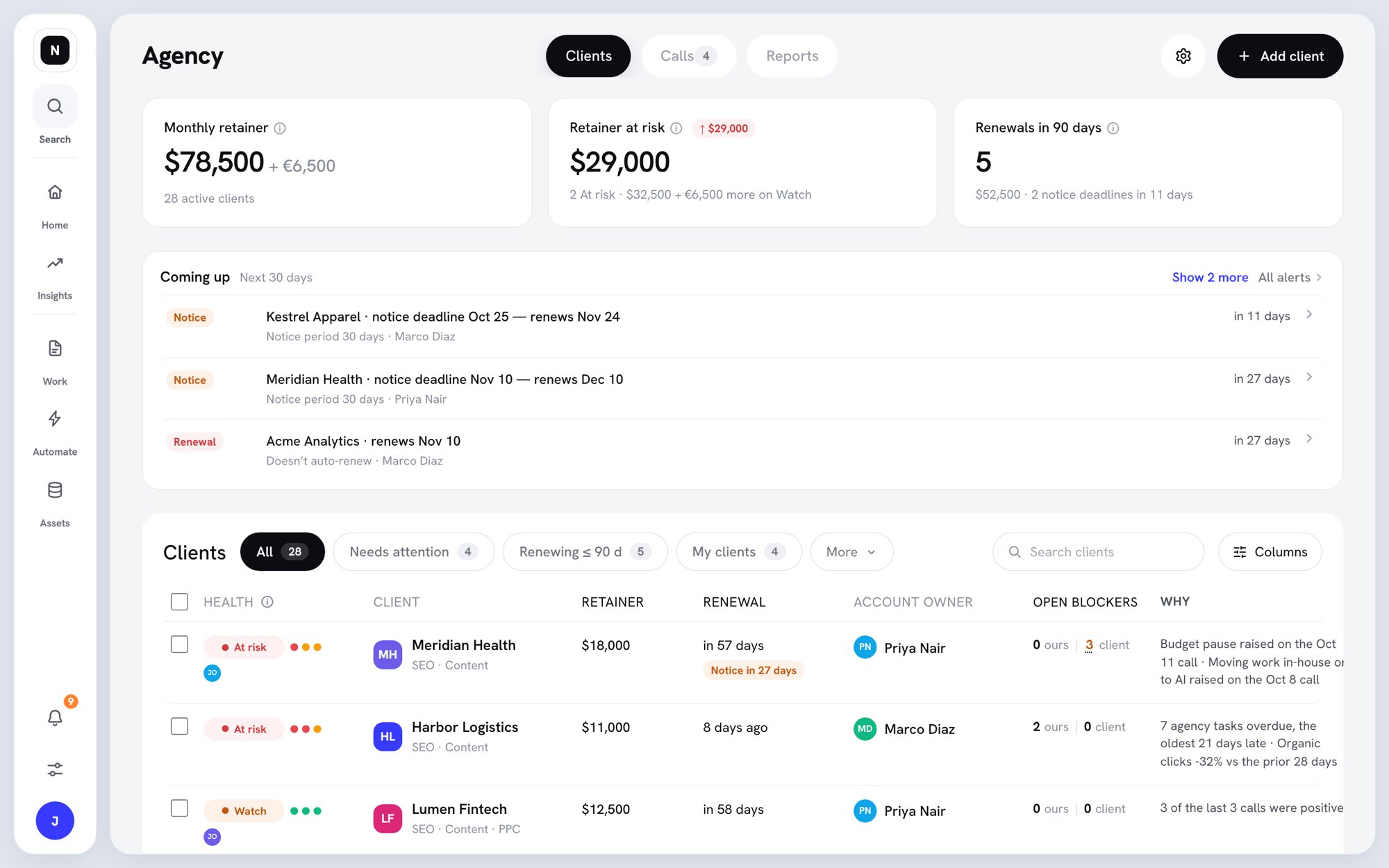
Agency mode turns your Slate organization into an agency workspace. Each client gets its own workspace, and the **Agency** page brings every client together in one place: records, health, calls, and reports.
Agency mode is available to selected organizations. Ask your Slate contact to turn it on for your organization.
## Why it matters
Agencies lose clients when relationships, delivery, or results slip without anyone noticing. Agency mode shows which clients need attention and why. It also keeps every client's data in that client's own workspace.
## How Agency mode is organized
| Term | What it means |
| - | - |
| **Organization** | Your agency. Billing, members, and Agency mode are set here. |
| **Client workspace** | One workspace per client. The client's tasks, pages, artifacts, and calls stay in it. |
| **HQ workspace** | Your agency's internal workspace. HQ holds agency reports and pays for agency drafts. Client users can never join HQ, and HQ is never billed as a client. |
| **Client** | The company you work for. A client can have more than one workspace, for example one per division. |
| **Client user** | Someone from the client's team. Client users see only the workspaces they're invited to. |
## Client statuses
Every workspace except HQ has one status:
* **Active client** — uses one of your client workspaces. Gets client records, health, alerts, and call routing.
* **Inactive** — uses no client workspace. For churned or paused clients. Notes, health history, and calls are kept. Alerts and call routing stop.
* **Not a client** — uses no client workspace. For test, internal, or demo workspaces. No agency features.
## What you get
The **Agency** page has three tabs:
* **Clients** — every client with its health, retainer, renewal date, account manager, and open blockers. Click a client to open its record. See [Manage clients](/docs/agency/manage-clients) and [Client records](/docs/agency/client-records).
* **Calls** — client calls from your agency's call recorder, routed to the right client. See [Client calls](/docs/agency/client-calls).
* **Reports** — the client health report, plus saved renewal preps and weekly updates. See [Client health and reports](/docs/agency/client-health).
 Agency mode also adds tools for account managers: prep before a client call, a recap after it, a weekly client update, reminders to clients, and renewal prep. See [Account manager workflows](/docs/agency/account-manager-workflows).
## Open the Agency page
Agency isn't in the sidebar. To open it:
1. Click your workspace logo at the top of the sidebar to open the workspace switcher.
2. Click **Agency** ("Clients, health, calls").
Agency mode also adds tools for account managers: prep before a client call, a recap after it, a weekly client update, reminders to clients, and renewal prep. See [Account manager workflows](/docs/agency/account-manager-workflows).
## Open the Agency page
Agency isn't in the sidebar. To open it:
1. Click your workspace logo at the top of the sidebar to open the workspace switcher.
2. Click **Agency** ("Clients, health, calls").
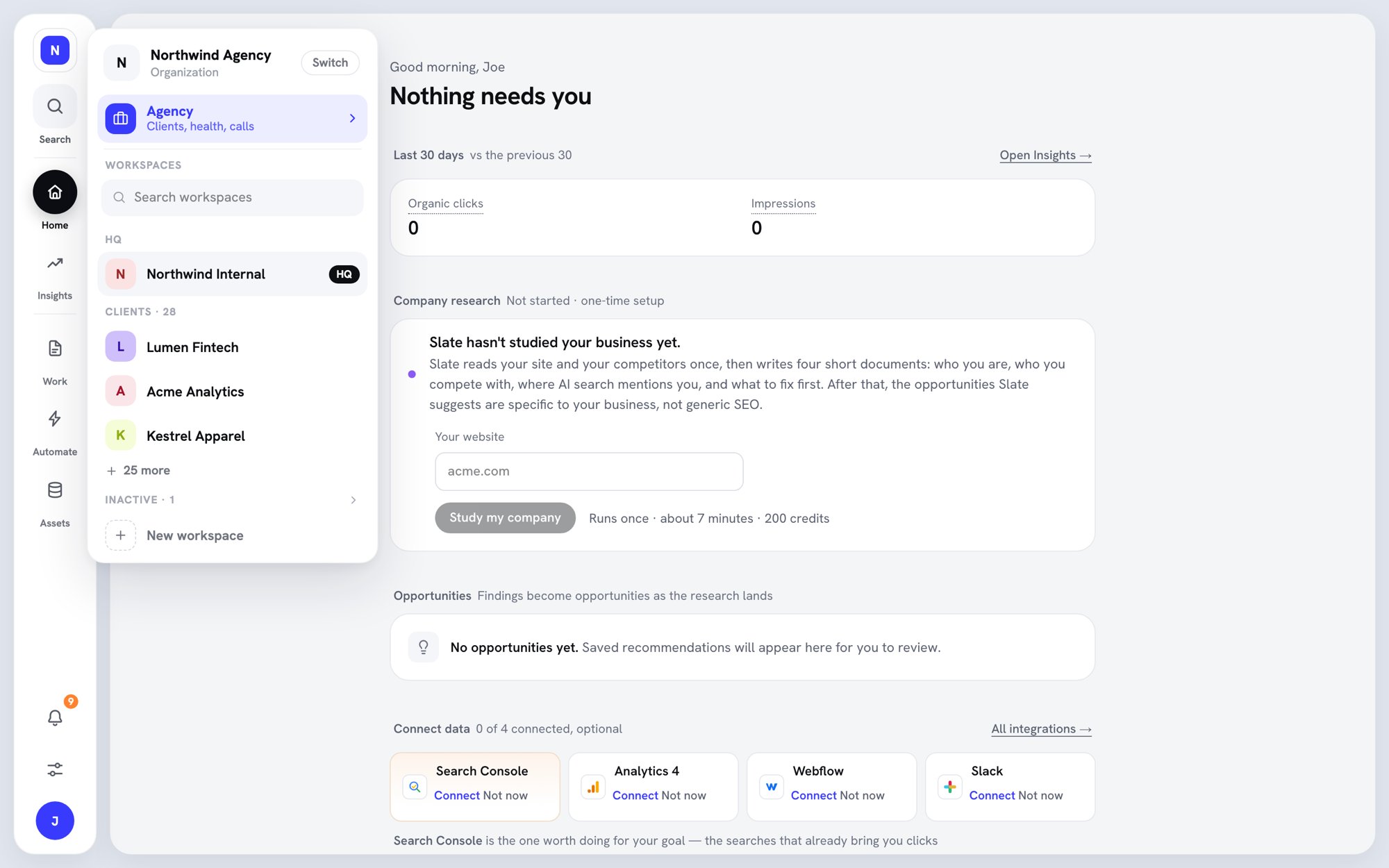 The switcher groups your workspaces as **HQ**, **Clients**, **Inactive**, and **Other**. You can also find a client by name in **Search** (⌘K), under **Clients**.
Client users don't see the Agency row, the Clients group in Search, or the Agency page.
## Who can do what
| Action | Owner | Admin | Member | Client |
| - | :-: | :-: | :-: | :-: |
| Turn Agency mode on or off | ✓ | | | |
| Add clients, change client status, add packs | ✓ | ✓ | | |
| See every client | ✓ | ✓ | | |
| See clients they manage, direct, or are on the team for | ✓ | ✓ | ✓ | |
| See retainer and contract details | ✓ | ✓ | Account manager or director only | |
| Open the Agency page | ✓ | ✓ | ✓ | |
See [Client users and permissions](/docs/agency/client-users) for details.
## Pricing
Agency mode is a paid add-on that sits alongside your Slate plan. It's billed in packs, and each pack adds 25 client workspaces. Packs include no credits; your plan's credits are unchanged. Only **Active** clients use a client workspace.
For current pricing, open **Billing** in Organization settings. See [Billing and usage](/docs/settings/billing-and-usage).
Agency mode needs a paid plan. It isn't available during a trial or on annual plans yet.
## What's next
* [Set up Agency mode](/docs/agency/set-up-agency-mode)
* [Manage clients](/docs/agency/manage-clients)
* [Client users and permissions](/docs/agency/client-users)
This documentation is built and hosted on [Mintlify](https://mintlify.com), a developer documentation platform.
The switcher groups your workspaces as **HQ**, **Clients**, **Inactive**, and **Other**. You can also find a client by name in **Search** (⌘K), under **Clients**.
Client users don't see the Agency row, the Clients group in Search, or the Agency page.
## Who can do what
| Action | Owner | Admin | Member | Client |
| - | :-: | :-: | :-: | :-: |
| Turn Agency mode on or off | ✓ | | | |
| Add clients, change client status, add packs | ✓ | ✓ | | |
| See every client | ✓ | ✓ | | |
| See clients they manage, direct, or are on the team for | ✓ | ✓ | ✓ | |
| See retainer and contract details | ✓ | ✓ | Account manager or director only | |
| Open the Agency page | ✓ | ✓ | ✓ | |
See [Client users and permissions](/docs/agency/client-users) for details.
## Pricing
Agency mode is a paid add-on that sits alongside your Slate plan. It's billed in packs, and each pack adds 25 client workspaces. Packs include no credits; your plan's credits are unchanged. Only **Active** clients use a client workspace.
For current pricing, open **Billing** in Organization settings. See [Billing and usage](/docs/settings/billing-and-usage).
Agency mode needs a paid plan. It isn't available during a trial or on annual plans yet.
## What's next
* [Set up Agency mode](/docs/agency/set-up-agency-mode)
* [Manage clients](/docs/agency/manage-clients)
* [Client users and permissions](/docs/agency/client-users)
This documentation is built and hosted on [Mintlify](https://mintlify.com), a developer documentation platform.