> ## Documentation Index
> Fetch the complete documentation index at: https://slatehq.com/docs/llms.txt
> Use this file to discover all available pages before exploring further.
# Set up Agency mode
> Turn on Agency mode in five steps: pick your HQ workspace, mark client workspaces, add agency domains, mark client users, and buy client workspaces.
The setup wizard turns your organization into an agency in about two minutes. Your answers save at each step, and nothing is charged until the last step.
Agency mode is available to selected organizations. Ask your Slate contact to turn it on for your organization.
## Why it matters
Setup tells Slate which workspaces are clients, which one is HQ, and who is agency staff. Health, call routing, alerts, and access all depend on these answers.
## Before you start
* You need the **Owner** role in the organization. Admins see the Agency mode card, but only the Owner can turn it on.
* Your organization needs a paid plan and a working card in **Billing**. Agency mode isn't available during a trial or on annual plans yet.
* Know your agency's email domains, for example `youragency.com`.
## Start the wizard
1. Click the **Settings** icon (sliders) on the sidebar rail and choose **Organization settings**.
2. On **General**, find the **Agency mode** card.
3. Click **Turn on**. If you started before, the button reads **Continue setup**.
You can also start from **Billing**: click **Change plan or add credits**, then click **Turn on** on the **Agency mode** card under **Add-ons**.
If **Turn on** is grayed out, hover over it to see why. See [Troubleshooting](#troubleshooting).
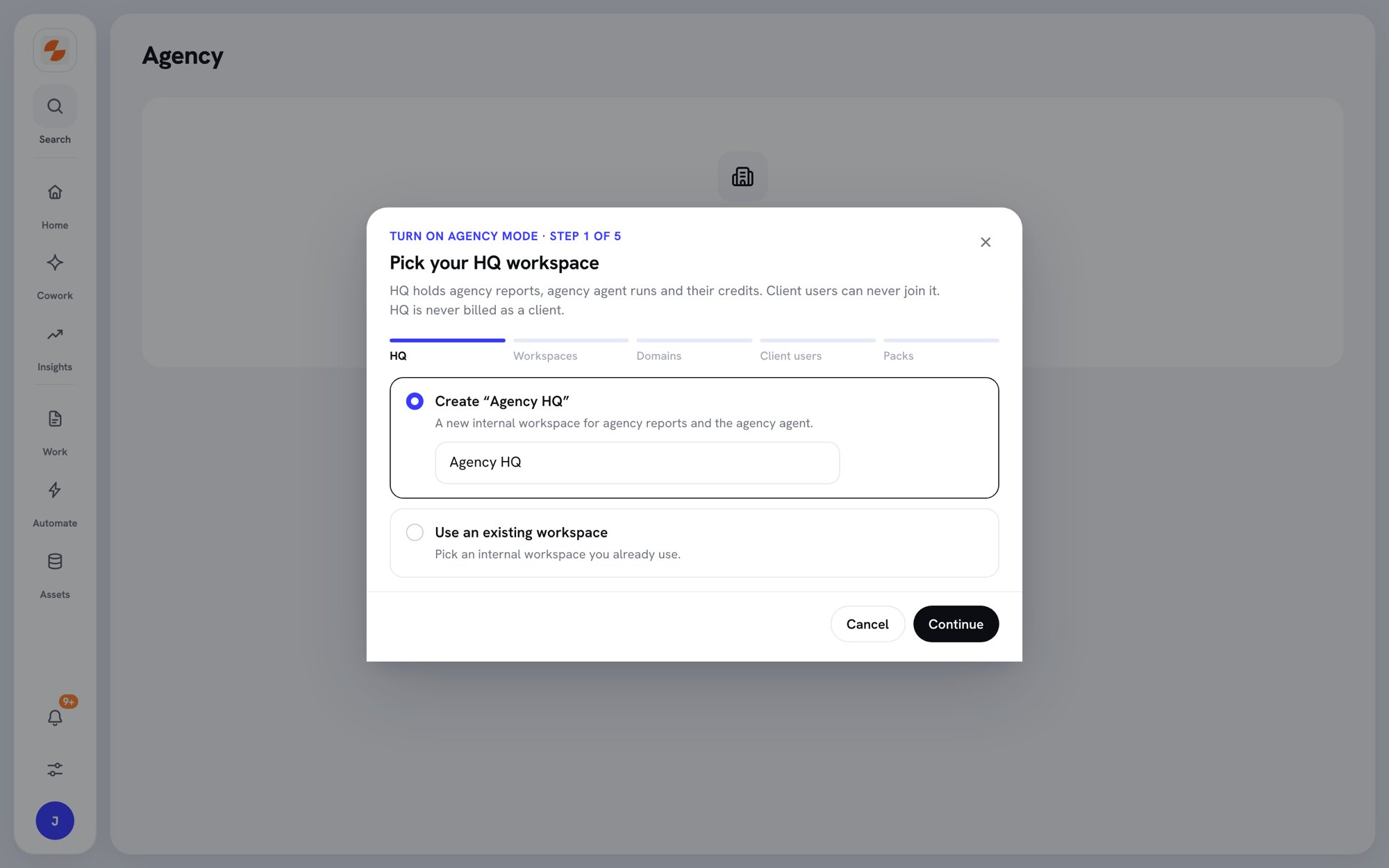
## Step 1: Pick your HQ workspace
HQ is your agency's internal workspace. It holds agency reports and pays for agency drafts. Client users can never join HQ, and HQ is never billed as a client.
1. Choose one option:
* **Create "‹Organization› HQ"** to make a new internal workspace. You can edit the name.
* **Use an existing workspace**, then pick an internal workspace you already use. A workspace that has client users can't be HQ.
2. Click **Continue**.
 ## Step 2: Mark your workspaces
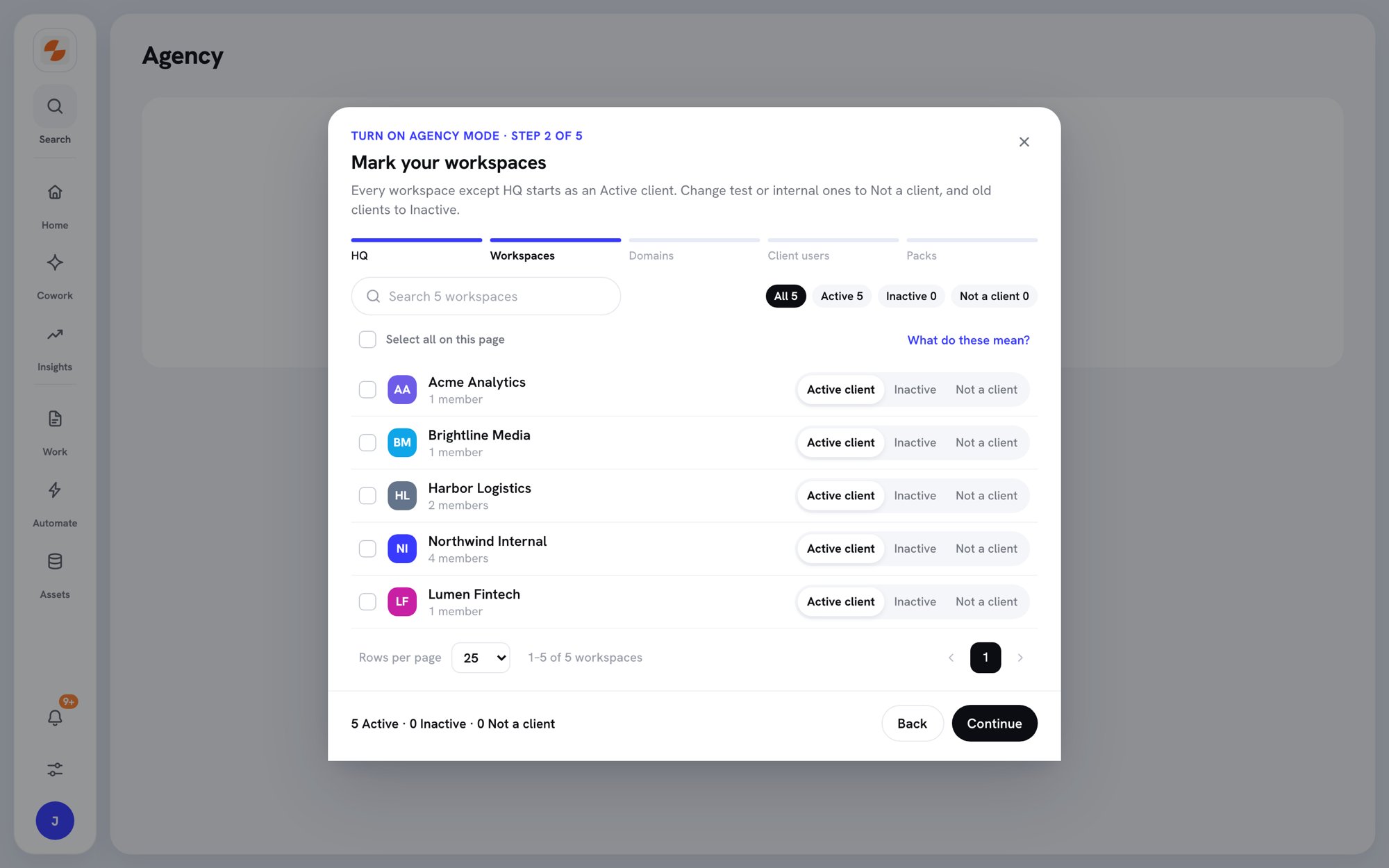
Every workspace except HQ starts as an **Active client**.
1. For each workspace, choose **Active client**, **Inactive**, or **Not a client**. Change test and internal workspaces to **Not a client**, and old clients to **Inactive**.
2. To change many at once, select the workspaces, then use **Set to** in the bar that appears.
3. Check the totals at the bottom, then click **Continue**.
Only Active clients use a client workspace from your packs.
## Step 2: Mark your workspaces
Every workspace except HQ starts as an **Active client**.
1. For each workspace, choose **Active client**, **Inactive**, or **Not a client**. Change test and internal workspaces to **Not a client**, and old clients to **Inactive**.
2. To change many at once, select the workspaces, then use **Set to** in the bar that appears.
3. Check the totals at the bottom, then click **Continue**.
Only Active clients use a client workspace from your packs.
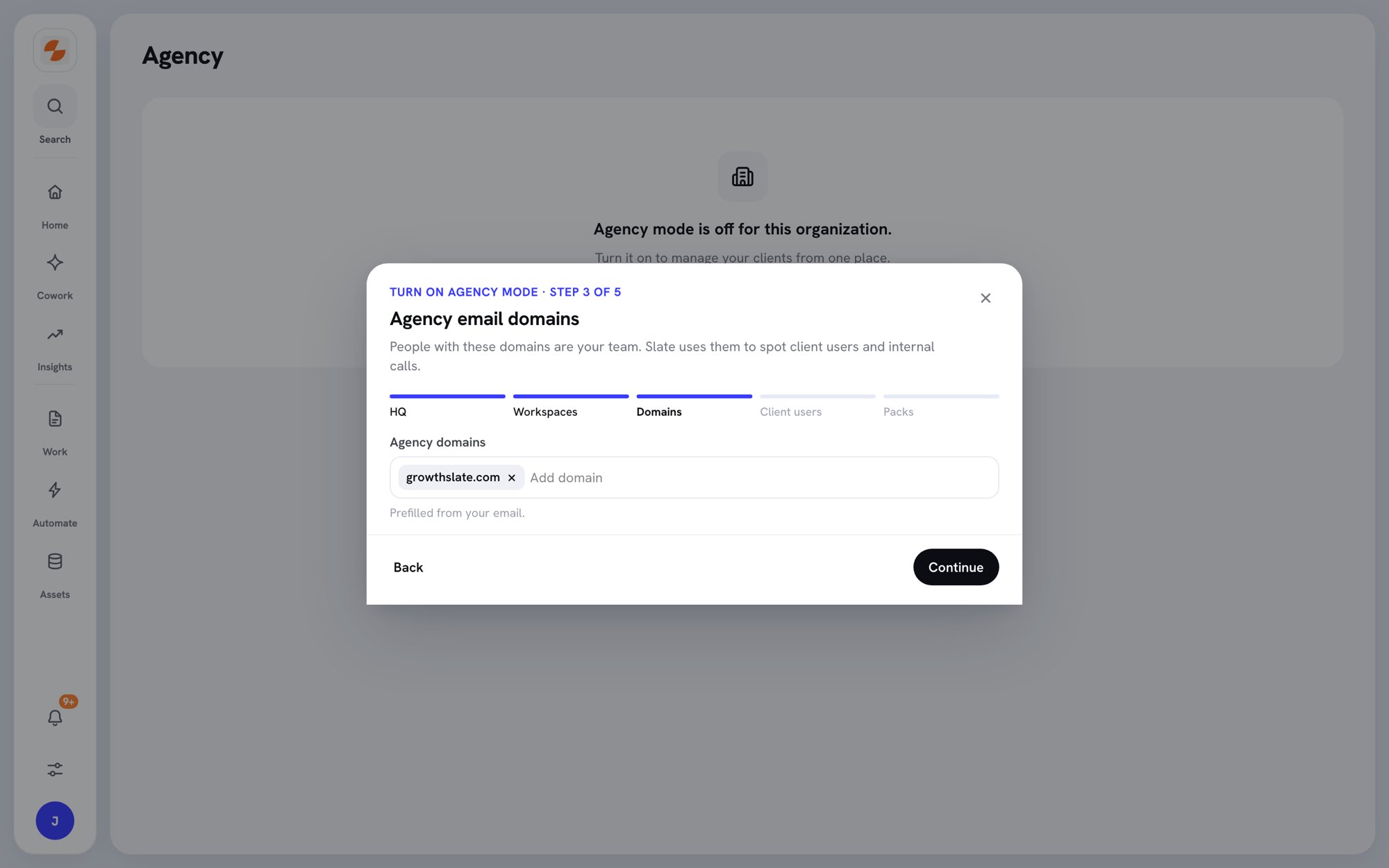
 ## Step 3: Add agency email domains
People with these email domains are your team. Slate uses the domains to spot client users and to skip internal calls.
1. Check the domains under **Agency domains**. Slate prefills your own email domain, unless it's a public one like gmail.com.
2. Add any other domains your staff use.
3. Click **Continue**.
## Step 3: Add agency email domains
People with these email domains are your team. Slate uses the domains to spot client users and to skip internal calls.
1. Check the domains under **Agency domains**. Slate prefills your own email domain, unless it's a public one like gmail.com.
2. Add any other domains your staff use.
3. Click **Continue**.
 ## Step 4: Mark client users
Slate lists members whose email domain matches a client, grouped by client. Client users see only the workspaces they're invited to.
1. Select the people who work for a client.
2. Click **Set ‹number› as Client**, or click **Skip** to do this later.
If nobody matches, Slate shows "No members look like client users." You can set someone as Client later in **Members**. See [Client users and permissions](/docs/agency/client-users).
## Step 5: Buy client workspaces
Each pack adds 25 client workspaces and no credits. Your plan and its credits stay the same.
1. Set the number of packs. Slate shows the minimum you need for your Active clients. To go lower, go back and mark more workspaces Inactive or Not a client.
2. Check the amount due today. It's prorated to your next renewal date.
3. Check the card. Click **Change** to use another card.
4. Click **Pay ‹amount› and turn on**.
If the payment fails, Slate shows "Payment failed. Update your card in Billing." Nothing is turned on, and you can try again.
## When setup is done
Slate shows **Agency mode is on** and how many client workspaces you've used. It suggests three things to do next:
1. **Assign account managers.** Alerts go to admins until each client has an account manager. See [Manage clients](/docs/agency/manage-clients#set-the-team).
2. **Connect your call recorder** so each client call reaches the right client. Do this in **Agency → Calls**. See [Client calls](/docs/agency/client-calls).
3. **Invite client users** as **Client**, so they only see their own workspace. See [Client users and permissions](/docs/agency/client-users).
Click **Open Agency** to go to the Agency page.
## Change your setup later
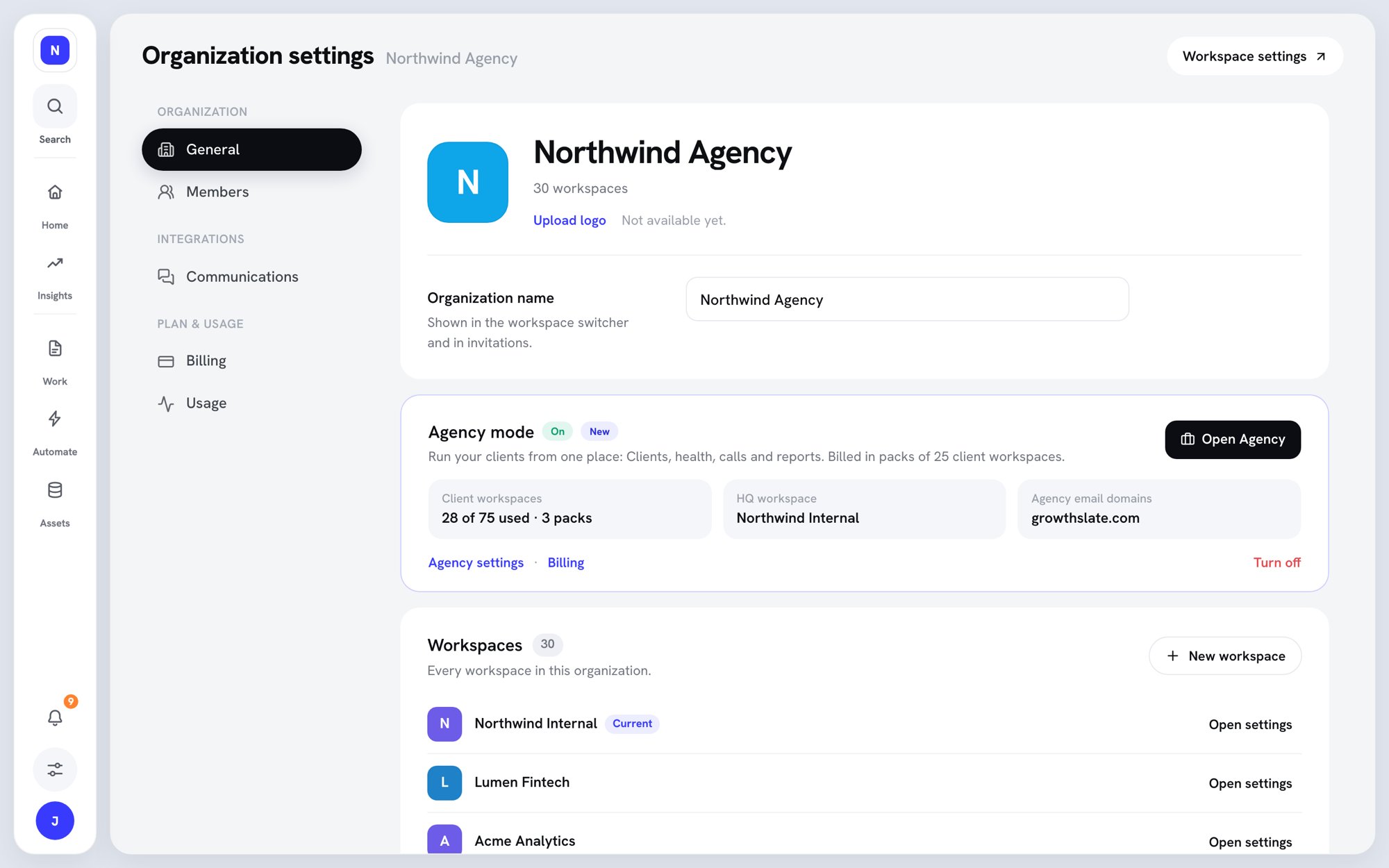
The **Agency mode** card on **Organization settings → General** now shows **On**, with three tiles: **Client workspaces**, **HQ workspace**, and **Agency email domains**. Below them are links to **Agency settings**, **Billing**, and **Turn off**.
## Step 4: Mark client users
Slate lists members whose email domain matches a client, grouped by client. Client users see only the workspaces they're invited to.
1. Select the people who work for a client.
2. Click **Set ‹number› as Client**, or click **Skip** to do this later.
If nobody matches, Slate shows "No members look like client users." You can set someone as Client later in **Members**. See [Client users and permissions](/docs/agency/client-users).
## Step 5: Buy client workspaces
Each pack adds 25 client workspaces and no credits. Your plan and its credits stay the same.
1. Set the number of packs. Slate shows the minimum you need for your Active clients. To go lower, go back and mark more workspaces Inactive or Not a client.
2. Check the amount due today. It's prorated to your next renewal date.
3. Check the card. Click **Change** to use another card.
4. Click **Pay ‹amount› and turn on**.
If the payment fails, Slate shows "Payment failed. Update your card in Billing." Nothing is turned on, and you can try again.
## When setup is done
Slate shows **Agency mode is on** and how many client workspaces you've used. It suggests three things to do next:
1. **Assign account managers.** Alerts go to admins until each client has an account manager. See [Manage clients](/docs/agency/manage-clients#set-the-team).
2. **Connect your call recorder** so each client call reaches the right client. Do this in **Agency → Calls**. See [Client calls](/docs/agency/client-calls).
3. **Invite client users** as **Client**, so they only see their own workspace. See [Client users and permissions](/docs/agency/client-users).
Click **Open Agency** to go to the Agency page.
## Change your setup later
The **Agency mode** card on **Organization settings → General** now shows **On**, with three tiles: **Client workspaces**, **HQ workspace**, and **Agency email domains**. Below them are links to **Agency settings**, **Billing**, and **Turn off**.
 To change HQ or agency domains, open **Agency settings**. See [Client health and reports](/docs/agency/client-health#agency-settings).
### Add or remove packs
Owners and admins can change packs in **Billing**:
1. Open **Organization settings → Billing**.
2. On the **Client workspaces** meter, click **Manage**.
3. Under **Agency mode**, use the plus and minus buttons to change the number of packs.
4. Confirm the change in the order summary.
Added packs are charged today, prorated to your renewal date. Removed packs end at renewal, with no refund for the current period. You can't remove packs your Active clients still need.
When every client workspace is used, adding a client asks you to pay for one more pack first. See [Manage clients](/docs/agency/manage-clients#when-you-reach-your-limit).
### Turn off Agency mode
Only the Owner can turn off Agency mode.
1. On the **Agency mode** card, click **Turn off**.
2. Read the dialog, then click **Turn off on ‹date›**.
Agency mode ends at the end of the current billing period, with no refund for that period. Until then, client workspaces, health, and alerts keep working, but you can't add clients. To cancel, click **Keep Agency mode**.
After Agency mode ends, agency pages are hidden and all data is kept. Turning Agency mode back on restores everything.
## Troubleshooting
| What you see | What to do |
| - | - |
| "Only the org owner can turn on Agency mode." | Ask your organization's Owner to run setup. |
| "Available on paid plans after your trial." | Choose a paid plan in Billing, then try again. |
| "Not available on annual plans yet." | Agency mode isn't available on annual plans yet. |
| "Choose a paid plan in Billing first." | Your organization has no active subscription. Choose a plan in Billing. |
| "Billing isn't responding. Try again in a minute." | Wait a minute and reload the page. |
| "Paid. Setup didn't finish." | Click **Finish setup**. You won't be charged again. |
## What's next
* [Manage clients](/docs/agency/manage-clients)
* [Client calls](/docs/agency/client-calls)
* [Client users and permissions](/docs/agency/client-users)
This documentation is built and hosted on [Mintlify](https://mintlify.com), a developer documentation platform.
To change HQ or agency domains, open **Agency settings**. See [Client health and reports](/docs/agency/client-health#agency-settings).
### Add or remove packs
Owners and admins can change packs in **Billing**:
1. Open **Organization settings → Billing**.
2. On the **Client workspaces** meter, click **Manage**.
3. Under **Agency mode**, use the plus and minus buttons to change the number of packs.
4. Confirm the change in the order summary.
Added packs are charged today, prorated to your renewal date. Removed packs end at renewal, with no refund for the current period. You can't remove packs your Active clients still need.
When every client workspace is used, adding a client asks you to pay for one more pack first. See [Manage clients](/docs/agency/manage-clients#when-you-reach-your-limit).
### Turn off Agency mode
Only the Owner can turn off Agency mode.
1. On the **Agency mode** card, click **Turn off**.
2. Read the dialog, then click **Turn off on ‹date›**.
Agency mode ends at the end of the current billing period, with no refund for that period. Until then, client workspaces, health, and alerts keep working, but you can't add clients. To cancel, click **Keep Agency mode**.
After Agency mode ends, agency pages are hidden and all data is kept. Turning Agency mode back on restores everything.
## Troubleshooting
| What you see | What to do |
| - | - |
| "Only the org owner can turn on Agency mode." | Ask your organization's Owner to run setup. |
| "Available on paid plans after your trial." | Choose a paid plan in Billing, then try again. |
| "Not available on annual plans yet." | Agency mode isn't available on annual plans yet. |
| "Choose a paid plan in Billing first." | Your organization has no active subscription. Choose a plan in Billing. |
| "Billing isn't responding. Try again in a minute." | Wait a minute and reload the page. |
| "Paid. Setup didn't finish." | Click **Finish setup**. You won't be charged again. |
## What's next
* [Manage clients](/docs/agency/manage-clients)
* [Client calls](/docs/agency/client-calls)
* [Client users and permissions](/docs/agency/client-users)
This documentation is built and hosted on [Mintlify](https://mintlify.com), a developer documentation platform.