

Connect GA4 data to the pages your team is already improving
Slate brings GA4 traffic and engagement data into Pages, next to Google Search Console and AI citation data. See how people find each page, what they do after they arrive, and which pages to fix next.
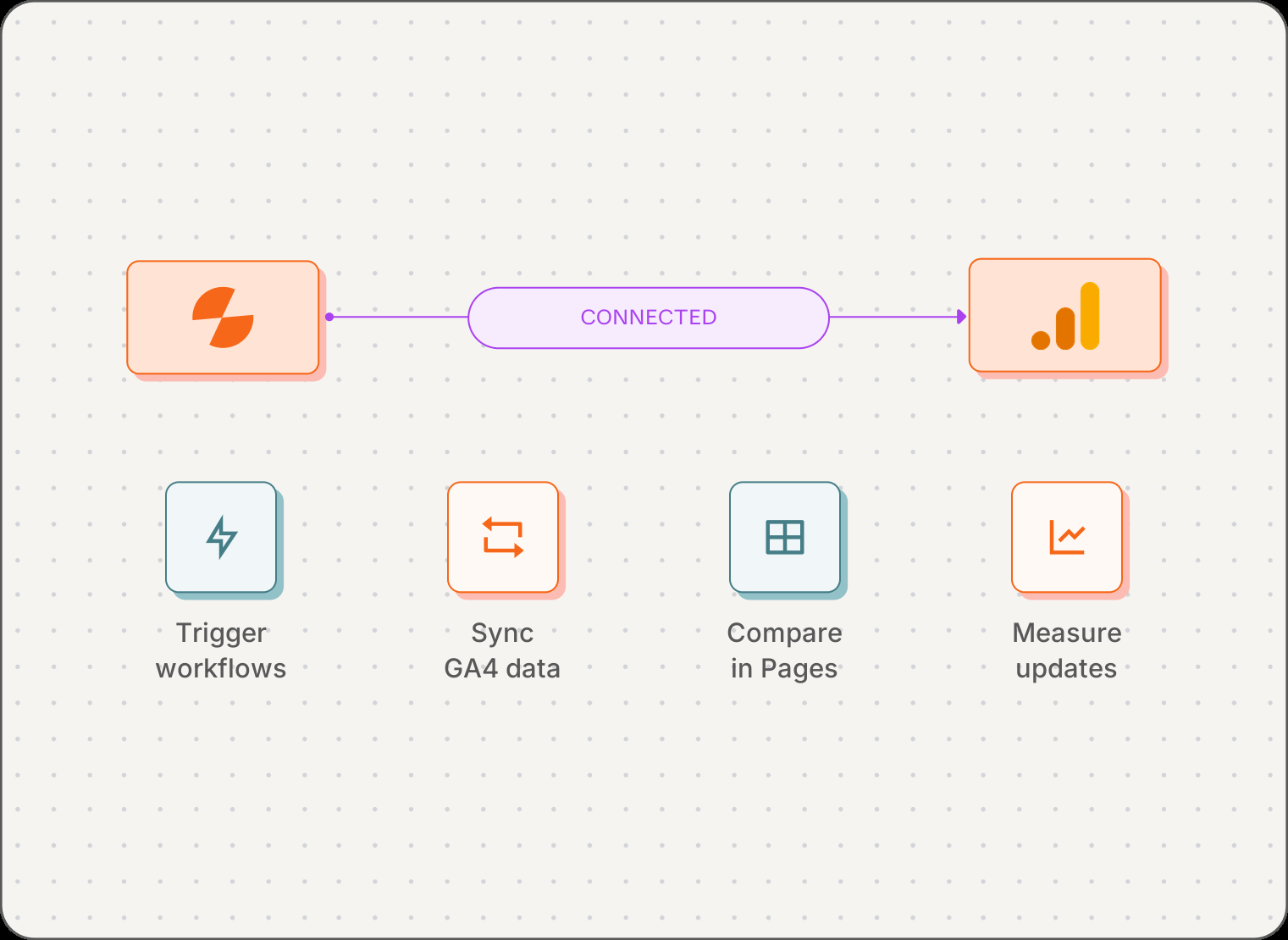
GA4 adds the post-click layer to Slate Pages
Google Search Console shows whether a page earns the click. GA4 shows what happens after it. Slate puts both in Pages next to AI citation data, so rankings, traffic, engagement, and AI visibility stop living in separate reports.
What it does:
Connect a GA4 property with read-only access, and Slate adds these metrics to every tracked page in Pages:
- Traffic (total users)
- Sessions
- Engagement time (average per session)
- Key events you choose to sync
Who it is for:
- SEO leads who need to know whether rankings turn into real visits
- Content teams deciding which pages to refresh, optimize, or investigate next
- Organic growth marketers tired of reconciling GA4 and Search Console reports

Key Capabilities
- Requires Google Search Console. GA4 adds traffic and engagement on top of it
- Read-only Google sign-in, with GA4 properties grouped by account
- Users, sessions, and engagement time for every tracked page, with period-over-period deltas
- Key events as their own columns in Pages
- Filter pages by GA4 channel group or source/medium
- Use GA4 metrics as conditions in Slate workflows
Search visibility is only one part of page performance
A page can rank well and still lose the visitor. Without post-click data, teams prioritize content on half the picture.

Find pages that win the click but lose the visitor
Strong users and sessions with low engagement time point to a page that needs a closer look at relevance, structure, or the promise its search result made.

Surface strong pages that need more visibility
High engagement with low Search Console clicks or impressions marks a page that already works once people arrive. Start SEO work there instead of from a blank brief.

Prioritize refreshes with more context
When sessions drop, Search Console position shows whether it is a ranking issue. Falling sessions plus low engagement make the case for a refresh more urgent.
Connect GA4 to Slate in five steps
Connect Google Search Console first, since Pages runs on it. Then go to Workspace settings → Integrations, find Google Analytics under More integrations, click Connect, and sign in with Google. Slate requests read-only access and cannot modify your GA4 configuration, goals, or tracking setup.
Pick the GA4 property for your website, then turn on the key events you want to see per page. Each key event becomes its own column in Pages.
GA4 data flows into Pages on a schedule. Users, sessions, and engagement time appear for every tracked page, with page views, engagement rate, conversions, channel group, and source/medium synced for deeper analysis.
Open Insights → Pages to see GA4 metrics next to Search Console and AI citation data. Filter by metric, trend, or traffic source to find the pages that need attention.
Log publishes and refreshes in Content Updates to see clicks, AI citations, and engagement time for the 28 days after each change.
What the GA4 integration supports

Read-only Google Analytics access
Slate reads GA4 data and cannot modify your configuration, goals, or tracking setup.

Property and key event selection
Choose the GA4 property for your site and the key events to show as columns in Pages.

Users, sessions, and engagement time by page
See all three for every tracked page, each with a delta against the previous period.

Traffic source filters
Filter Pages by GA4 channel group or source/medium to see where each page's traffic comes from.

GA4 metrics in workflows
The Pages block returns GA4 traffic, sessions, and engagement time per URL, with metric conditions and sorting.

Engagement in Content Updates
GA4 engagement time sits next to clicks and AI citations for every publish and refresh.
A GA4 connection is more useful when page decisions happen in context
GA4 stays your source of traffic data. Slate brings those metrics into Pages, where a drop in sessions can be checked against rankings, engagement, and AI citations in one view.
Use GA4 data to make better page-level decisions
Practical GA4 workflows for content-led teams

Identify high-traffic pages with low engagement
A B2B SaaS team sees search traffic to a solution page growing, but engagement time stays low. Next to Search Console CTR and position in Pages, it becomes a clear candidate for an intent and content review.

Find pages that earn engagement but lack search visibility
A comparison page holds visitors who arrive through direct and referral traffic, yet Search Console impressions stay low. The team treats it as an SEO opportunity, since the page already works once people find it.

Separate ranking problems from broader traffic changes
Sessions fall across a group of high-value pages. If Search Console positions hold steady, the cause is likely seasonality or competition. If positions fall too, it is a ranking problem worth a refresh.
What Slate customers report
Platform-wide results across Slate's CMS integrations
275%
Glean: organic traffic growth
14x
Meegle: blog traffic growth
134%
Meegle: AI citation growth
60-68%
Signeasy: LLM visibility growth
Frequently Asked Questions
Does Slate integrate with Google Analytics 4?
Yes. Slate connects a GA4 property and adds traffic and engagement data to Pages, next to Google Search Console and AI citation data.
Do I need Google Search Console to use the GA4 integration?
Yes. Pages requires a Google Search Console connection. GA4 is recommended on top of it and adds the post-click data, but it does not power Pages on its own.
What GA4 metrics are available in Slate Pages?
Every tracked page shows users, sessions, average engagement time, and any key events you turn on, each with a delta against the previous period. Slate also syncs page views, engaged sessions, engagement rate, conversions, channel group, and source/medium for deeper analysis.
Does Slate need write access to Google Analytics?
No. Slate requests read-only access and cannot modify your GA4 configuration, goals, or tracking setup. GA4 is read-only in Slate. To publish content, connect WordPress or Webflow.
How often does Slate sync GA4 data?
Slate syncs GA4 data automatically on a schedule. To pull the latest data right away, open the Google Analytics sync settings and click Sync now, or use Sync all in the Pages sync settings to refresh every connected source.
What happens if a GA4 connection expires or is removed?
Slate refreshes access in the background. If Google access is revoked, the connection shows Needs attention: add the account again from Workspace settings → Integrations and remove the old connection. If you disconnect GA4, Pages traffic data stops updating until you connect it again.
Connect traffic data to the decisions that shape your content system
See what happens after the click, next to search and AI visibility, for every page you are improving.