

Webflow integration for content workflows
Connect Webflow to Slate and send workflow content straight into your CMS collections. Create new items, update existing ones by slug, and save drafts for review before anything goes live.
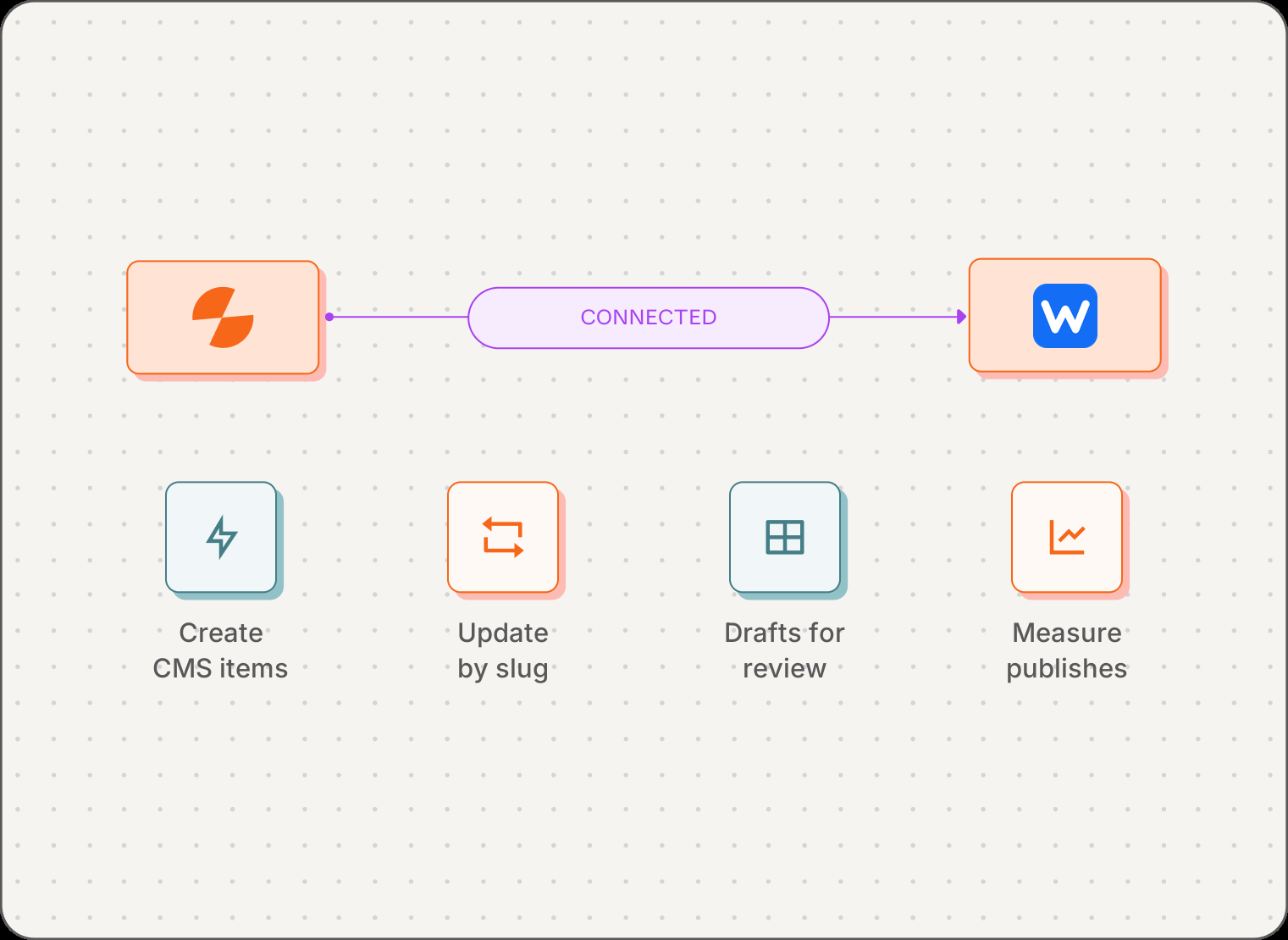
Move content workflows into your Webflow CMS
Slate connects to Webflow with an API token. Add the Webflow block to any workflow, pick a site and collection, and map workflow outputs to collection fields, so content reaches the CMS without copy-and-paste handoffs.
Publishing is one step in a bigger loop. Pages combines Google Search Console, GA4, and AI citation data to show which pages need work. A Slate Sheet and a workflow write the update, the Webflow block publishes it, and Content Updates logs the change and measures traffic before and after. A manual Webflow process or a generic automation connector stops at the publish step.
What it does:
Connect with a Webflow API token, then use Slate's Webflow block for two workflow actions:
- Create CMS Collection Item
- Update CMS Collection Item
Who it is for:
- SEO and content teams publishing and refreshing Webflow CMS content
- Growth teams producing landing pages, product pages, or catalog updates at scale
- Editors who want drafts and approval steps before content goes live

Key Capabilities
- Create new CMS collection items from workflow data
- Update existing items by slug, changing only the fields you map
- Map workflow outputs to 13 Webflow field types, from Rich Text to Multi Reference
- Save new items as drafts by default, or publish live
- Choose the connection, site, and collection for each workflow
- Connect multiple Webflow accounts
Publishing should be part of the workflow, not a separate handoff
When creation, approval, and publishing live in separate tools, someone still has to copy fields into the CMS. Slate turns that handoff into a workflow step.

Reduce manual CMS handoffs
Workflows send titles, body content, slugs, and metadata straight into Webflow collection fields, so nobody rebuilds the same handoff for every page.

Keep drafts under review
New items save as drafts by default. Add a Human Review step and content only moves to Webflow once an editor approves it.

Update content without rebuilding it
Match an existing item by slug and change only the fields you map. Refresh a body or meta description without touching anything else, and without creating a duplicate.
From Webflow connection to published CMS item
In Webflow, generate an API token under Site Settings → Apps & Integrations. In Slate, go to Workspace settings → Integrations, find Webflow, paste the token, and name the connection. Slate validates it by fetching your Webflow sites.
Add the Webflow block to a workflow, pick your connection, site, and collection, then choose Create or Update CMS Collection Item.
Map workflow data to collection fields. Use Liquid templating to transform data first, such as turning markdown into HTML for Rich Text. The block returns the Webflow item ID for later steps.
Save as Draft is on by default, so new items land as drafts for review. Turn it off to publish live, or add a Human Review block as an approval gate.
Every publish through the Webflow block is logged in Content Updates. Slate compares clicks, impressions, AI citations, and GA4 engagement for the 28 days before and after each publish or refresh, so you can see whether it moved traffic.
What the Webflow integration supports

Create collection items
Add new blog posts, pages, products, or any CMS item to a selected collection.

Update existing items by slug
Match an item by its slug. Only mapped fields change.

Map 13 CMS field types
Plain Text, Rich Text, Number, Boolean, Email, Phone, Link, Date, Image, Video, Option, Item Reference, and Multi Reference. Required fields must be mapped on create.

Drafts by default
Save as Draft is on by default. Turn it off when content should publish live.

Avoid duplicate items
Turn on Update if slug exists, and Slate updates the matching item instead of creating a second one.

Bulk publishing with loops
Process a product catalog or content list with a Loop block. For large batches, add a short delay between loop runs to stay within Webflow rate limits.
A workflow connection, not a manual publishing workaround
Manual Webflow publishing starts after the content work is done: open the CMS, copy fields, check the slug, save a draft. Slate sets the connection, site, collection, field mapping, and draft status once, then every workflow run creates or updates the item.
Use Cases and Examples
Practical Webflow workflows for content-led teams

Refresh underperforming pages in bulk
An SEO team filters Pages for high impressions and low CTR, then sends those pages to a Slate Sheet. A workflow rewrites each title and meta description and updates the matching Webflow item by slug.

Publish SEO landing pages with approval in Slack
A growth team turns keyword research into landing page copy. Human Review posts each draft to a Slack channel, and approved pages publish to the Webflow collection.

Keep a product catalog in sync on a schedule
Product data lives in a Slate Sheet. A scheduled workflow loops through each row and updates the matching item in the Webflow Products collection, so the site stays current without manual edits.
What Slate customers report
Platform-wide results across Slate's CMS integrations
275%
Glean: organic traffic growth
14x
Meegle: blog traffic growth
134%
Meegle: AI citation growth
60-68%
Signeasy: LLM visibility growth
Frequently Asked Questions
Does Slate integrate with Webflow?
Yes. Slate's Webflow integration lets workflows create and update items in your Webflow CMS collections, map workflow data to fields, and save drafts for review.
What is required to connect Webflow to Slate?
An active Slate workspace, a Webflow account with at least one site and CMS collection, and a Webflow API token with access to the target site. Generate the token in Webflow under Site Settings → Apps & Integrations.
Can Slate create Webflow CMS items as drafts?
Yes. Save as Draft is on by default, so new items land as drafts for review. Turn it off to publish live.
Can Slate update existing Webflow CMS items?
Yes. Slate matches an item by slug and changes only the fields you map. Unmapped fields keep their current values.
Which Webflow CMS field types does Slate support?
Plain Text, Rich Text, Number, Boolean, Email, Phone, Link, Date, Image, Video, Option, Item Reference, and Multi Reference. Required fields are marked in the block and must be mapped when creating an item.
What happens if the Webflow API token expires?
Slate shows an Expired badge on the affected connection. To restore it, generate a new API token in Webflow, open the expired connection in Slate, enter the new token, and save.
Bring Webflow publishing into the content system
Create, update, and review Webflow CMS items inside the workflow, then see what each publish does to traffic.