

Why it matters
Account managers spend hours each week gathering numbers and chasing approvals. Slate assembles the facts so you can spend that time with the client.Credits
Drafts use AI credits from your HQ workspace. Reusing a recent draft costs nothing. If HQ is out of credits, Slate shows “Your workspace is out of credits. Add credits to draft this.” See Billing and usage.Prep for a call
- Open the client record and click Prep for call. You can also click Prep for call in the client’s ⋯ menu on the Clients tab.
- Read the brief. It usually takes under 20 seconds to prepare.
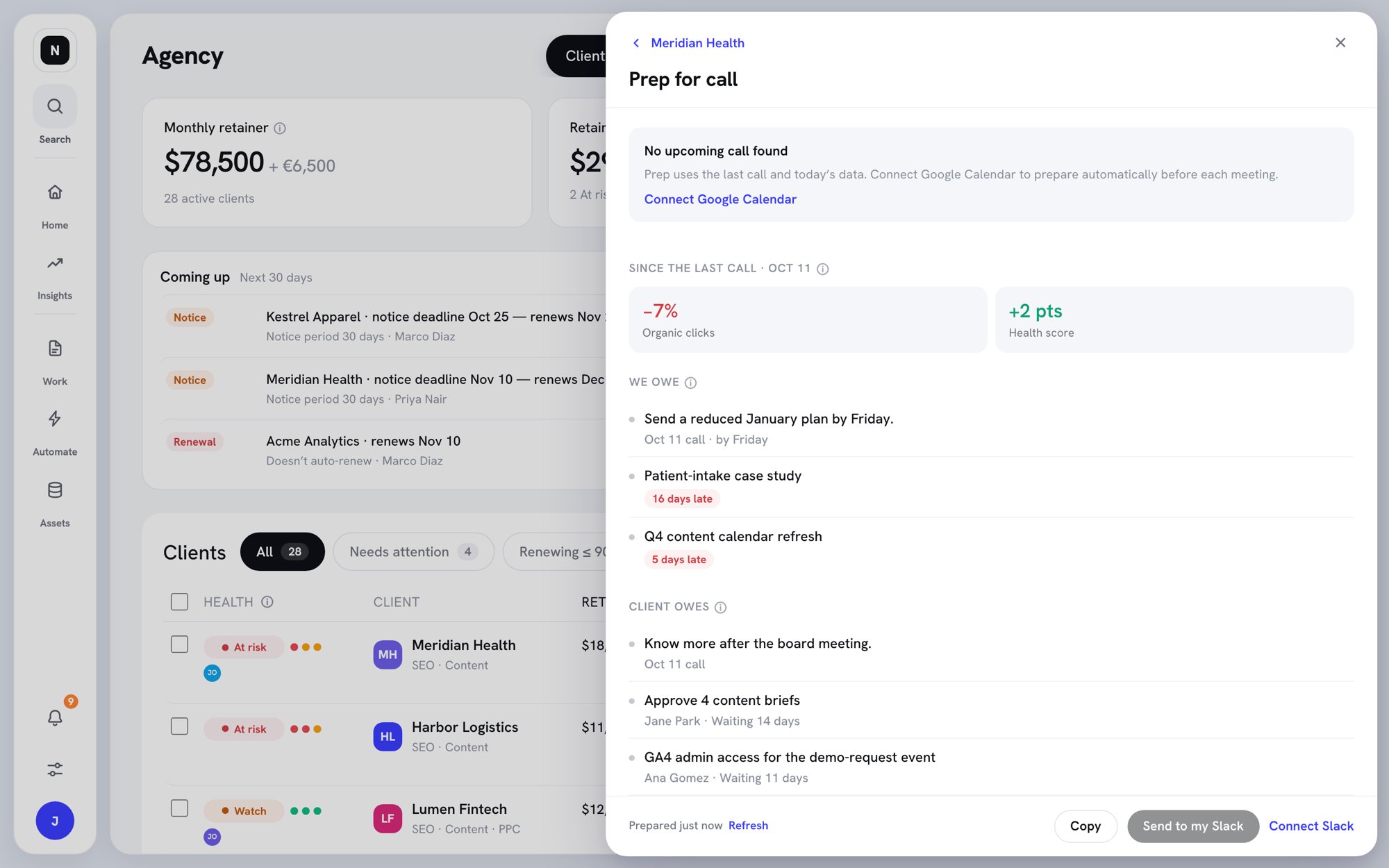
Prep for call
- Since the last call — how Search Console clicks, AI mention rate, and the health score moved.
- We owe — what you promised on the last call, then your tasks that are late or due this week.
- Client owes — what the client said they would do, then tasks waiting on them.
- Risks to address — risks from the last 30 days of calls, and decision makers missing from the invite.
- People to expect — the client’s people on the meeting invite.
- One idea to bring — a suggestion Slate writes only from facts it can point to.
Draft a recap
After Slate reads a client call, you can draft the follow-up email.- Open the call from the client’s Calls tab or from Agency → Calls.
- Click Draft recap.
- Edit the Subject and the email body.
- Click Copy draft, or Email draft to me.
Weekly client update
Slate can draft a regular update for each client from that client’s data only. The client sees it only after you share it. Updates never include money.Turn on the weekly update
- Open the client record on the Overview tab.
- Under Client updates, turn on Weekly client update.
- Pick how often it repeats: Weekly, Every 2 weeks, or Monthly.
- Pick the day and time. The time zone comes from Agency settings.
- Optional: turn on Add an AI disclosure line. It adds “Prepared with help from Slate AI” to each update.
Review and share the update
The draft is labeled “Draft · only your agency can see it”. It has three sections: Results, Delivered, and Waiting on you.- Read the draft. To change it, click Regenerate with a note and say what to change, for example “Lead with the pricing-page win; keep it shorter.”
- Click Share with ‹client›.
- Optional: under Notify, pick the client users to tell.
- Click Share.
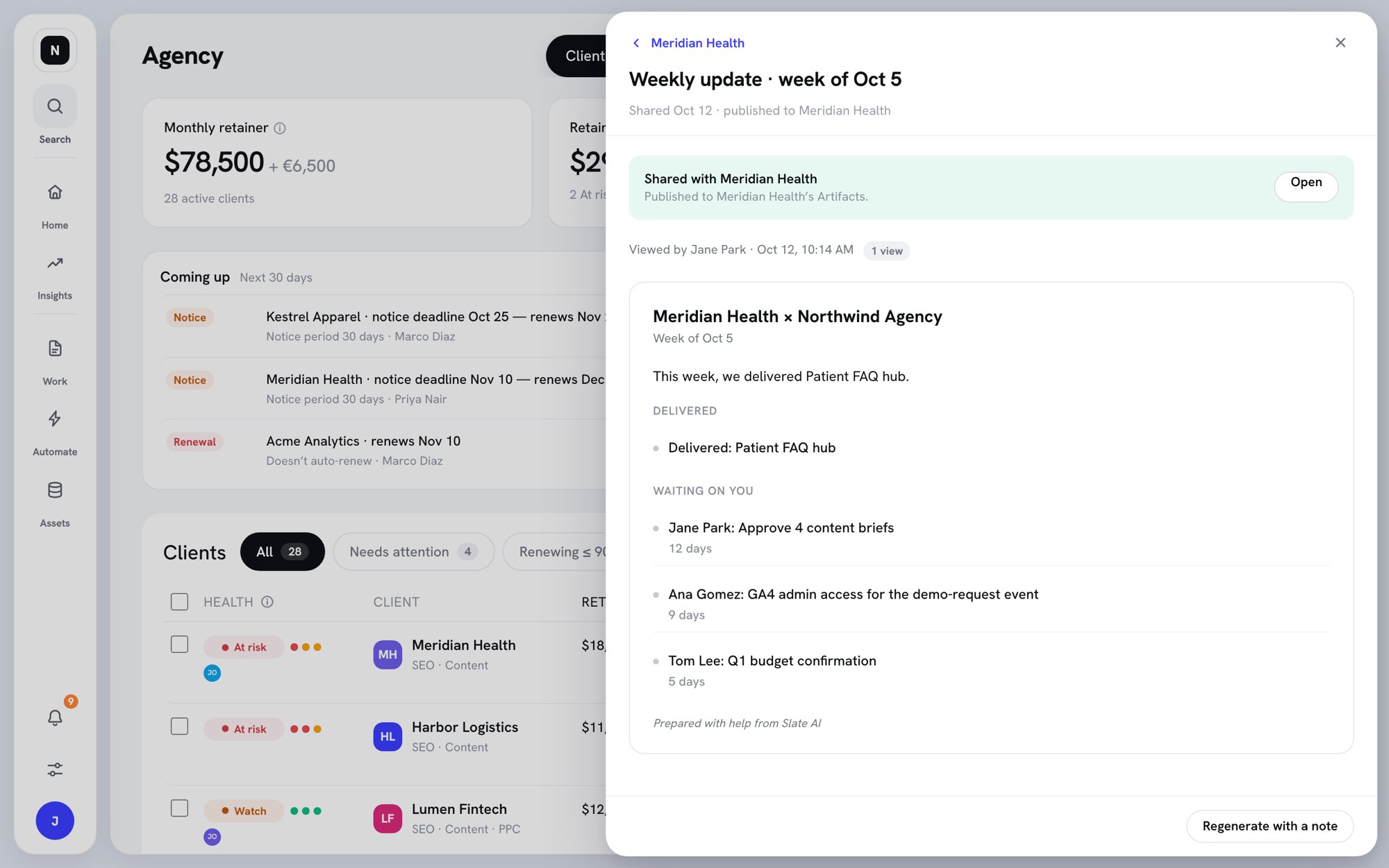
A shared weekly update
Track what the client owes
Mark tasks that wait on the client, so they don’t count against your delivery.- Open a task in the client’s workspace and set its status to Blocked.
- Next to Blocked on, choose Client.
- Under Waiting for, pick the person, or Nobody in particular.
- Optional: under What you need, describe the ask, for example “Approve the 4 briefs before we start writing.”
- Click Save.
Send a reminder
When a task waits on a client user, click Send reminder on the task. Slate sends it to that person’s Slate inbox and email. Keep Remind again every 7 days until it’s done (up to 3 times) ticked to follow up on its own. Click Stop reminders to cancel. To remind about several tasks at once, click the client count under Open blockers on the Clients tab. Then click Send ‹number› reminders.Draft a nudge
To send the reminder yourself, for example to a contact who isn’t in Slate, click Draft a nudge. Slate writes a short message to copy into your email or Slack. Click Shorter or Friendlier to rewrite it.Renewal prep
Renewal prep summarizes where a client stands before you talk about renewal. Slate makes one on its own 60 days before the renewal date and saves it to Reports. To make one now, open the client’s ⋯ menu and click Renewal prep.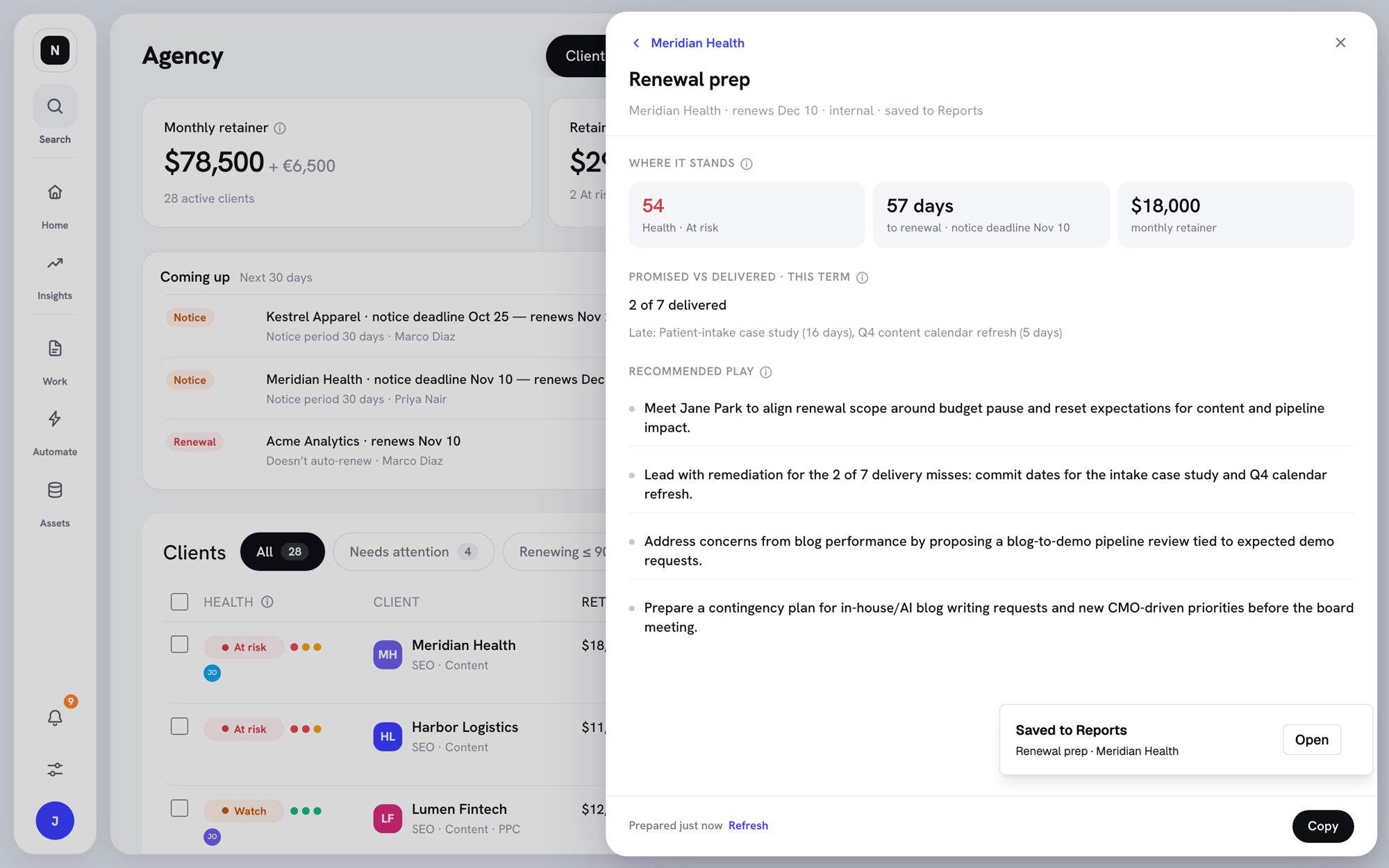
Renewal prep
- Where it stands — health, time to renewal, the notice deadline, and the retainer if you can see money.
- Promised vs delivered · this term — how many tasks from this contract term are done, and which are late.
- Recommended play — what Slate suggests, based on health, timing, delivery, decision makers, risks, and results.