

Where to Find It
Go to Insights → Overview in the sidebar.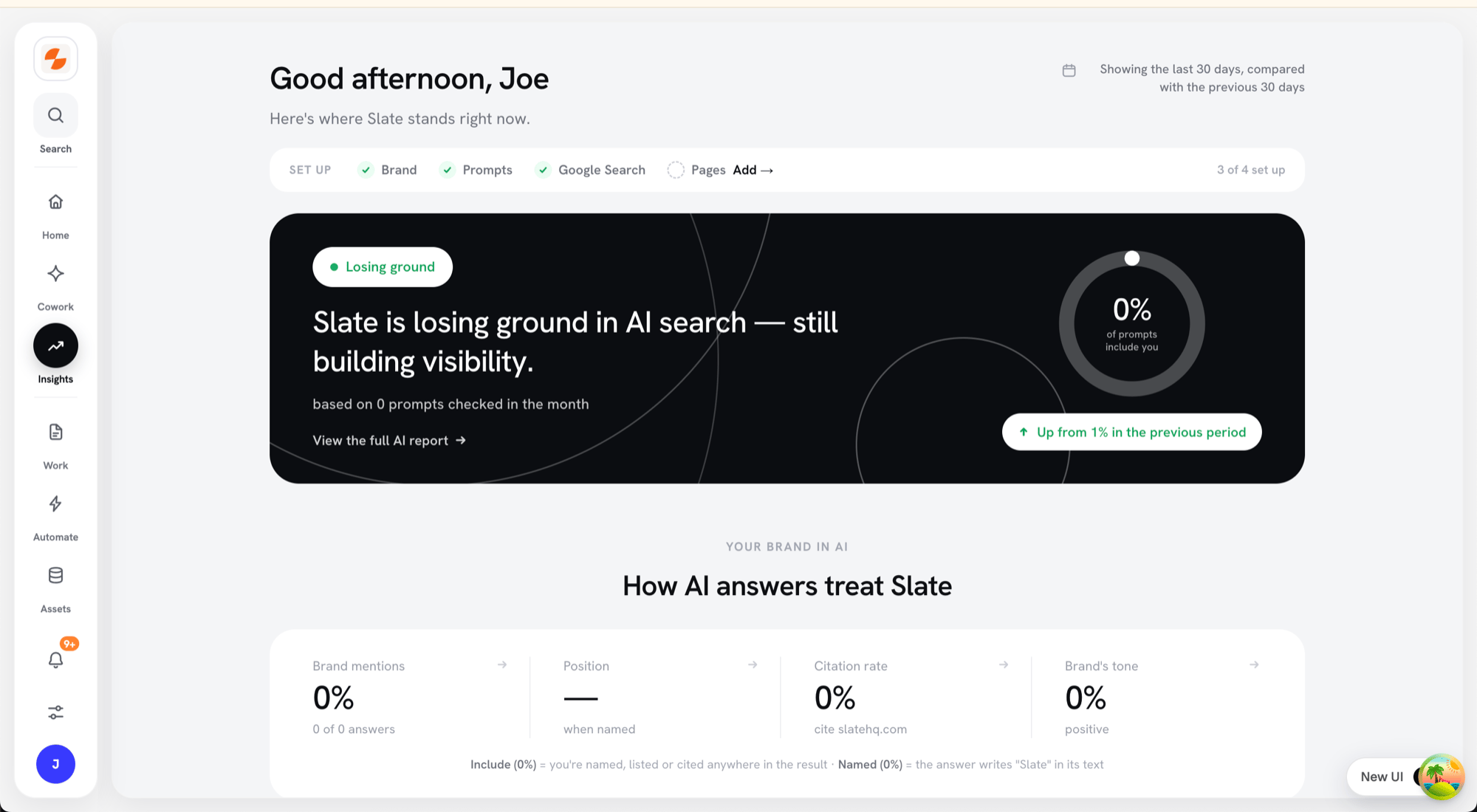
The Insights Overview — your brand at a glance
The Verdict Card
The page opens with a status pill and a headline that lead with your strongest win. Examples include Gaining ground, Leading your rivals, Well regarded, and Named in AI answers. Some pills name a platform or rival, such as Strong on ChatGPT. When no win applies, the pill reads Your AI snapshot. In the first two weeks after you add your brand, the pill shows Early days. With fewer than 30 AI answers in the window, it shows Still gathering. A circular gauge shows your AI visibility score: how often AI names you, weighted by how early in the answer it names you. Next to the gauge, Slate compares the score with the previous period, for example “Up from 32% last period” or “Was 32% last period”. Click the card or View the full AI report to open AI Visibility.Your Brand in AI
A stat strip summarizes how AI answers treat your brand:
Below it:
- Where you show up — your presence per platform (ChatGPT, Google AI Overviews, Google AI Mode, Perplexity, Claude, Gemini) with change indicators.
- Top prompts naming you — the questions where your brand shows up most.
- Where AI gets its facts — the domains AI cites in your space, tagged You, Rival, or Reference.
- Top topics — where your AI presence concentrates.
The Google Half
When Google Search Console is connected, the page continues with:- Google Search — visits, impressions, click-through rate, and average position, with a daily visits chart.
- Keyword rankings — keywords on Google’s first page, striking-distance keywords on page 2, and how many climbed or slipped.
- Search terms on the move — your biggest ranking jumps.
- Pages — your top pages and pages losing traffic.
- Content you’ve shipped — published vs refreshed pages.
Setup Rail and Next Moves
Until your workspace is fully set up, a Set up rail tracks four steps: Brand, Prompts, Google Search, and Pages. The rail disappears once all four are done. The page closes with Your next moves — up to three setup steps and AI gaps worth acting on, such as Connect Google Search Console or Close the Perplexity gap.The Overview picks its own date window based on how much history your workspace has: the last 30, 14, or 7 days, compared with the previous period of the same length (for example, “Showing the last 30 days, compared with the previous 30 days”). In the first two weeks, the page shows everything since the start, with no comparison. There is no manual date picker on this page — use AI Visibility or Pages for custom ranges.
What’s Next
- AI Visibility — the full AI visibility report behind the verdict
- Keywords — keyword tracking in depth
- Pages — page-level performance
- Opportunities — act on what the data surfaces