

Why it matters
Clients can approve work, answer questions, and read updates inside Slate. Notes, money, health, and calls stay private to your agency.Organization roles in Agency mode
In an agency organization, Members who aren’t admins don’t see Members or Usage in Organization settings. See Organization settings for the rest of the role rules.
Who sees money
Retainers, project values, hourly rates, and contract files are visible to Owners, Admins, and the client’s account manager and account director. Everyone else sees Hidden.What client users see
Client users see only the workspaces you invite them to. In those workspaces they can:- Work on tasks with your team. A task waiting on them shows “‹Agency› needs: ‹what you need›”.
- Get reminders from your team in their Slate inbox and by email.
- Open weekly updates you share. They appear in the workspace’s Artifacts.
- See tasks created from your notes. Those tasks are visible to everyone in the workspace.
- The Agency page, the Agency row in the workspace switcher, or Clients in Search.
- Your HQ workspace, other clients’ workspaces, or the organization’s member list and usage.
- Notes, money, contracts, health, client calls, or the client health report.
Invite a client user
Only Owners and Admins can invite people from Organization settings.- Click the Settings icon on the sidebar rail and choose Organization settings.
- Open Members and click Invite people.
- Under Who are you inviting?, choose Client.
- Add their email addresses.
- Under Workspaces, pick the client’s workspace. HQ isn’t available for clients.
- Pick their Role in those workspaces.
- Click Send invite.
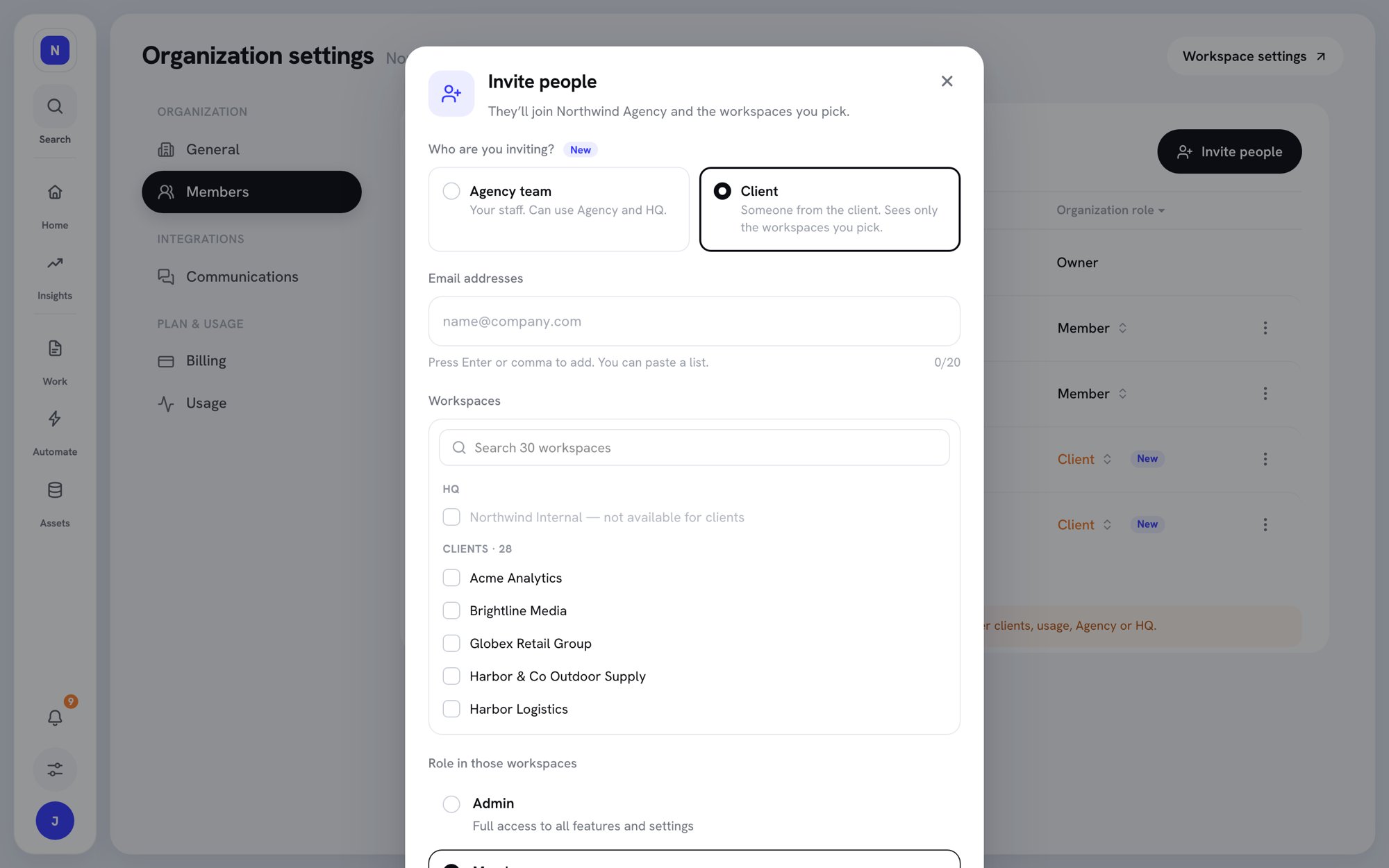
Inviting a client user
Make an existing member a client user
When members have a client’s email domain, the Members page shows a banner, for example “3 members look like client users.” Click Review to mark them in one step. To change one person:- Open Organization settings → Members.
- Change the person’s Organization role to Client.
- Click Make Client to confirm.