

Where to Find It
Go to Insights → Opportunities in the sidebar.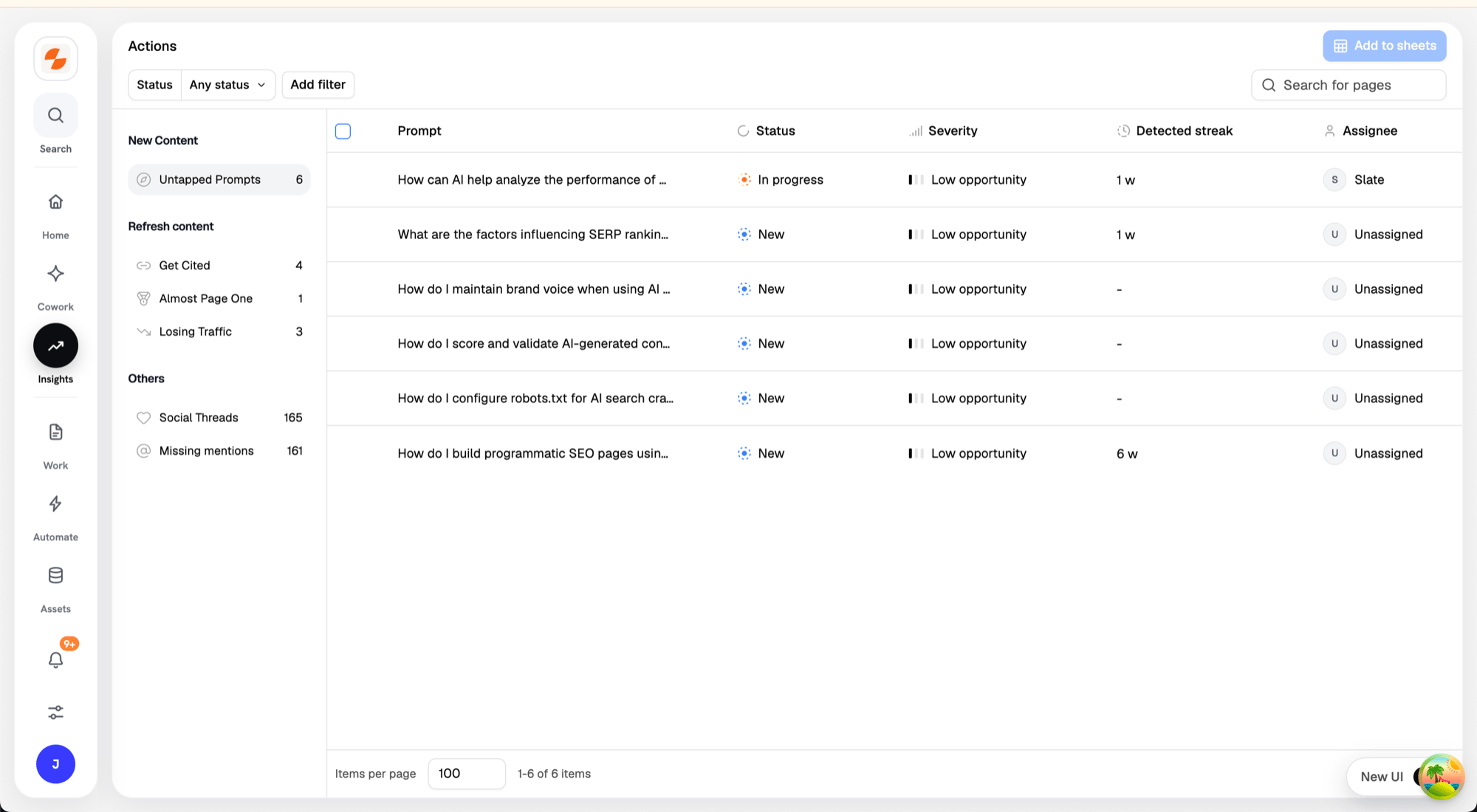
Opportunities grouped by type, with status, severity, and assignee
Opportunity Types
Every opportunity has one type. The types shown can vary by workspace.- Keyword: a tracked keyword has no page targeting it, a page is underperforming in search, or a refresh settled without improvement.
- Topic: a saved AI Visibility topic has changed, such as declining visibility, competitor gains, or momentum you can build on.
- Prompt suggestion: a buyer prompt Slate suggests you start tracking in AI Visibility.
- Outreach: an influential third-party page cited in AI answers doesn’t mention your brand.
- Content decay: traffic is declining on one of your pages.
Summary Tiles
Four tiles sit above the list: Ready to review, Accepted, Completed, and Not useful. Each tile shows a count and the change in the last 30 days. The Accepted tile shows how many accepted opportunities are in progress and how many are stalled. Click a tile to filter the list by that status. Click the tile again to clear the filter.The Opportunities List
Each row shows the opportunity title, its status, and its target, such as a URL, keyword, or topic.
An opportunity’s status is one of: Ready, Snoozed, Accepted, Rejected, or Completed.
Filter and search
- Click the Opportunities, Type, or Priority column header to filter by status, type, or priority. Each option shows its count.
- Click the search icon and type to search by title or target.
- Click Clear (for example, Clear 2) to remove all filters and the search.
Reviewing an Opportunity
Click a row to open the opportunity’s detail panel. The header shows the Type, Priority, Target, and Last checked date. The panel includes these sections:- What happened: the change Slate detected.
- Why it matters: why the change is worth acting on.
- Diagnosis: the likely cause.
- Recommended play: the suggested action, its Target, and its Success signal. Some plays also show a Rejected alternative.
- Measured impact: appears after you accept. For keyword and page opportunities, Slate compares the 28 days after acceptance with the 28 days before. Outreach opportunities wait for a verified mention or reply. The verdict is Won, Lost, No change, or Inconclusive.
- Timeline: key events, such as Accepted or Task created.
- Sources: the facts behind the opportunity, with each source and date.
Acting on an Opportunity
Action buttons sit at the bottom of the detail panel. The buttons show icons; hover over a button to see its label.Accept and assign the work
Use these steps for Keyword, Topic, Outreach, and Content decay opportunities.- Click Assign to….
- Select Me, Slate, or a teammate.
Add a suggested prompt
Use these steps for Prompt suggestion opportunities.- Click Add prompt to AI Tracker.
- Under Schedule, choose Run Once, Daily, Weekly, or Monthly.
- Under Platforms, select where the prompt runs. Slate pre-selects the platforms it recommends and tags them proposed.
- Click Add prompt.
Work on it in Cowork
Click Open in Cowork to start a new Cowork conversation with the opportunity attached. Then tell Cowork what you want to do with the opportunity.Snooze or dismiss
- Snooze 7 days: sets the opportunity to Snoozed. Click Restore to move a snoozed opportunity back to Ready.
- Not useful: dismisses the opportunity. The status changes to Rejected, and the opportunity counts toward the Not useful tile.
Troubleshooting
The list says “No opportunities to review.” New opportunities appear after the next scan of your connected sources. The empty state also lists anything a type needs before it can find opportunities, such as tracking at least one keyword.What’s Next
- Tasks: track the tasks created when you accept an opportunity
- Cowork: work through an opportunity with Slate
- AI Visibility: the prompt and citation data behind Topic, Prompt suggestion, and Outreach opportunities
- Keywords: the ranking data behind Keyword opportunities
- Pages: the page data behind Content decay opportunities