

Why it matters
One list shows which clients need attention, which renew soon, and which have no account manager. Client statuses also decide how many client workspaces you use.Read the Clients tab
- Open the workspace switcher and click Agency.
- The Clients tab opens first.
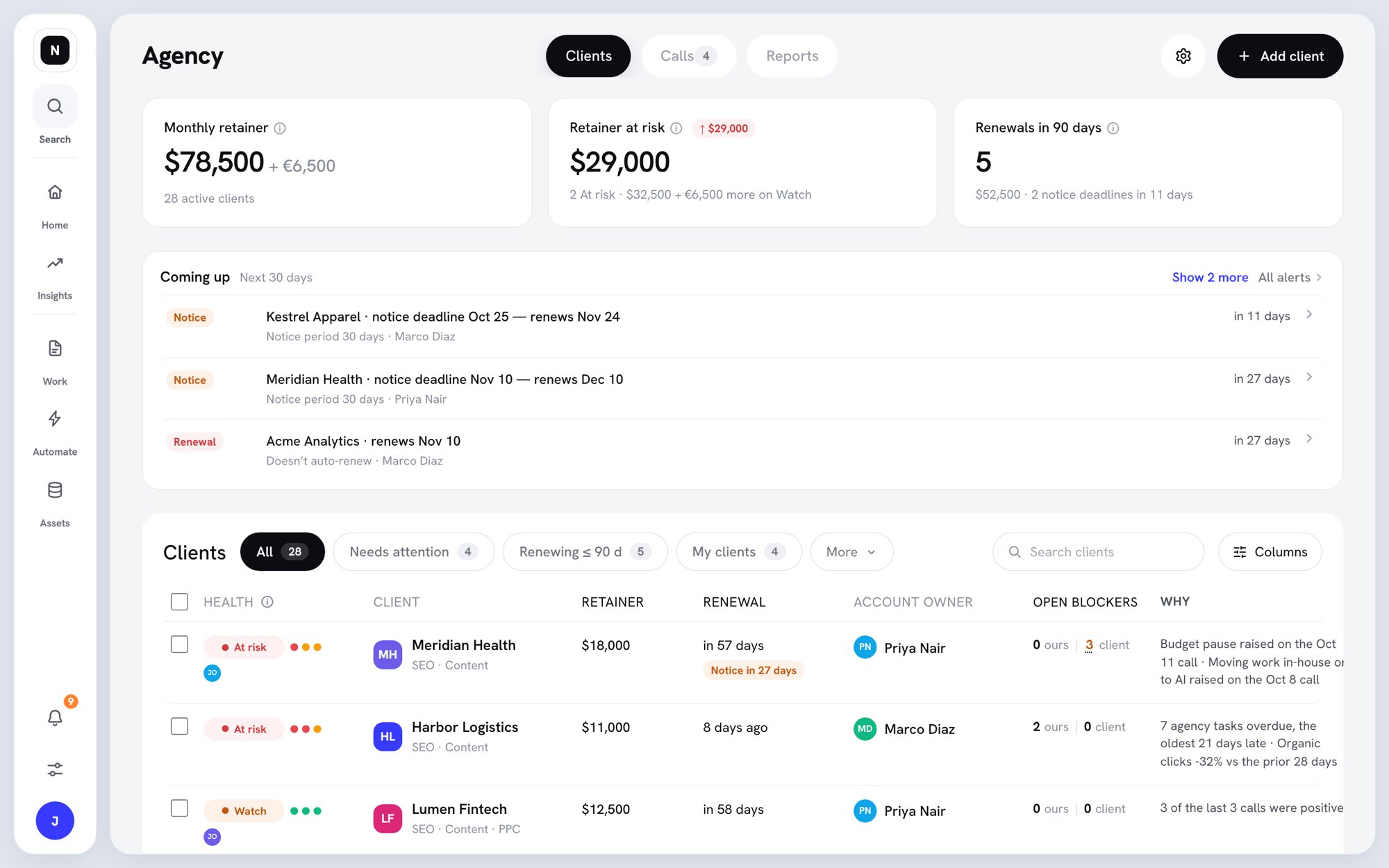
The Clients tab
Summary cards
- Monthly retainer — what Active clients pay each month, by currency. Projects count as their monthly equivalent.
- Retainer at risk — the monthly retainer of clients that are At risk. Clients on Watch are counted underneath.
- Renewals in 90 days — contracts renewing in the next 90 days, with their notice deadlines.
Coming up
Coming up lists what’s due in the next 30 days: Renewal, Notice, Leaving, New person, and Meeting items. Click All alerts to open the client alerts in your inbox.Tabs, search, and columns
- All, Needs attention, Renewing ≤ 90 d, and My clients filter the list.
- More holds Unassigned, Inactive, and, for admins, an Account manager filter.
- Search clients finds a client by name.
- Columns shows or hides columns. Health and Client are always shown. Optional columns are Last client touch, Overdue tasks, Work delivered · 30 d, and Pillar scores. Your choice is saved for you.
Add a client
Only Owners and Admins can add clients. Click Add client at the top right, then pick an option.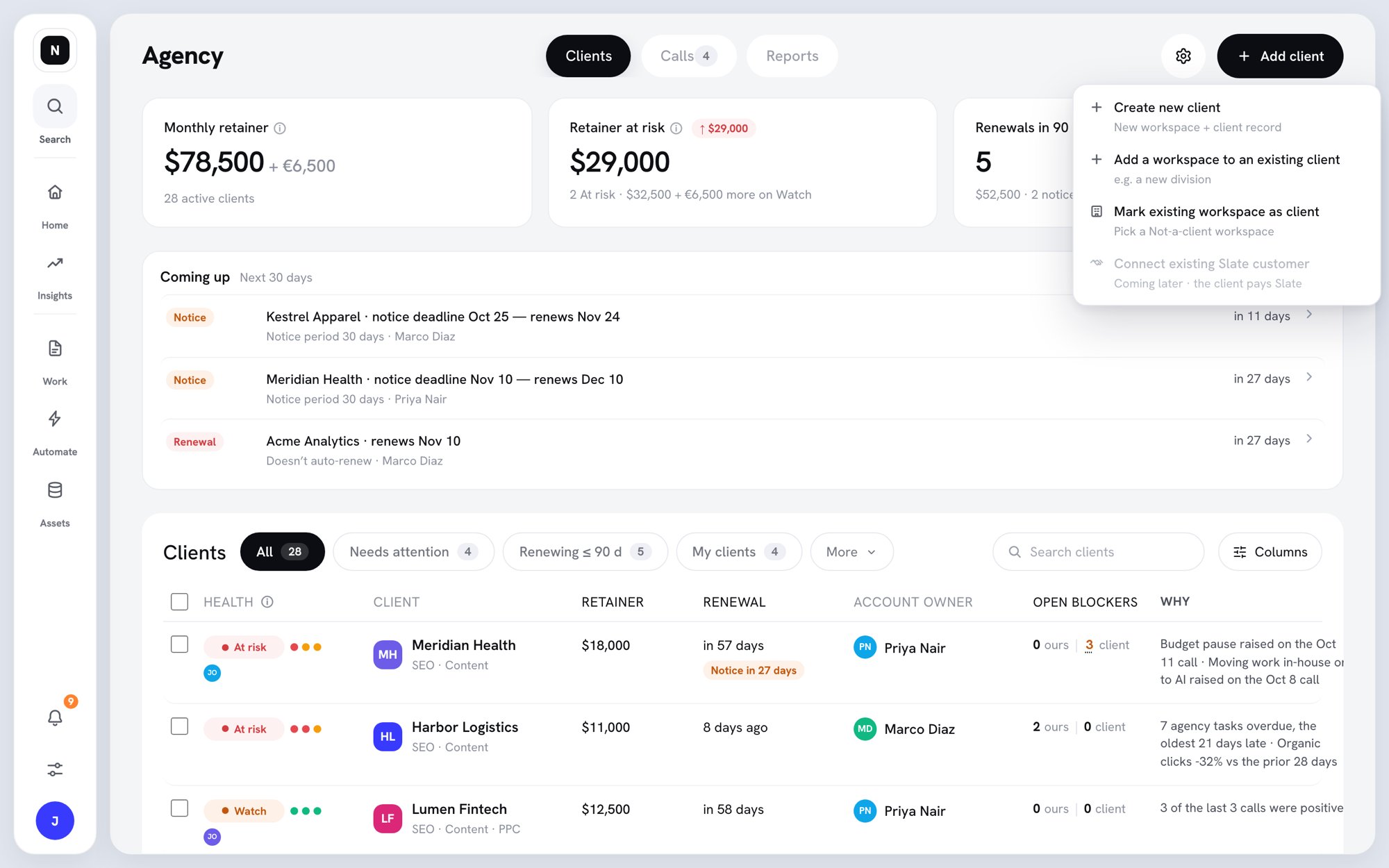
The Add client menu
Create a new client
- Click Create new client.
- Enter the Client name.
- Enter the Website. Slate uses it for the workspace domain and call routing.
- Pick the Account manager.
- Keep Status as Active client.
- Optional: drop the signed contract PDF into the box. Slate reads it and suggests contract details.
- Click Create client.
- Slate opens the new-workspace page with This is a client turned on. Finish creating the workspace.
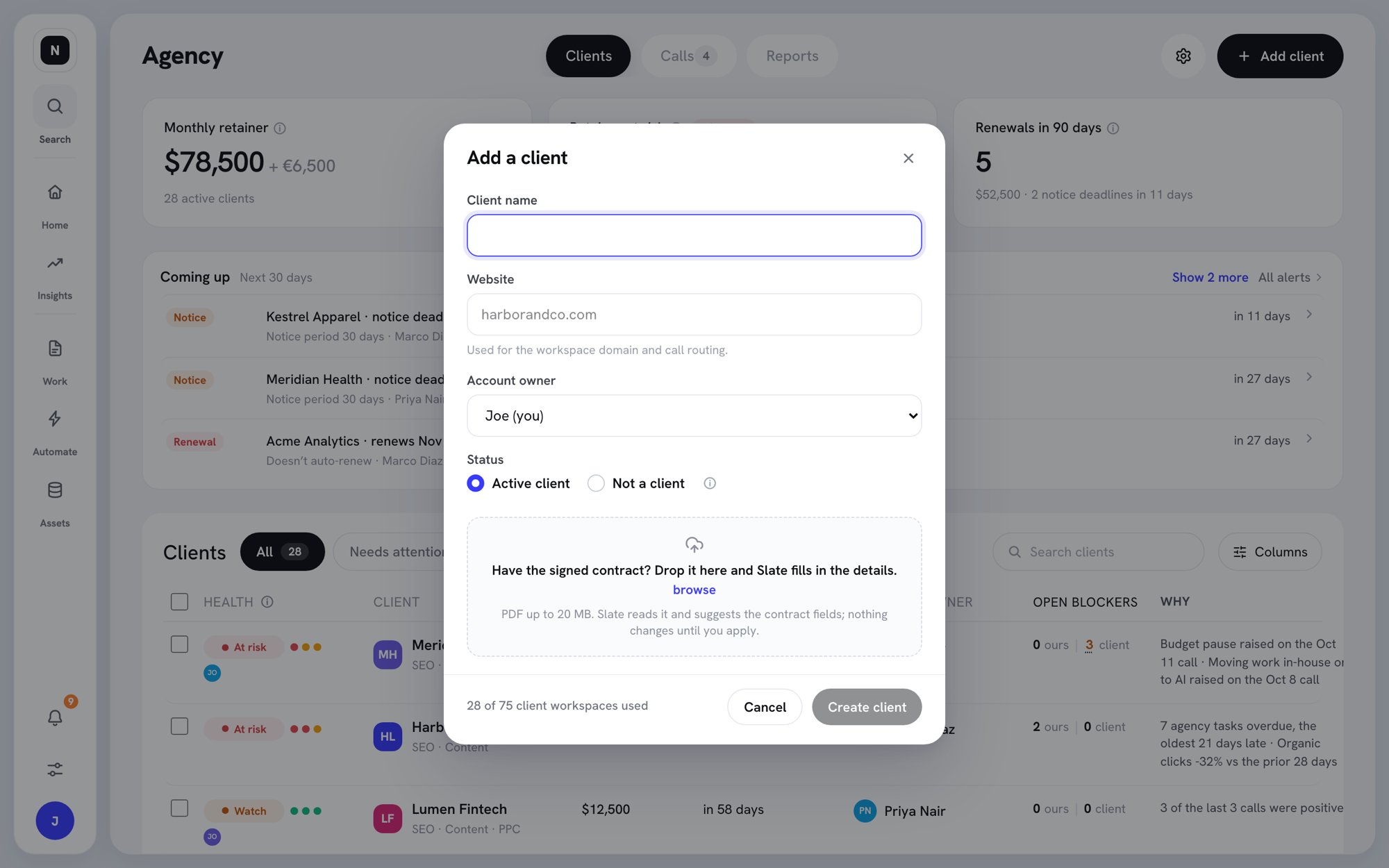
The Add a client dialog
Other ways to add a client
- Mark existing workspace as client — pick a workspace that’s currently Not a client, then click Mark as client.
- Add a workspace to an existing client — for a client with more than one workspace, for example a new division. Pick the client, then create a new workspace or use an existing one.
When you reach your limit
Each Active client uses one client workspace. When all are used, Slate offers to add another pack of 25 first. Click Pay ‹amount› and create. The charge is prorated to your renewal date. If the payment fails, nothing is created. To free a client workspace instead, mark a client Inactive or Not a client.Change a client’s status
Only Owners and Admins can change status. Open the row’s ⋯ menu, or select several rows and click Set status.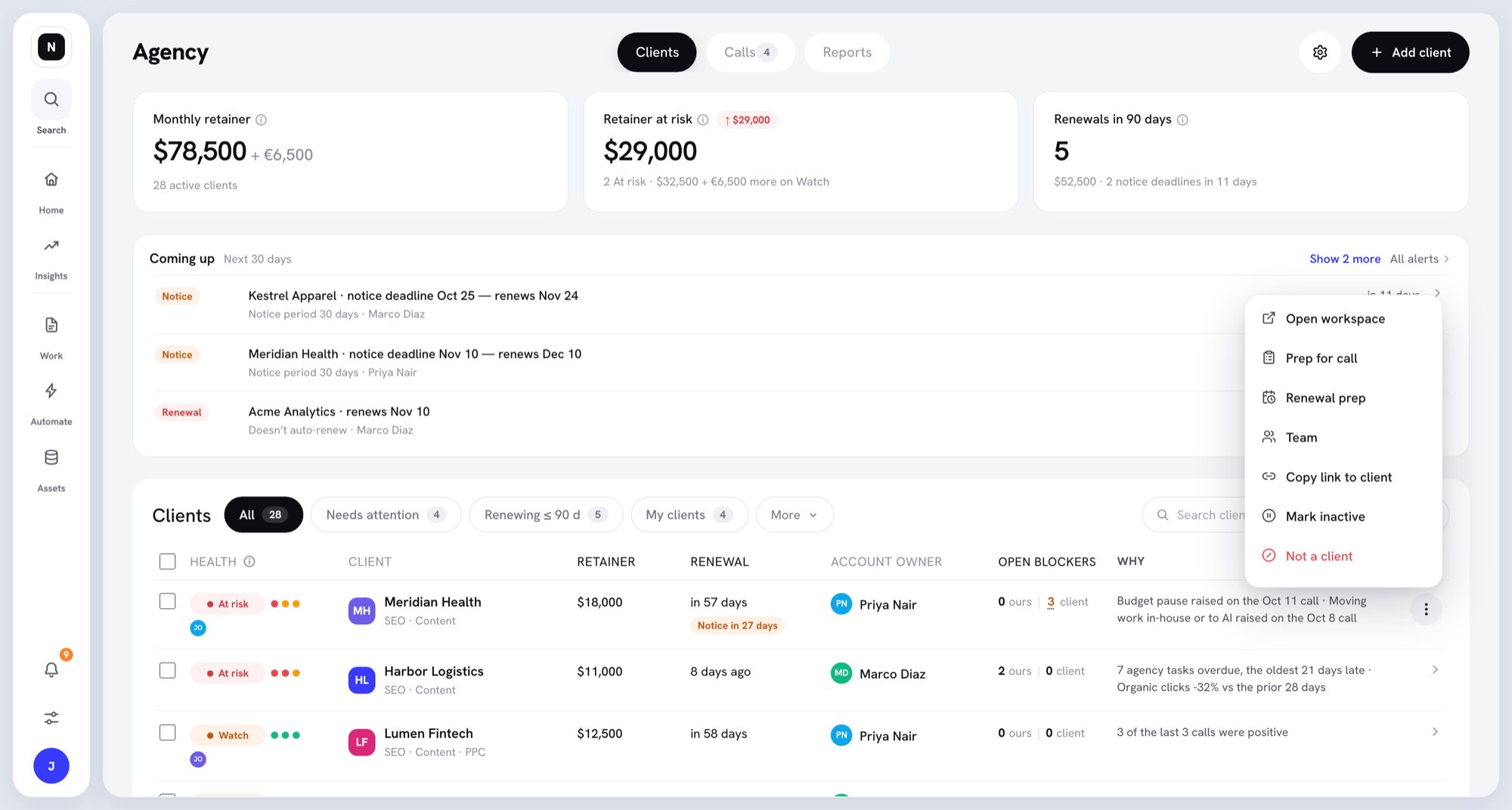
The client row menu
When 25 or more client workspaces would be unused, the Mark inactive dialog offers to remove a pack at renewal.
Set the team
Each client has an account manager and an optional account director. The account director owns the relationship above the account manager: renewals and escalations. Both get the client’s alerts. Clients without an account manager send alerts to admins.- Open the row’s ⋯ menu and click Team.
- Under Account director · optional, click Choose to pick an account director.
- Under Account manager · required, click Change to pick the account manager.
- Click Add people to add team members, and pick their workspace role: Admin, Member, or Writer.
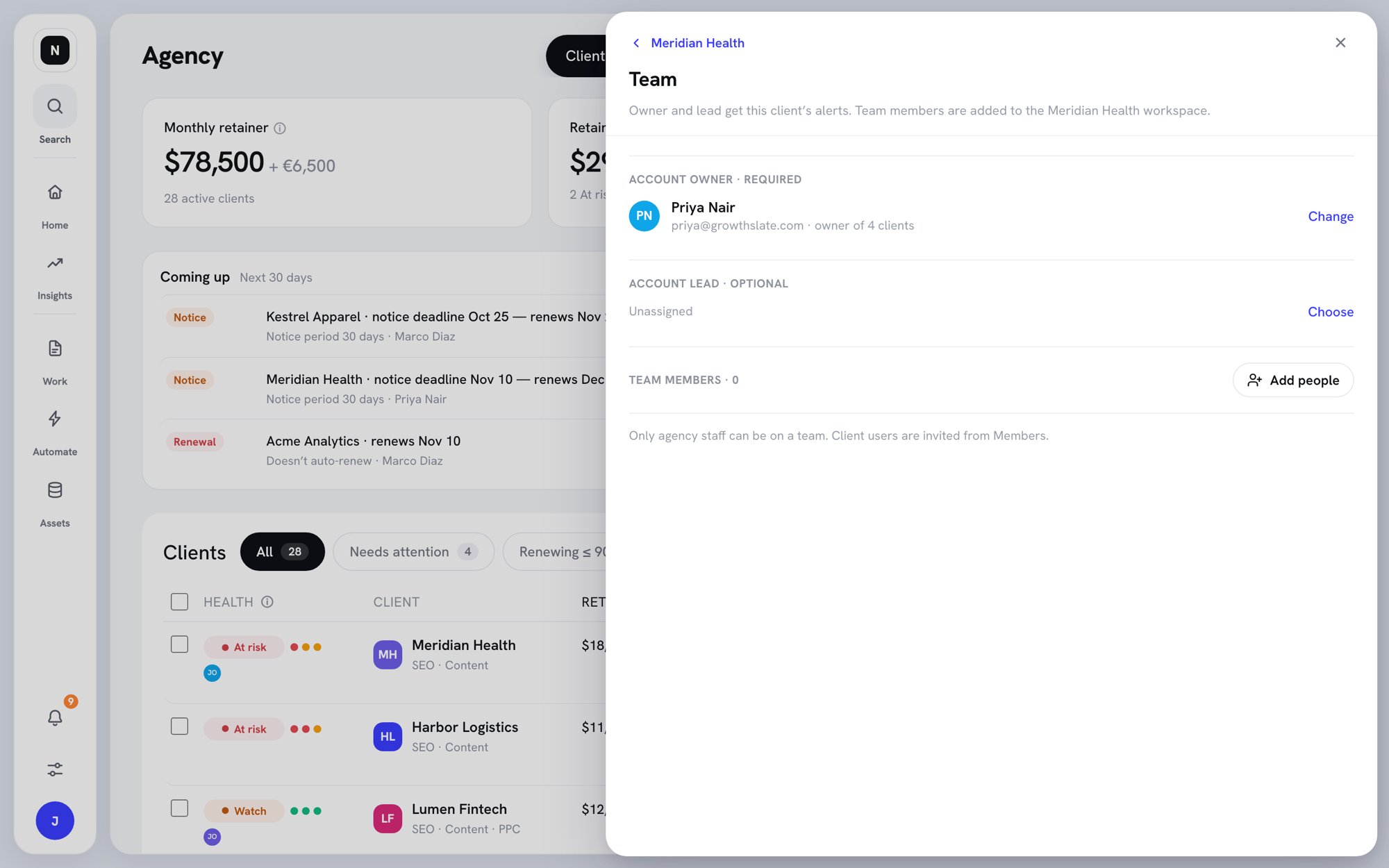
The Team view
Work with many clients at once
Admins can select rows with the checkboxes. The bar that appears offers Set account manager, Set status, Merge clients (exactly two selected), and Copy links.Clients with several workspaces
A client can have more than one workspace, for example one per division. The client shows as one row. Click Show workspaces to see each one.- Move a workspace to another client. In the client record, open ⋯ and click Move workspace. Its status, commercials, contract, team, and tagged notes and calls move with it. You can undo the move from History for 30 days.
- Merge two clients. Select both rows and click Merge clients.
- Share one contract. In the client record, choose All in the Workspace switcher, then turn on One contract covers all workspaces. Renewal, notice, and retainer then live on the client. To undo, click Split contract.