

Where to Find It
Go to Work → Tasks in the sidebar.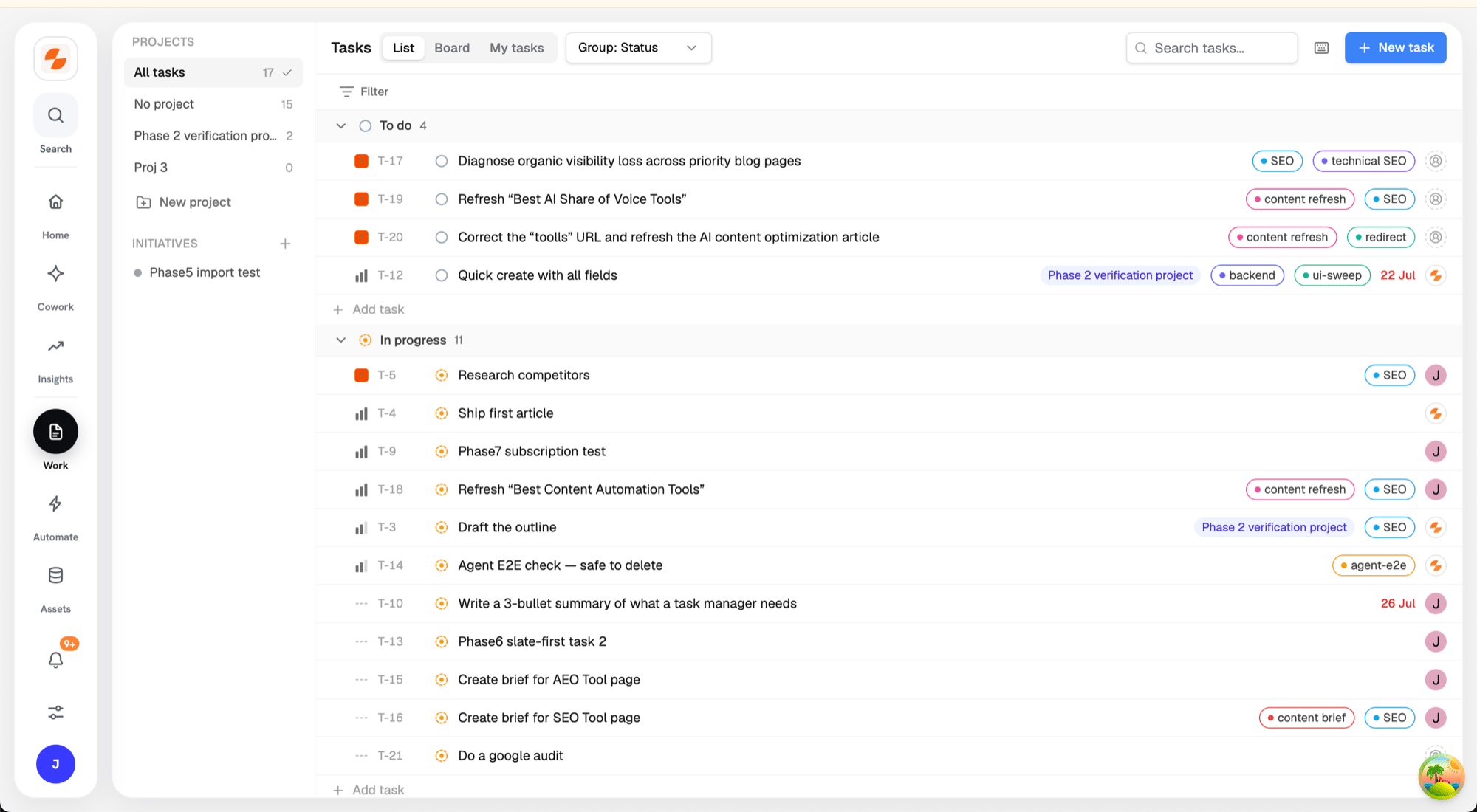
The Tasks list with projects, views, and filters
The Layout
- Left rail — Projects. Filter by All tasks, No project, or a specific project. Click New project to add one.
- Left rail — Initiatives. Shown below Projects when your workspace has a Slate agent. See Initiatives.
- Toolbar. Switch between List, Board, and My tasks views. In List view, group tasks by Status, Project, Priority, or Assignee. Search with the Search tasks… box.
- The list. Each row shows the task id (like
T-42), priority, status, title, project, tags, due date, and assignee.
Creating Tasks
- Click New task, or use the inline Add task row. In List view, Add task rows appear under the To do, In progress, and Blocked groups when you group by Status.
- Type the title. In an Add task row, press Enter. In the New task dialog, click Create task or press ⌘/Ctrl+Enter.
- Open the task to add details.
Statuses and Priorities
Priorities: Urgent, High, Medium, Low, or No priority.
Task Details
Click a task to open its detail panel. You can set the Status, Assignee, Priority, Due date, Project, and Tags, write a rich-text description, and discuss in comments. Attach an existing Artifact or a link under Attachments. Use Open full view for a full-page version, and Copy link to share the task. If a task was created from an opportunity, a Source field shows From opportunity. Click it to open that opportunity. See Opportunities. If a project management integration (like ClickUp) is connected, tasks can sync with it — use Push to the provider from the task’s actions.Subscribers
The Subscribers row shows who is notified about the task. Slate subscribes you when you create the task, are assigned to it, comment on it, or are @mentioned in it.- Click Subscribe or Unsubscribe to change your subscription. Commenting or being mentioned later subscribes you again.
- Subscribers are notified when a teammate comments or changes the status, and when the agent marks the task Blocked.
Comments
- Write in Leave a comment… and press ⌘/Ctrl+Enter to send.
- Reply inside a thread with Leave a reply….
- Hover a comment and click the reaction button to add an emoji. Click an existing reaction to add or remove yours.
- Type @ to mention a teammate, or @Slate to ask the agent. Slate reacts with 👀 and replies in the thread.
- Click Comments only to hide activity events, like status changes, from the feed.
Assigning Work to the Slate Agent
Set a task’s assignee to Slate to hand it to the agent. The agent picks it up, works it, and posts progress to the task’s activity feed. Its outputs land as artifacts attached to the task.Initiatives
Initiatives are the Slate agent’s programs. Each initiative groups related tasks. The Initiatives section appears in the left rail only when your workspace has a Slate agent.- Click an initiative to show only its tasks. Click it again, or click the initiative chip next to the Tasks title, to clear the filter.
- While the filter is on, tasks you add from an Add task row join that initiative.
- Click + (New initiative) next to Initiatives.
- Enter a title.
- Optionally turn on Activate immediately (otherwise it starts as proposed).
- Click Create initiative.
The rail lists proposed, active, and paused initiatives. Initiatives you mark done or drop leave the list.
Filters
Click Filter to filter by Status, Assignee, Priority, Project, Tags, Created by, or Due date (Overdue, Due today, Due this week, Has due date, No due date). Click is on a filter chip to switch it to is not. Due date chips don’t have this toggle.My Tasks
The My tasks view shows your open tasks grouped by due date: Overdue, Today, Upcoming, and No due date.Tips
- Select multiple tasks (checkboxes) to bulk-set status, priority, assignee, project, or tags, or to delete them.
- Press ? to see all keyboard shortcuts — navigation, quick status changes, and priority digits 0–4.
- Deleting a task removes it from Slate along with its comments and activity. Tasks linked to an external PM tool stay there.