

Before you start
You need:- A Slate workspace where you can manage integrations, plus a WordPress read connection.
- WordPress 6.6 or later and PHP 8.1 or later, on a single-site installation.
- HTTPS, the standard WordPress REST API, and pretty permalinks. The Plain permalink setting is unsupported.
- A WordPress Administrator to upload the plugin and open its settings.
- An Editor or Administrator account that can edit everyone’s published content for each selected post type.
- Application Passwords enabled. Security plugins can disable them; see WordPress connection setup.
Download and upload the ZIP
Slate Live Sync is distributed as a ZIP. Searching Plugins → Add New searches the WordPress.org directory; use Upload Plugin to install this release.- In Slate, open Workspace settings → Integrations.
- Open the WordPress menu and choose Live updates.
- Click Download Slate Live Sync (.zip). Keep the file zipped.
- In WordPress, open Plugins → Add New and click Upload Plugin at the top.
- Choose the downloaded ZIP and click Install Now.
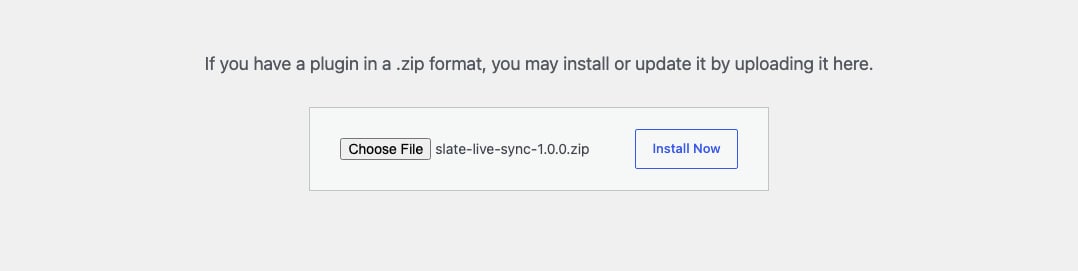
Choose the downloaded ZIP and click Install Now. Keep the file zipped.
Activate the plugin
- Click Activate Plugin after installation.
- Open Settings → Slate Live Sync.

Slate Live Sync appears in Installed Plugins. The Deactivate link confirms that it is active.
Connect WordPress to Slate
- Click Connect to Slate in WordPress.
- Sign in to Slate if prompted.
- Choose the workspace that should receive the content updates.
- If prompted, click Register website for the displayed site.
- Select an existing WordPress read connection for this exact site, or click Authorize WordPress read access.
- When authorizing, approve access in the WordPress popup. Return to Slate after the popup closes.
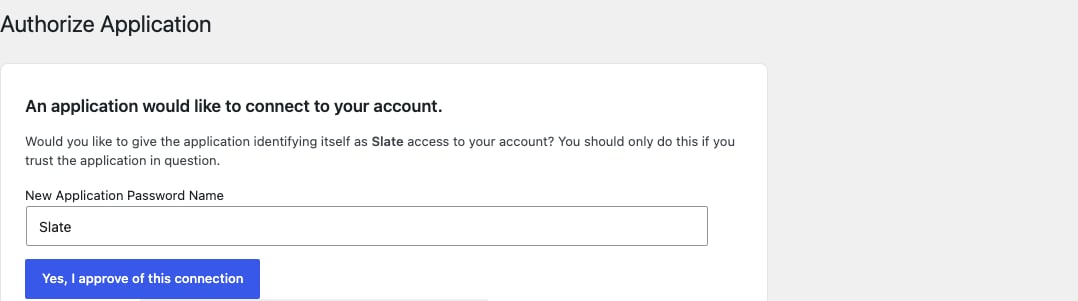
In the WordPress popup, choose Yes, I approve of this connection to grant Slate access.
- Select the content types to track, usually post and page.
- Click Approve connection.
- WordPress shows Preparing, then Connected after the initial inventory finishes.
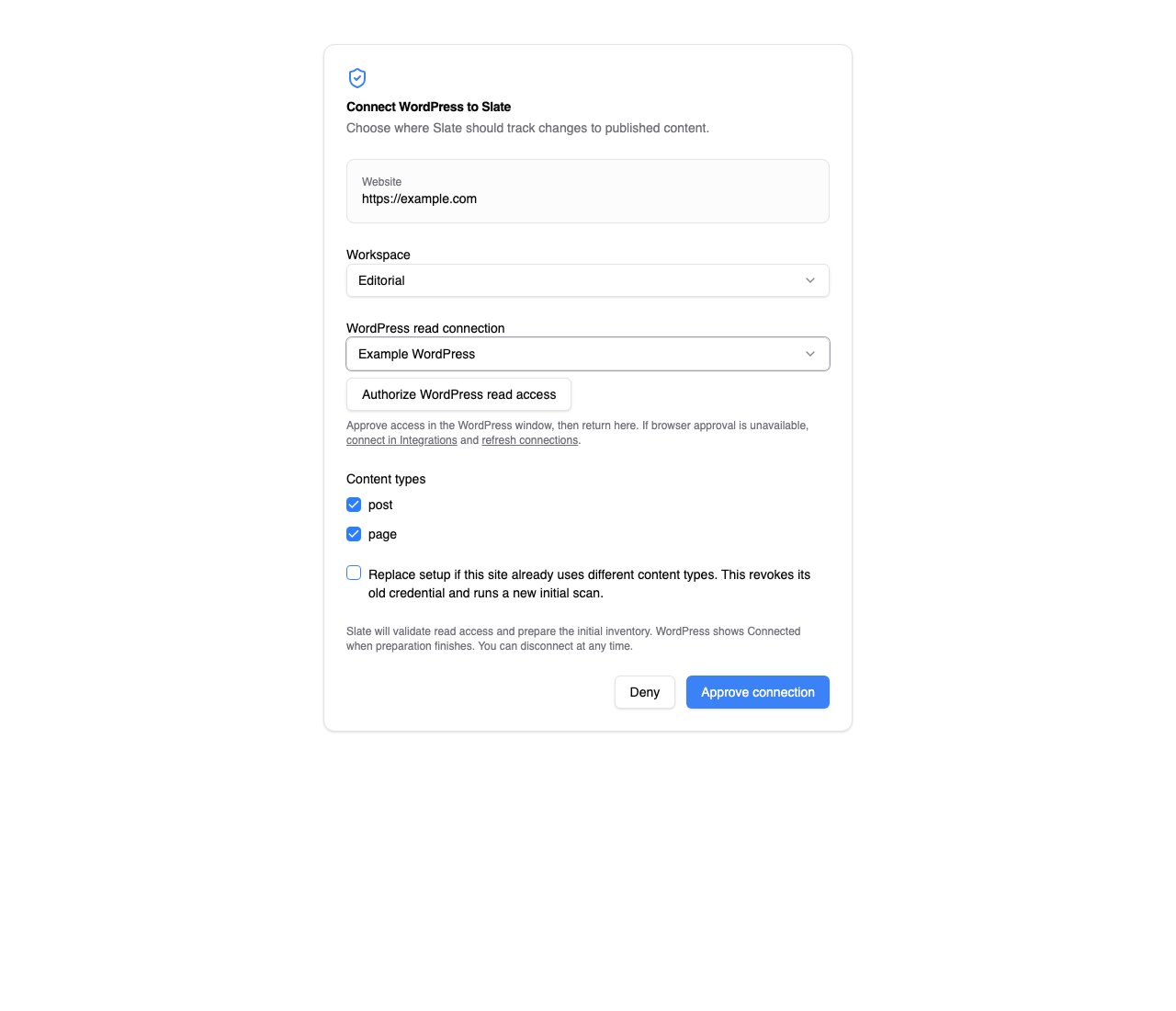
Example approval screen using demo data. Choose your actual workspace and a connection for your own site.
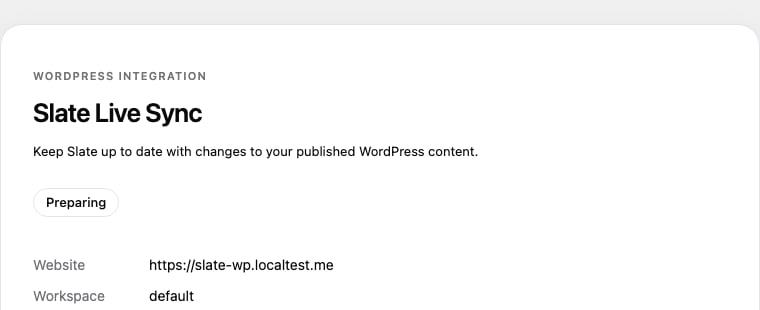
Example Preparing state while Slate builds the first inventory. Wait for Connected before testing content changes.
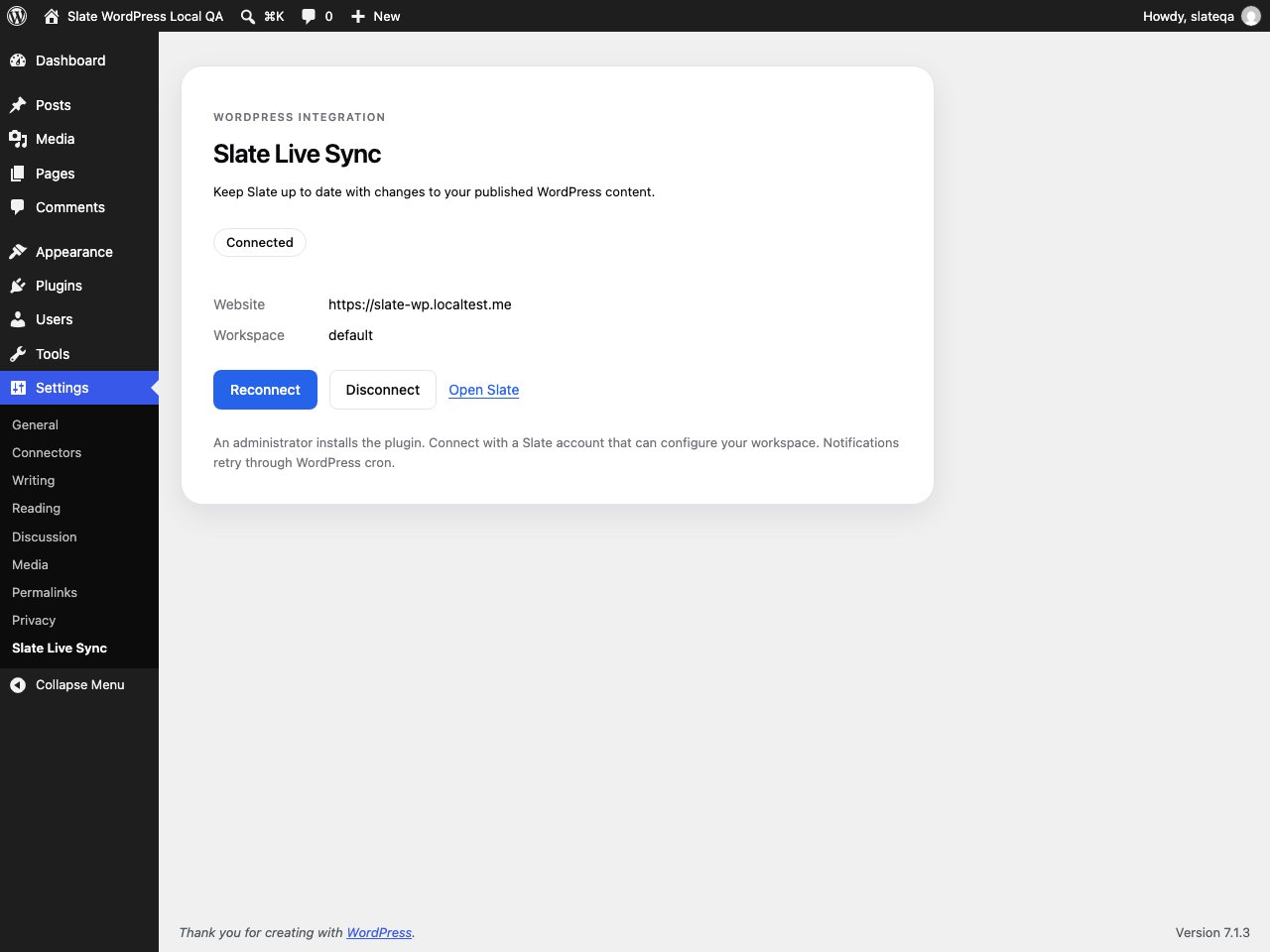
The installed plugin showing Connected on a disposable local WordPress site.
What gets recorded
Open Pages and Update History to review changes. Same-day actions can share one history row. Several rapid edits can appear as one update.
Slate normally checks published content about a minute after a notification. This is a delay, not an immediate website cache refresh.
Failed notification deliveries retry through WordPress cron. Cron needs site traffic or a configured cron job. An hourly recovery process checks older connections; missed changes can take about two hours to recover, and outages can extend that.
Standard posts, pages, and compatible public REST post types are supported. Custom fields count only when exposed in standard REST meta. Hidden fields, plugin-specific REST fields, theme templates, and external content are outside this feature’s scope.
Existing manual PHP setups
Existing installations using a downloaded PHP file inwp-content/mu-plugins can keep that setup.
If you installed the ZIP and WordPress shows Connected, you do not need to download or install the manual PHP file. A webhook URL or manual download may still appear in Slate’s compatibility controls.
When migrating a manual setup, remove its old Slate notifier file so both installations do not send notifications. Preserve unrelated must-use plugins. Then connect the installed Slate Live Sync plugin to the same website and read connection.
Disconnect or change setup
Click Disconnect in WordPress Settings → Slate Live Sync, or Disconnect live updates in Slate. Disconnect revokes the notification credential. The underlying WordPress read connection remains available for other uses. To change content types, start Reconnect, select the new types, and confirm Replace setup in Slate. Replacement revokes the previous notification credential and starts a new initial inventory. For uninstall, disconnect while the site can reach Slate, then deactivate and delete the plugin. Uninstall clears local credentials even if remote revocation fails; confirm disconnection in Slate when unsure.Troubleshooting
Continue with WordPress workflow actions if you also want Slate to create or update content.