

Why it matters
Clients often warn you on calls before they leave: a budget pause, a new decision maker, talks with another agency. Slate catches these signals across all your clients’ calls and feeds them into client health and alerts.How routing works
- Each client has client domains, such as
acmeanalytics.io. A call goes to every client whose people were on it. - A call with only your agency’s people is internal. Slate skips it and doesn’t store it.
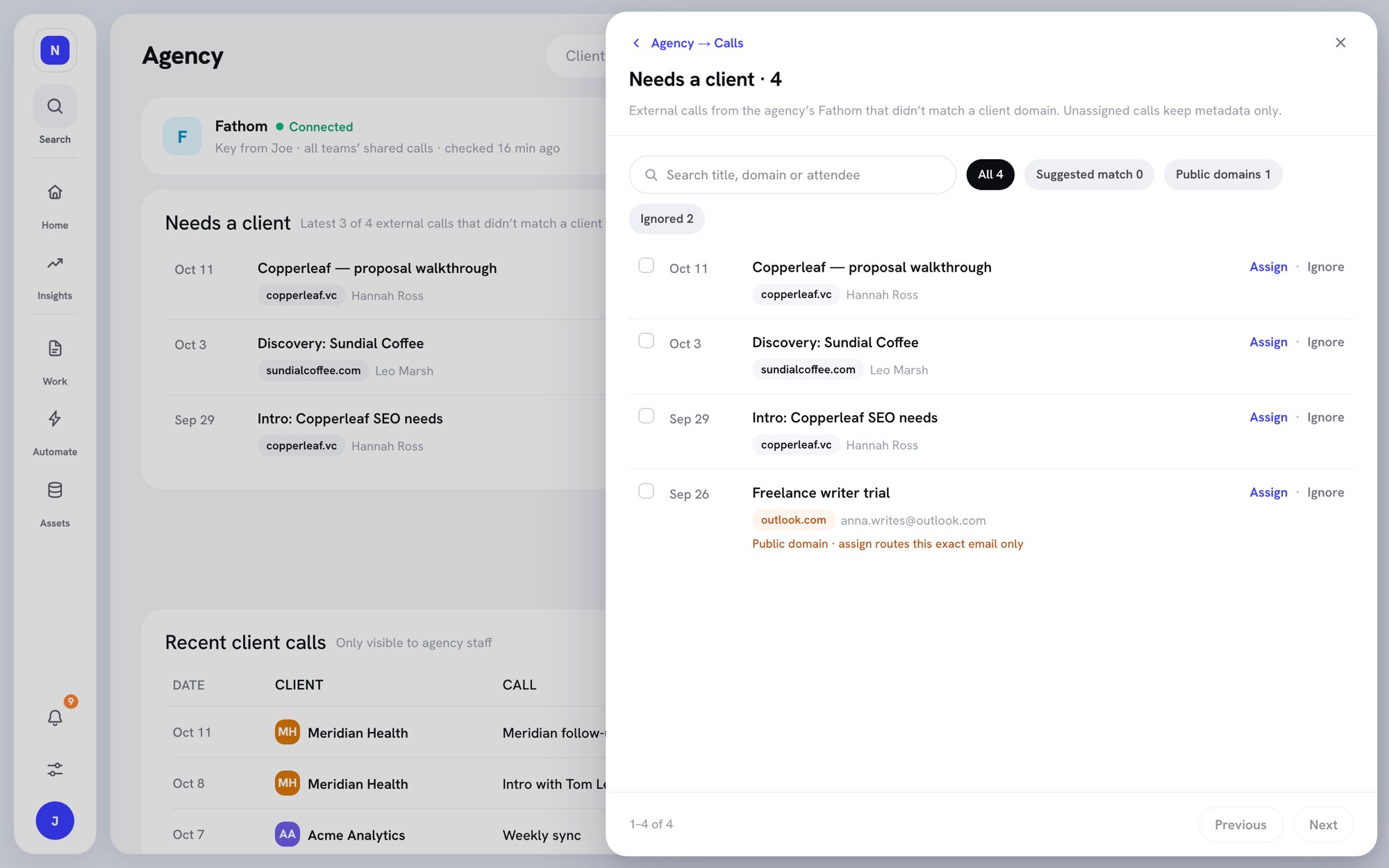
- An external call that matches no client waits in Needs a client. Until you assign it, Slate keeps only its title, date, and attendees.
- Public email domains, like gmail.com, can’t route a whole domain. Add the exact email address instead.
- Calls with Inactive clients aren’t stored.
Connect your agency’s recorder
Only Owners and Admins can connect the agency recorder. The agency recorder supports Fathom. You need the API key of a Fathom admin who can see all teams’ shared calls. In Fathom, create the key under Settings → API Access.- On the Agency page, open the Calls tab.
- Click Connect a recorder, then pick your recorder.
- Step 1: Paste the API key and click Continue. If Slate says “This account sees only its own calls”, use an admin’s key instead, so your teammates’ calls come in too.
- Step 2: Check your Agency domains and click Continue. These are shared with Agency settings.
- Step 3: Confirm the client domains. Click Use ‹number› suggestions to accept domains from each client’s brand kit, or type a domain or email for a client and click Add.
- Click Start import.
The Calls tab
The Calls tab
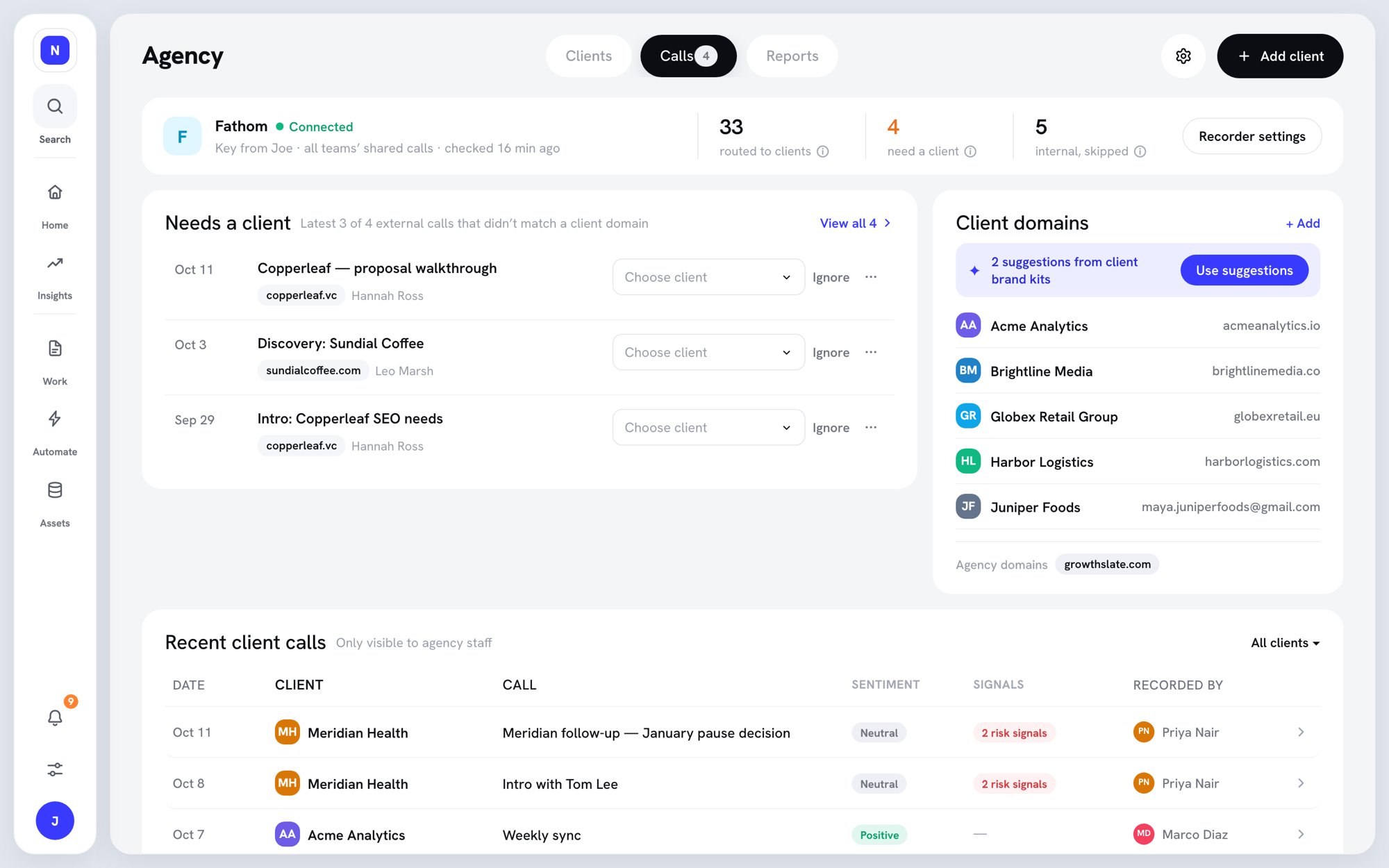
- The recorder card shows how many calls were routed to clients, how many need a client, and how many were internal, skipped.
- Recorder settings lets you edit Agency domains, Replace API key, Pause importing, or Disconnect.
- Recent client calls lists routed calls with their Sentiment, Signals, and who recorded them. Members see calls for their own clients only.
Assign calls that need a client
- Under Needs a client, find the call.
- Click Choose client and pick the client. Slate may suggest a match.
- Keep Always route @domain here ticked so future calls from that domain route on their own. Untick it for a one-off call.
- Click Assign. Slate imports the transcript and reads the call.
Needs a client
Manage client domains
In Client domains, click + Add to add a domain or email for a client, or Use suggestions to accept domains from client brand kits. Domains learned from assigned calls are marked as learned. Ignored domains lists domains you’ve ignored; click Restore to route them again.Read a call
Click a call to open its read. Slate usually finishes reading a call within 30 minutes.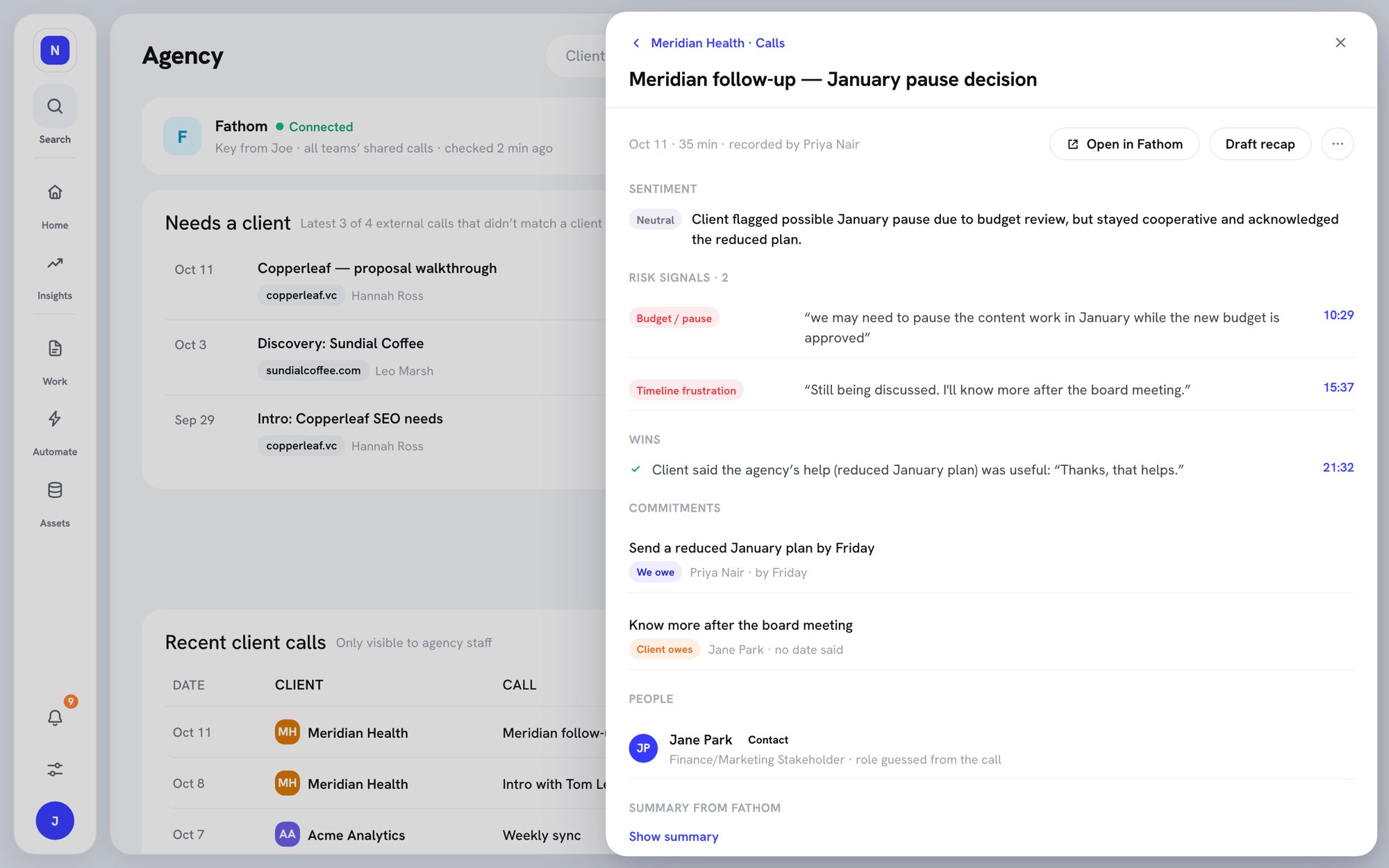
A call read
- Sentiment — Positive, Neutral, or Negative, with a one-line reason.
- Risk signals — each with a quote and a timestamp. Types: Budget / pause, In-house / AI, Other agency / RFP, New leadership, Results concern, Fee pressure, Scope friction, Timeline frustration, and Access / export request.
- Wins — good news the client shared.
- Commitments — what We owe and what the Client owes, with dates when someone said one.
- People — who was on the call. Click Add as contact for someone new.
- Open transcript — search the transcript, or filter it to Risks, Wins, or Commitments.
Staff recorders for client calls
Staff can also send client calls from their own Fathom, Granola, or Wispr Flow account. Slate routes these calls by client domain, like the agency recorder. An admin first turns on Staff can connect their own recorders in Agency settings → General. Then each staff member:- Clicks their avatar and opens Profile → Connections.
- Under Call recorders, clicks Connect a recorder and picks a provider.
- Connects the account with an API key, or signs in for Wispr Flow.
- Under Where should your meetings go?, picks My agency’s client calls.
- Picks which meetings to import, then clicks Import ‹number› meetings.
- Only meetings with my clients skips meetings with nobody from a client domain.
- Never import titles containing skips meetings by title. It starts with words like interview, candidate, 1:1, personal, doctor, and legal.
- Never import meetings with these domains skips meetings with anyone from those domains.
- Review mode picks Ask me first or Import automatically. With Ask me first, meetings wait under To review. Click Import, Skip, or Always skip ‹domain›.