

Where to Find It
Go to Assets → Knowledge Base in the sidebar.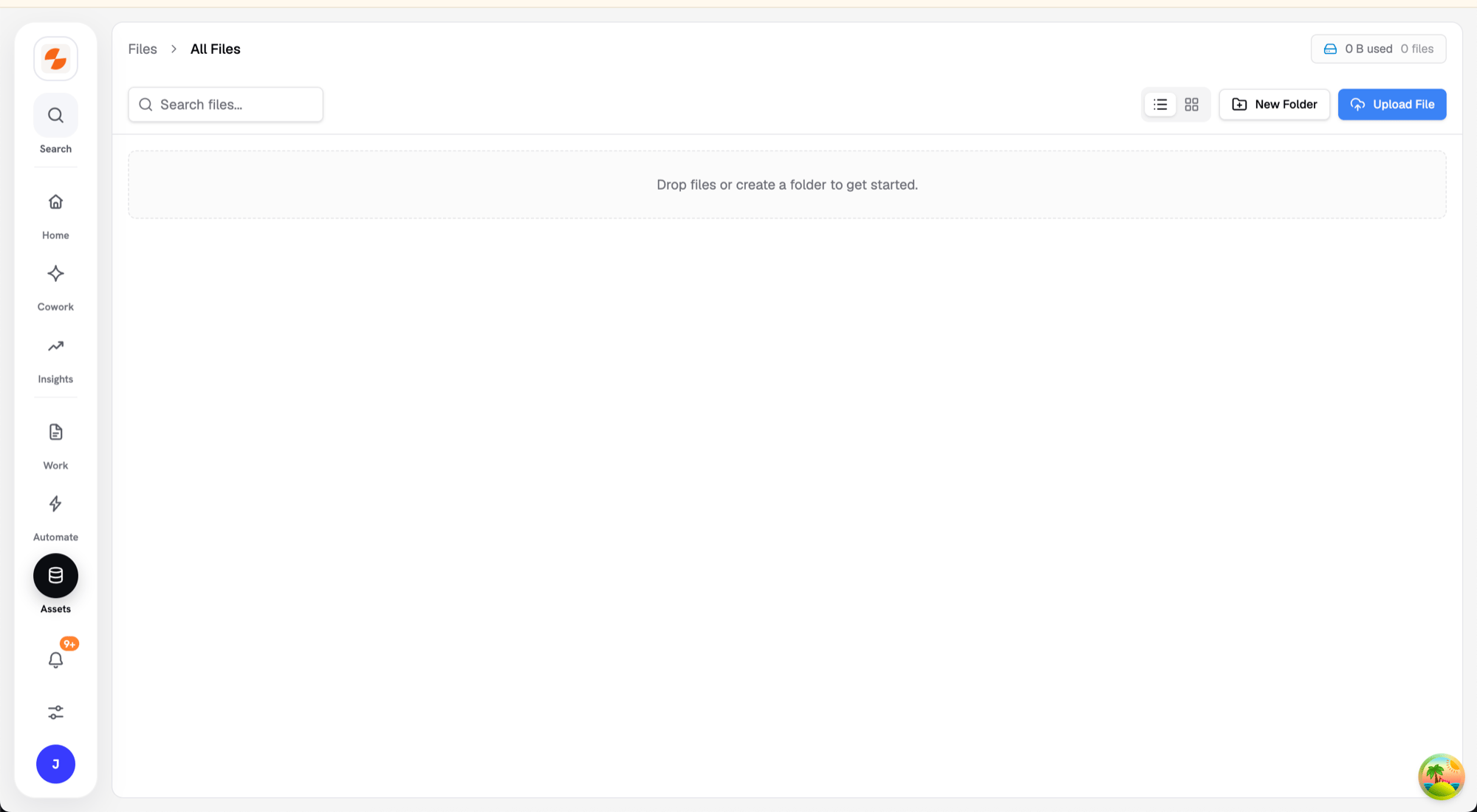
Knowledge Base file storage
Uploading Files
- Click Upload File, or drag and drop files onto the file area.
- Any file type is accepted. Slate indexes the text of PDF, Word (.docx), PowerPoint (.pptx), text, and Markdown files, and reads text in images with OCR. Spreadsheets (CSV, XLSX) and other file types are stored but not indexed for search.
- In grid view, a new file shows “Your file is being synced” while it waits to be indexed.
- If a file with the same name exists in the folder, Slate asks whether to replace it.
- The Uploads panel shows live status for each upload: Queued, Uploading to storage, Finalizing and ingesting, then Completed.
Organizing
- Click New Folder to create folders; folder cards show their subfolder and file counts.
- Use the folder menu to Open, Rename, Move, or Delete a folder. Click Make public or Make private to change its visibility.
- Search with the Search files… box, and switch between list and grid views.
- Long file lists are split into pages. Use Items per page to show 25, 50, or 100 files.
File Actions
In list view, hover a file and click the eye icon to preview it. Previews work for images, PDFs, Word documents, spreadsheets, presentations, markdown, and text files. Open a file’s menu for more actions:Tags and Metadata
In File Information, add tags (up to 20 per file) and custom key-value metadata. The File Search workflow block’s filters can target tags, but not custom metadata.How Slate Uses These Files
- Workflows — the File Search block searches inside your uploaded files and returns the most relevant passages. It can target specific folders, file types, tags, and date ranges.
- Cowork — attach a Knowledge Base file to a message with Add attachment (+) → Attach from workspace. The agent can also read files you upload to a Cowork project. It uses these files as context for research and writing.
What’s Next
- File Search block — query your files from a workflow
- Cowork — chat with the agent grounded in your files
- Brand Kit — structured brand context, separate from file storage