

Outreach is available to selected workspaces. Ask your Slate contact to turn it on for your workspace.
Prerequisites
- A HeyReach account with at least one LinkedIn sender connected.
- Your HeyReach API key (in HeyReach: Settings → API keys).
- The Admin role in your Slate workspace to connect HeyReach in Integrations.
- Slate credits for contact enrichment. See Credits.
Connect HeyReach
Each workspace connects its own HeyReach account.- Open Workspace settings → Integrations and find HeyReach in the Outreach card.
- Click Connect, paste your HeyReach API key, and click Save key.
- Slate validates the key against HeyReach and shows Connected.
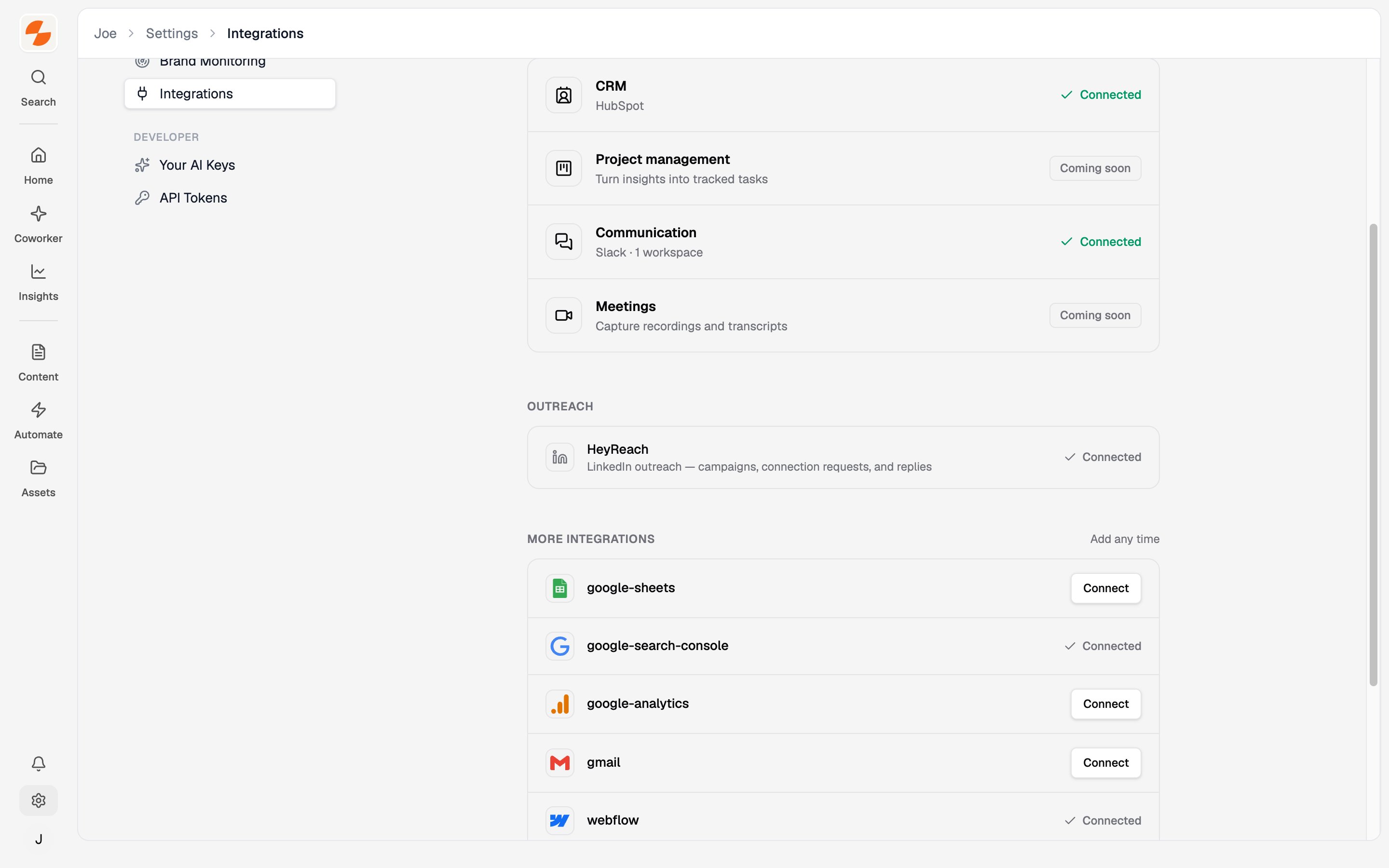
HeyReach under Outreach on the Integrations page
Create a LinkedIn campaign
Open Automate → Outreach → Campaigns and click New campaign. The builder has five steps: Basics, Channel, Recipients, Content, and Review & enable. If you use an existing HeyReach campaign, the builder skips Content.1. Basics
Enter a Campaign name.2. Channel
Select LinkedIn. The Email option is marked Coming soon. Then choose how the sequence is created:- Select from a template — start from a ready-made Slate sequence (Simple Outreach or Partnership Proposal) and personalize the messages in the Content step.
- Use an existing campaign — add contacts to a campaign you already built in HeyReach. Its sequence stays managed in HeyReach.
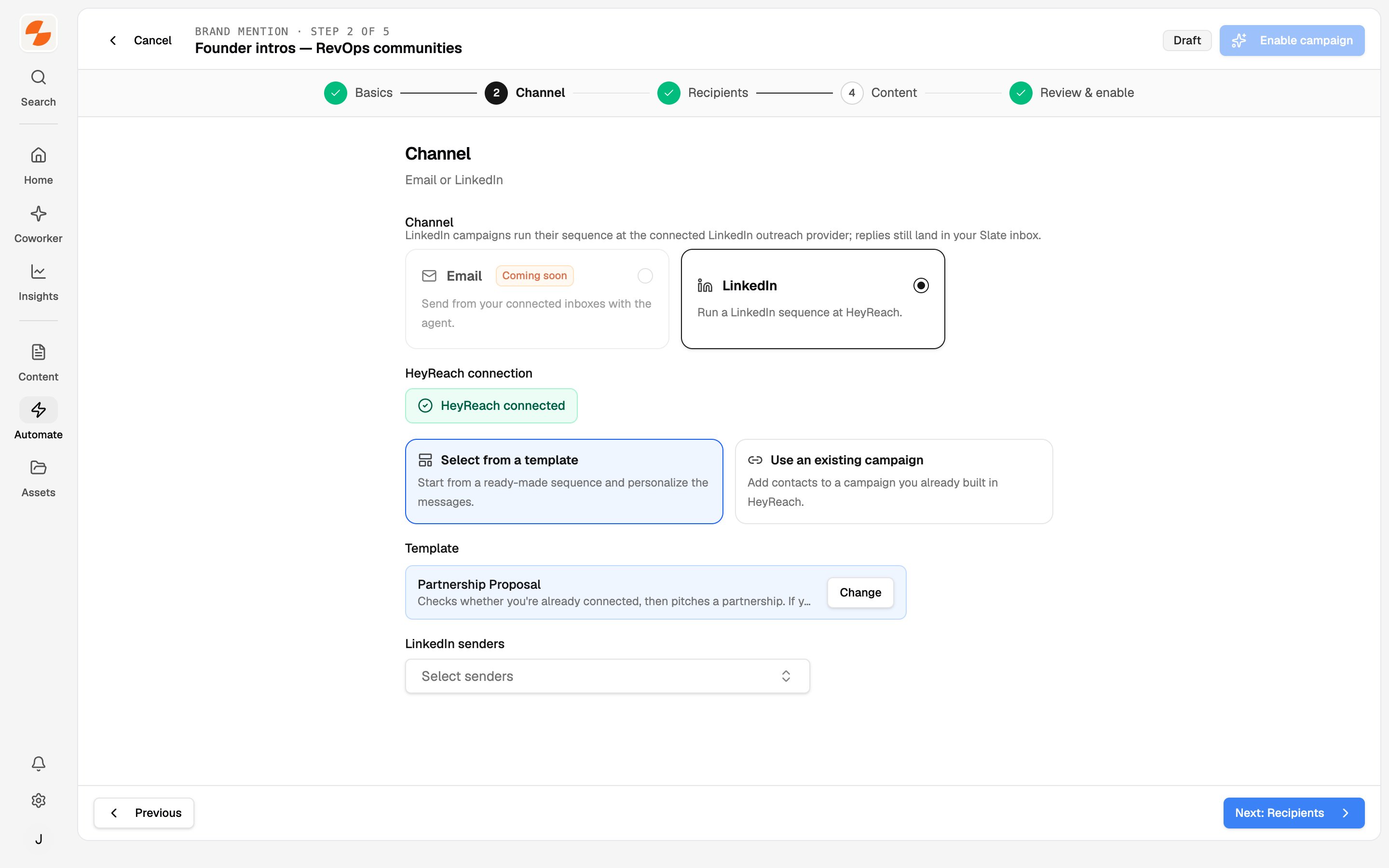
Channel step: LinkedIn channel, connection status, template, and senders
3. Recipients
Choose where contacts come from:- Sync from LLM search citations — enrolls the domains AI answers cite for your prompts in Insights → AI Visibility. It’s the default when AI Visibility is set up.
- Sync from Outreach opportunities — enrolls pages Slate researched where your brand is missing, by Auto sync or Select manually. Shown only when Outreach opportunities are on for your workspace.
- Upload manually — bring your own list as a CSV. A LinkedIn profile URL column (
linkedin.com/in/…) is required for LinkedIn campaigns. Extra columns become message placeholders. Up to 50,000 rows or 25 MB per file.
4. Content
The sequence renders as a flowchart. Click any message block to edit what it says.- Click Insert placeholder to add values such as
{{FIRST_NAME}},{{MENTION_URL}}, or your CSV columns. They fill per contact at send time. - The preview shows the message as it reads on LinkedIn, using a real recipient from your list when one exists.
- The Fallback message is the variable-free text sent when a placeholder can’t be filled (for example, no first name on the profile). Slate auto-generates it from your message. Edit it if the wording needs adjusting.
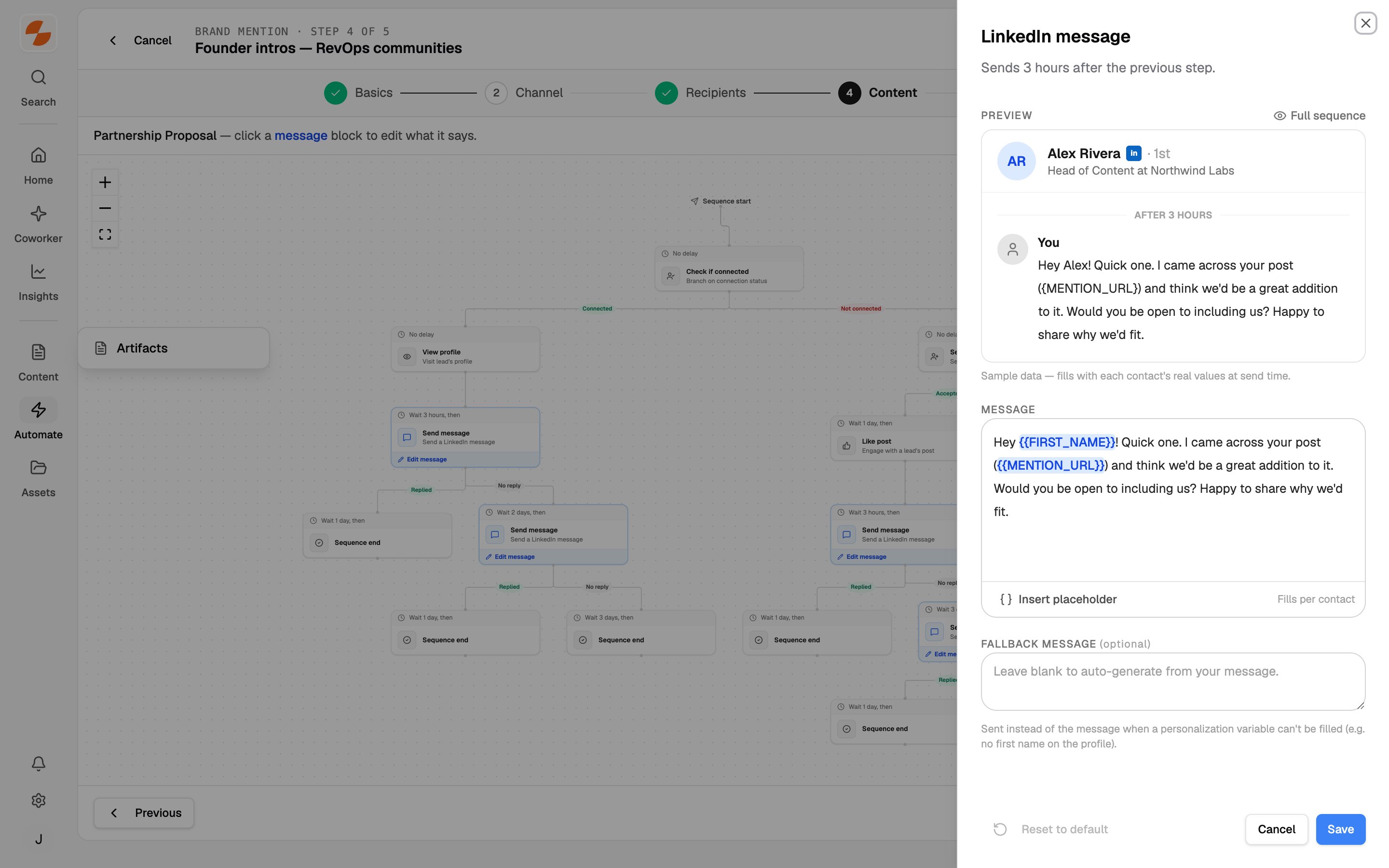
Content step: click a message block to edit text, placeholders, and the fallback
5. Review & enable
The footer shows the estimated credits for launch. Click Enable campaign. For a template, Slate creates the campaign in HeyReach with your edited messages, enrolls recipients, and starts the sequence.Track a running campaign
The campaigns list shows each campaign’s Inbox, Tags, and Status, plus counts for Enrolled, Sent, Pending, Replies, Positive replies, and Outcome. Summary tiles total Active campaigns, Contacts reached, Positive replies, and Outcomes achieved.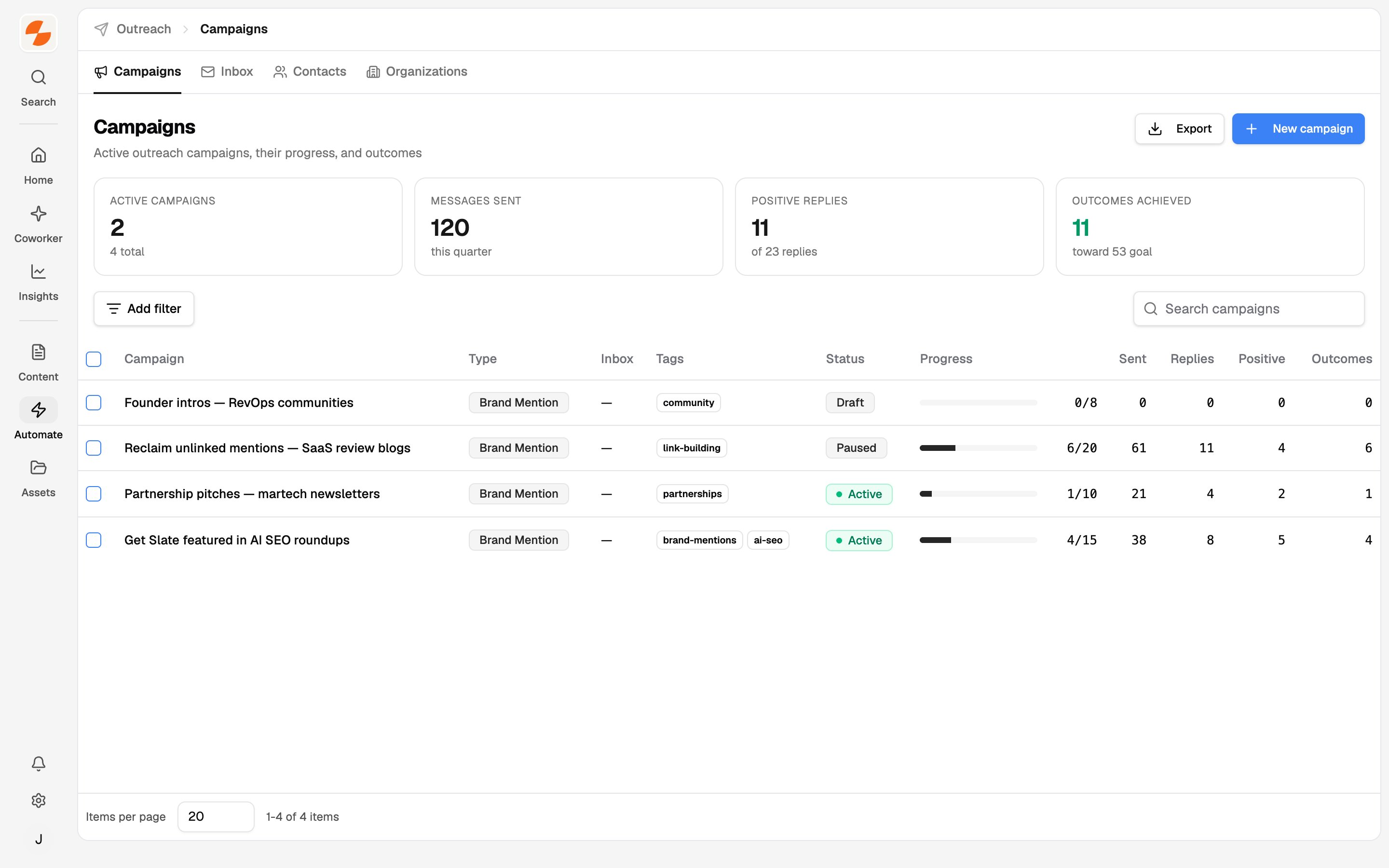
Campaigns list with progress and reply metrics
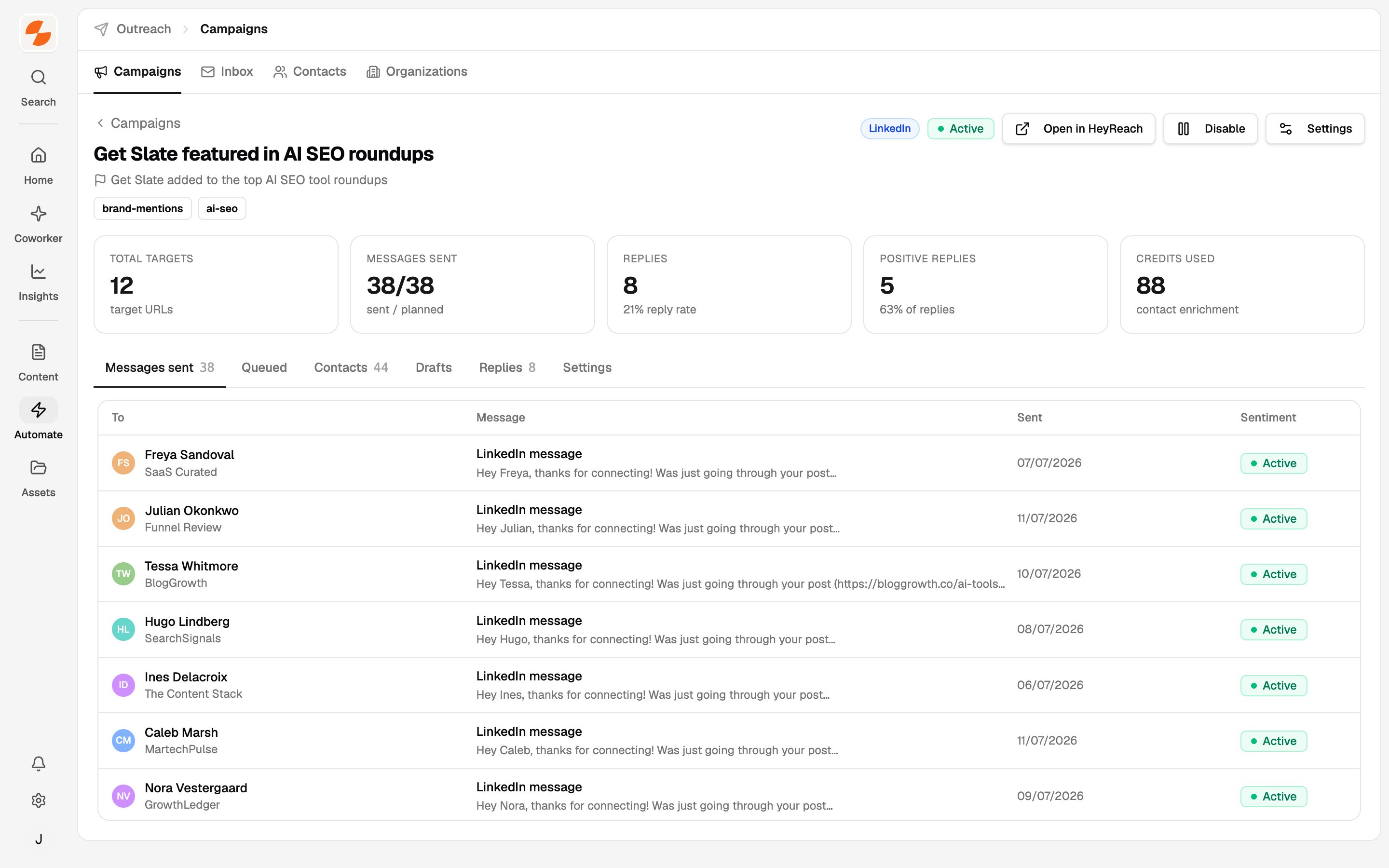
Campaign detail after launch
- Disable stops the campaign and Enable resumes it — in HeyReach too, for template campaigns.
- Retry failed enrichment (N) reruns contact lookups that failed.
- Settings shows the campaign’s configuration (read-only).
Work replies in the Inbox
Replies land in Outreach → Inbox, tagged with a sentiment. The campaign creator also gets an in-app notification for each real reply, and an email if it stays unread. The Inbox sidebar groups conversations:- Needs attention: Awaiting Reply, Needs Human Review, and Positive Replies.
- Views: All, Active, and Not Interested / Lost.
- Open a conversation, write a message, and click Send reply.
- When a contact delivers, open the conversation’s ⋯ menu and click Mark outcome achieved.
- Pick Brand mention added, Backlink acquired, Partnership acquired, or Other, then click Mark achieved. The outcome counts toward the campaign goal.
Contacts and Organizations
- Contacts lists everyone you reach out to. Add people with Import CSV or New contact.
- Organizations lists the companies and publications behind your contacts.
Credits
Contact enrichment consumes workspace credits:
Only newly found profiles are charged — reused contacts are free. Before launch, Slate checks that your balance covers the pending target URLs. If your balance runs out while a campaign runs, Slate pauses the campaign. Add credits, then click Enable on the campaign to resume.
Things to keep in mind
- Message edits lock at launch. Edit messages before enabling the campaign. After launch, edit the sequence in HeyReach directly.
- Fallback messages must be placeholder-free. They’re sent as written when a variable can’t be filled.
- HeyReach enforces a minimum 3-hour delay between sequence steps.
- Contacts need a LinkedIn profile URL. Contacts without one are held until enrichment finds a profile, then enrolled automatically.
- Linked existing campaigns are yours to run. Slate adds contacts to them but never starts or pauses them — manage those in HeyReach.