

Why it matters
Renewal alerts, health scores, and weekly briefs all read from the client record. A complete record means accurate alerts and no surprise renewals.Open a client record
- Open the Agency page and stay on the Clients tab.
- Click a client’s row.
Overview
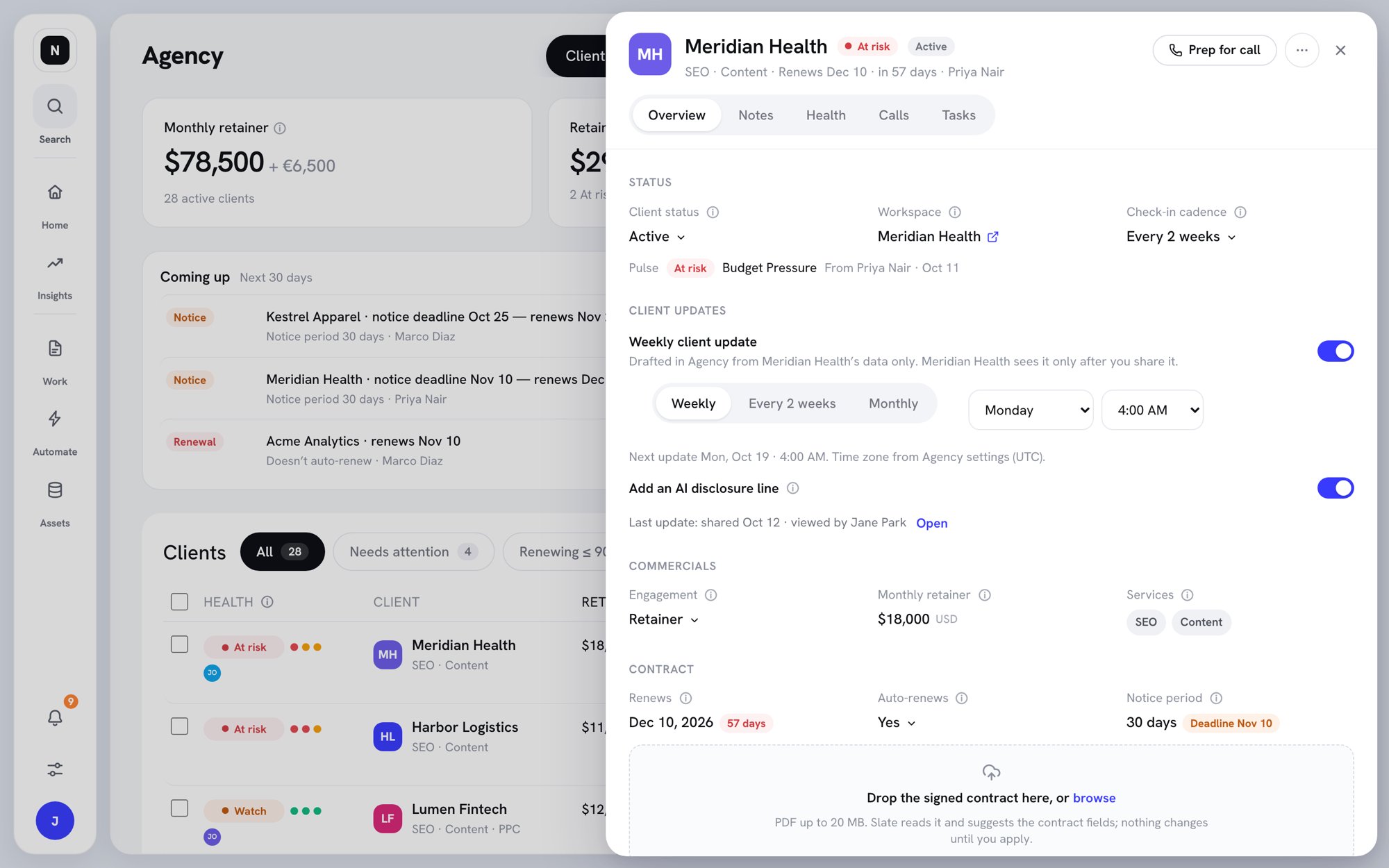
A client record, Overview tab
Status
- Client status — Active, Inactive, or Not a client. See Manage clients.
- Workspace — the client’s own Slate workspace. Its tasks, results, and client users feed the record.
- Check-in cadence — how often the client expects contact: Every week, Every 2 weeks, Every month, or Every quarter. The default is every 2 weeks. The cadence drives the “No note or client touch” alert.
- Pulse — your own read of how the client feels. See Set a pulse.
Client updates
Turn on Weekly client update to have Slate draft a regular update for this client. See Account manager workflows.Commercials
- Engagement — Retainer, Project, or Hourly.
- Monthly retainer, Project value, or Hourly rate, depending on the engagement. When you change a retainer, choose From today or From a date.
- Services — what you do for the client, for example SEO or Content.
Contract
- Renews — when the contract ends or renews. It drives renewal alerts and the Renewals in 90 days card. A Missing chip means there’s no date yet.
- Auto-renews — Yes when the contract renews unless someone gives notice.
- Notice period — days of written notice before renewal. Slate works out the deadline and alerts you before it.
Upload the signed contract
Slate can read the contract and fill in these fields for you.- Drag the signed contract PDF onto Drop the signed contract here, or click browse. The file can be up to 20 MB.
- Wait while Slate reads it. This usually takes under a minute, and you can close the drawer.
- Click Review. Slate lists each field it found, with the page and a quote from the contract.
- Tick the fields to apply. Values that differ from the record start unticked.
- Click Apply ‹number› fields, or Keep the file, apply nothing.
Team, contacts, and goals
- Team — the account manager, account director, and team members. See Set the team.
- Contacts — people at the client. Click + Add contact and tag each person Day-to-day, Decision maker, or Billing. To record a departure, open the contact’s menu and click Mark as leaving, then pick the last day and who covers.
- Goals — what the client wants to achieve, in plain words. Click Add goals.
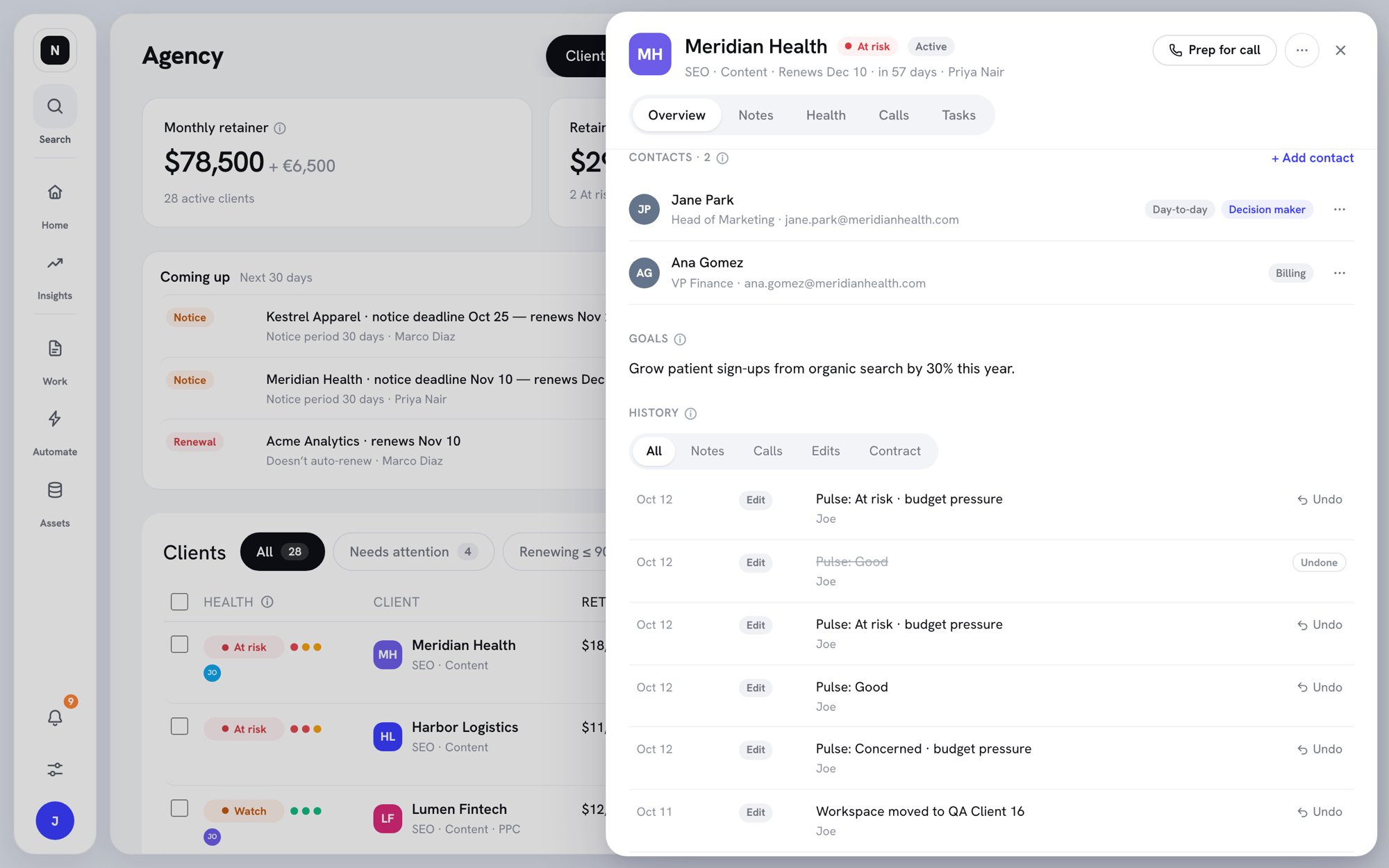
Contacts, goals, and history
History
History lists every change to the record: what changed, who changed it, and where it came from. Filter by All, Notes, Calls, Edits, or Contract. Click Undo next to a change to reverse it.Notes
Notes are for your agency only. Client users never see them.- Open the Notes tab.
- Type what you learned under Add a note, for example “Spoke to Jane: budget down 20% from January. Tom Lee is the new CMO.”
- Click Save note.
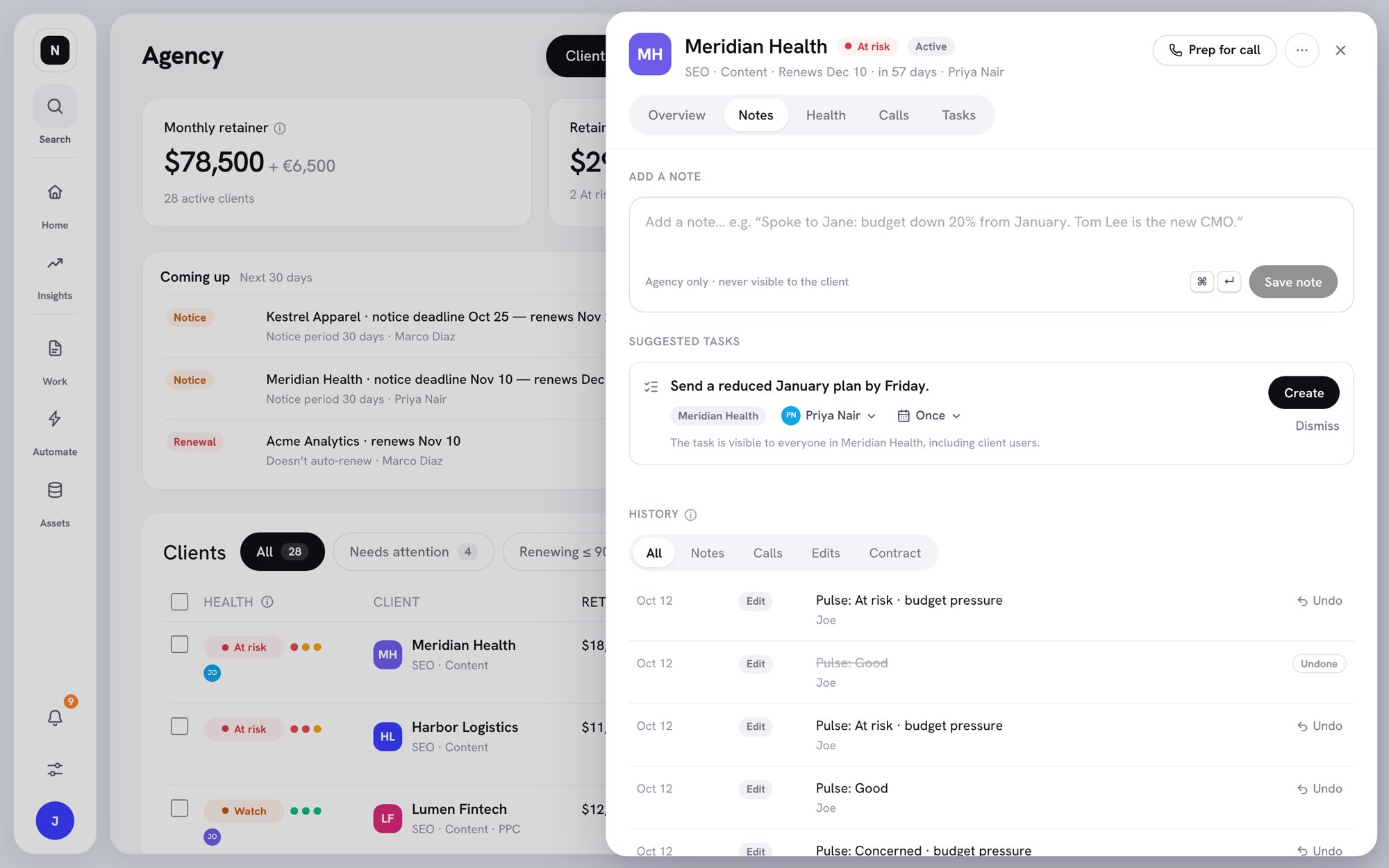
The Notes tab
What Slate does with a note
- Updates the record. Slate shows “Slate updated N things from this note”, for example a new contact, a leaving date, or a pulse. Click Undo all to reverse every change from that note.
- Suggests tasks. Follow-ups appear under Suggested tasks. Check the assignee, then click Create or Dismiss. Tasks are created in the client’s workspace, where everyone can see them, including client users.
- Asks before some changes. Changes that need your OK appear under Suggestions · need your OK. Click Apply to accept one. For example, if you can’t see money, a retainer change from your note waits here.
Calls
The Calls tab lists the client’s recorded calls with sentiment and risk signals. If your team connects Google Calendar, it also shows upcoming meetings, and flags meetings where the decision maker isn’t invited. Click a call to open its read. See Client calls.Tasks
The Tasks tab shows the client’s open work in four groups: Blocked on us, Waiting on client, Overdue, and Due this week. It includes tasks from Slate and from ClickUp.- Click Draft a nudge to draft a reminder about items waiting on the client.
- Click Open tasks in ‹workspace› to see all of the client’s tasks.
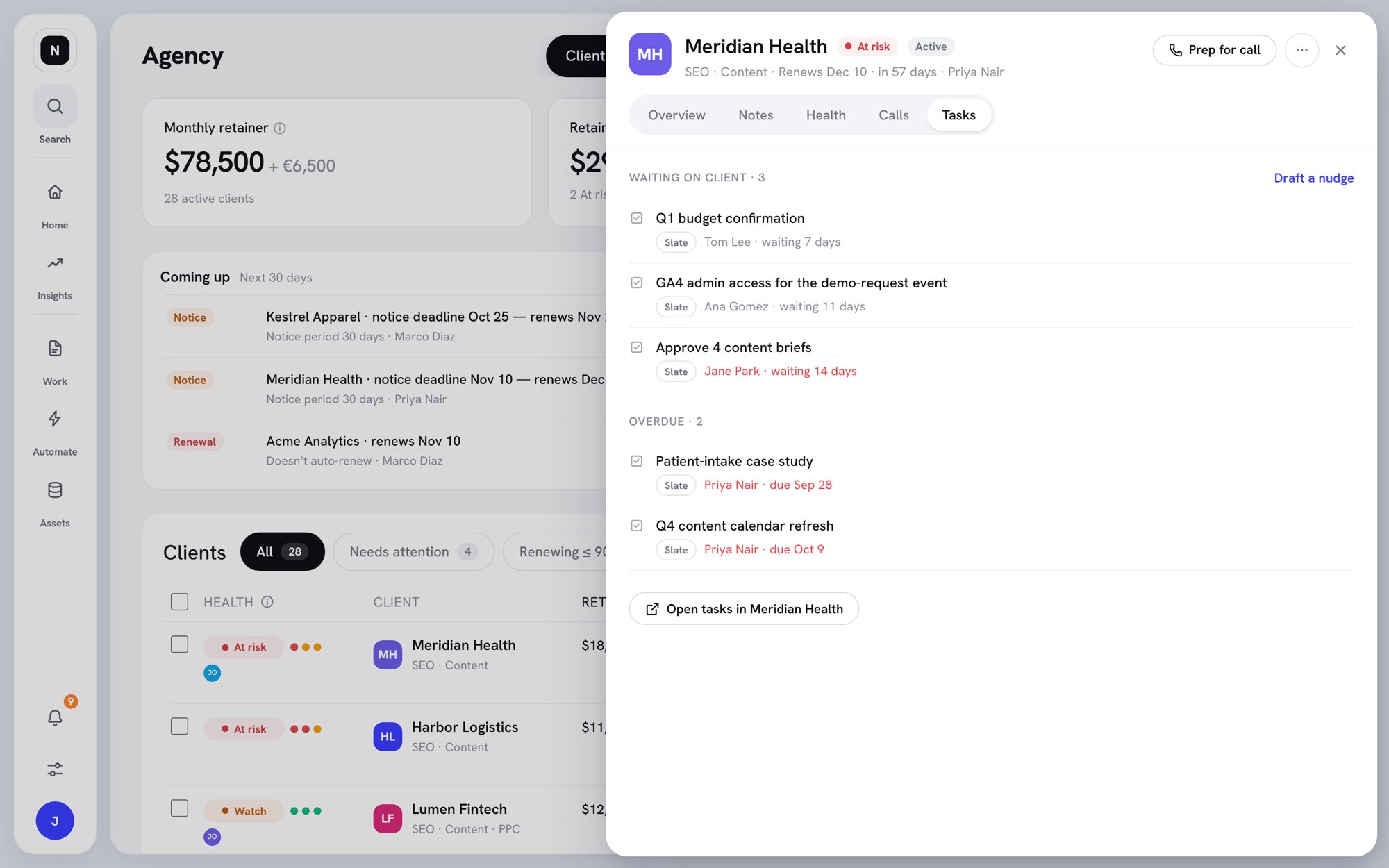
The Tasks tab